TI-Nspire™ Reference Guide 129
& (store)
/
h
key
Va lu e & Va r
List & Va r
Matrix
& Va r
Expr
& Function(Param1,...)
List & Function(Param1,...)
Matrix & Function(Param1,...)
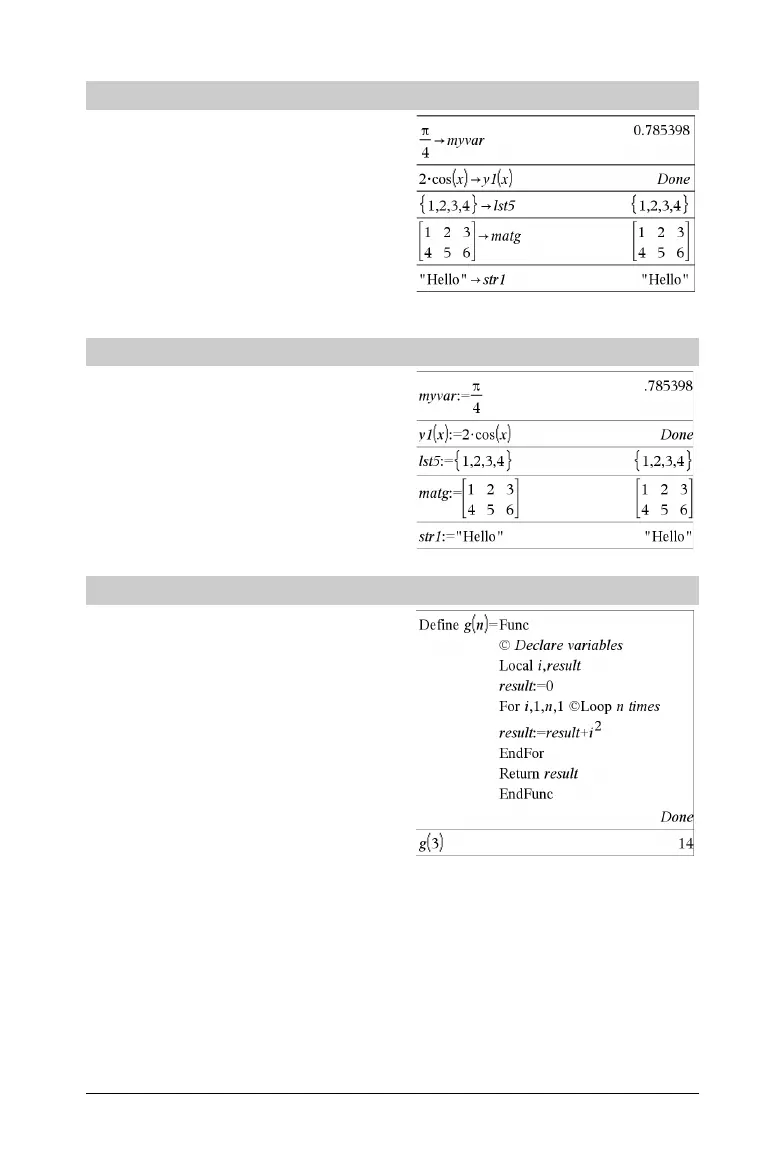
If the variable Va r does not exist, creates it and initializes it to Va l ue ,
List, or Matrix.
If the variable Va r already exists and is not locked or protected,
replaces its contents with Va lu e, List, or Matrix.
Note: You can insert this operator from the keyboard by typing =:
as a shortcut. For example, type pi/4 =: myvar.
:= (assign)
/t
keys
Va r := Va lu e
Va r := List
Va r := Matrix
Function(Param1,...) := Expr
Function(Param1,...) := List
Function(Param1,...) := Matrix
If variable Var does not exist, creates Va r and initializes it to Va lu e ,
List, or Matrix.
If Va r already exists and is not locked or protected, replaces its
contents with Va l ue , List, or Matrix.
© (comment)
/k keys
© [text]
©
processes text as a comment line, allowing you to annotate
functions and programs that you create.
© can be at the beginning or anywhere in the line. Everything to the
right of ©, to the end of the line, is the comment.
Note for entering the example: In the Calculator application
on the handheld, you can enter multi-line definitions by pressing @
instead of · at the end of each line. On the computer keyboard,
hold down Alt and press Enter.


 To Next Page
 Loading...