MC-X1 Connectivity and Configuration
5
Excavator Indicate System P/N: 1022461-01
MC-X1 Connectivity and Configuration
Configuration of the unit can be done using a GX Series display while connected in the machine, or with
a computer using the following programing cable:
• MC-X1 Program Cable
Connecting to the MC-X Web Interface from a PC
1. Open the web browser on the display
or your computer.
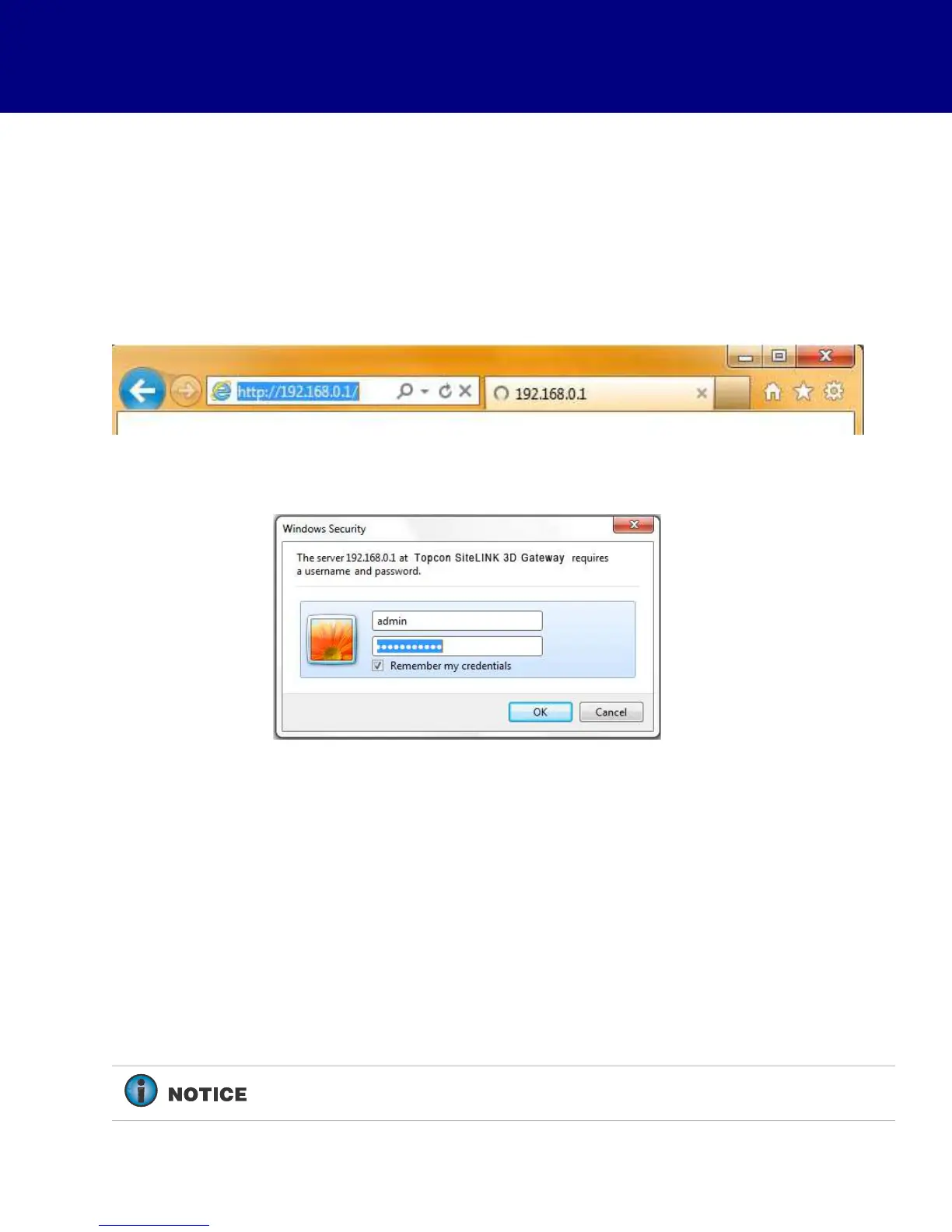
2. Type 192.168.0.1 into the address bar to connect to the web interface of the MC-X1 (Figure 6).
Figure 6. Access Topcon Sitelink3D Gateway Web Interface
When prompted for the user name and password, enter admin for both (Figure 7).
Figure 7. Enter Sitelink3D User Name and Password
Connecting to the MC-X Web Interface via MCXCONFIG
MCXCONFIG is also know as the MC-X Machine Control Gateway.
1. Download the MCXCONFIG installer file from myTopcon
(https://www.topconpositioning.com/support).
2. Double-tap on the MCXCONFIG program icon on the desktop of the GX Series display to open the
web interface.
3. When prompted for the user name and password, enter admin for both.
A password is not required in MCXCONFIG 1.0.3.3 or later.



 To Next Page