MC-X1 Connectivity and Configuration
Loading EASy-Proof Radio Channels
15
Excavator Indicate System P/N: 1022461-01
Loading EASy-Proof Radio Channels
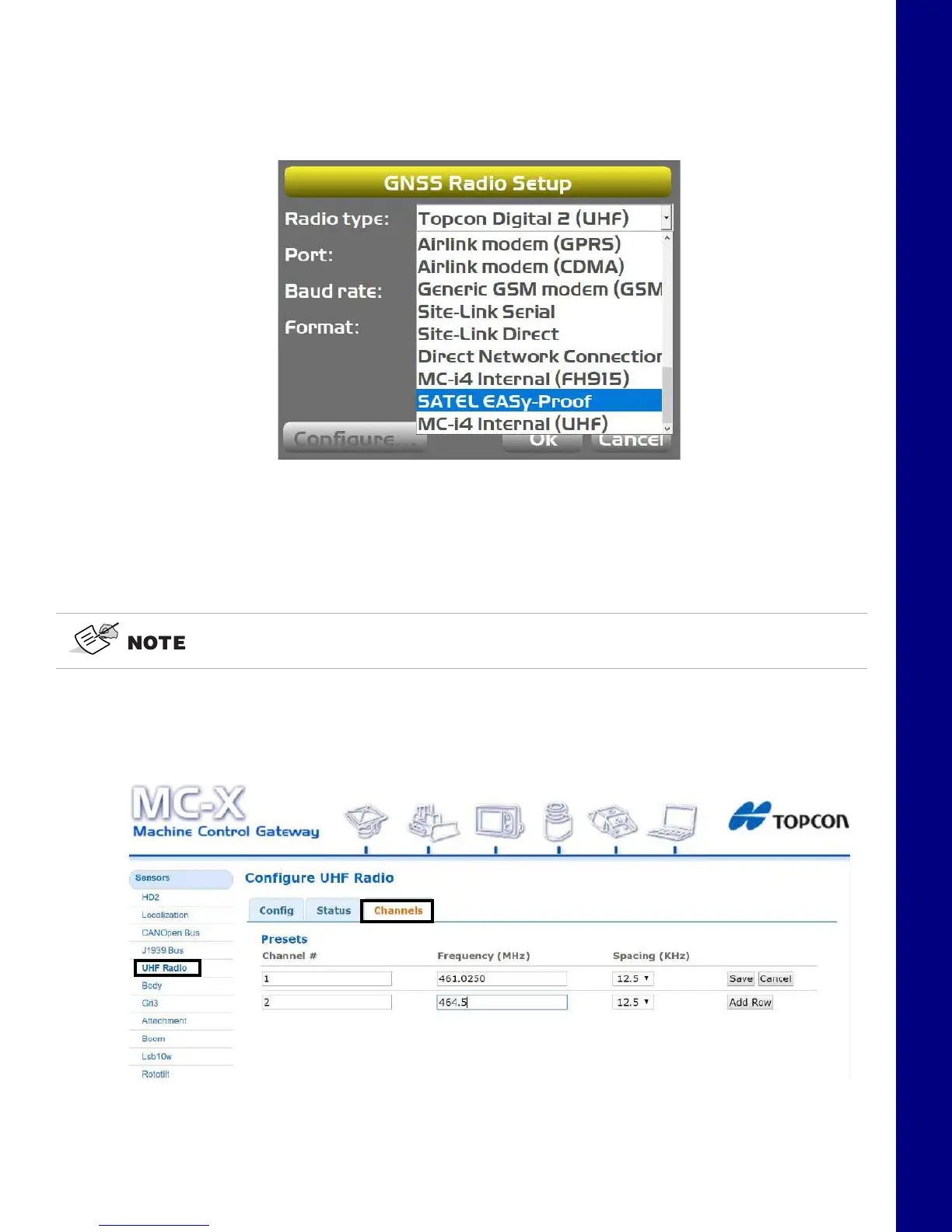
1. Open 3D-MC to create a machine builder file (if one has not already been created), and select
Satel EASy-Proof from the radio drop-down menu. If a machine builder has already been
configured, make sure Satel EASy-Proof is selected as the radio type.
Figure 25. UHF Radio Setup
2. Navigate to the end of the machine builder, and tap Finish.
3. Ensure the correct machine file is selected on the Machine files page, and Tap OK.
Now, your .mx3 is deployed, and the radio will populate in the MC-X Machine Control Gateway.
4. UHF RADIO will not populate in the MC-X Web Interface unless an .mx3 file with the Satel
EASy-Proof radio type is deployed from 3D-MC.
5. Open MCXCONFIG, and select UHF Radio under Sensors.
Figure 26. UHF Radio Setup
An .mx3 file that is active in 3D-MC is considered the “deployment”.



 To Next Page