100
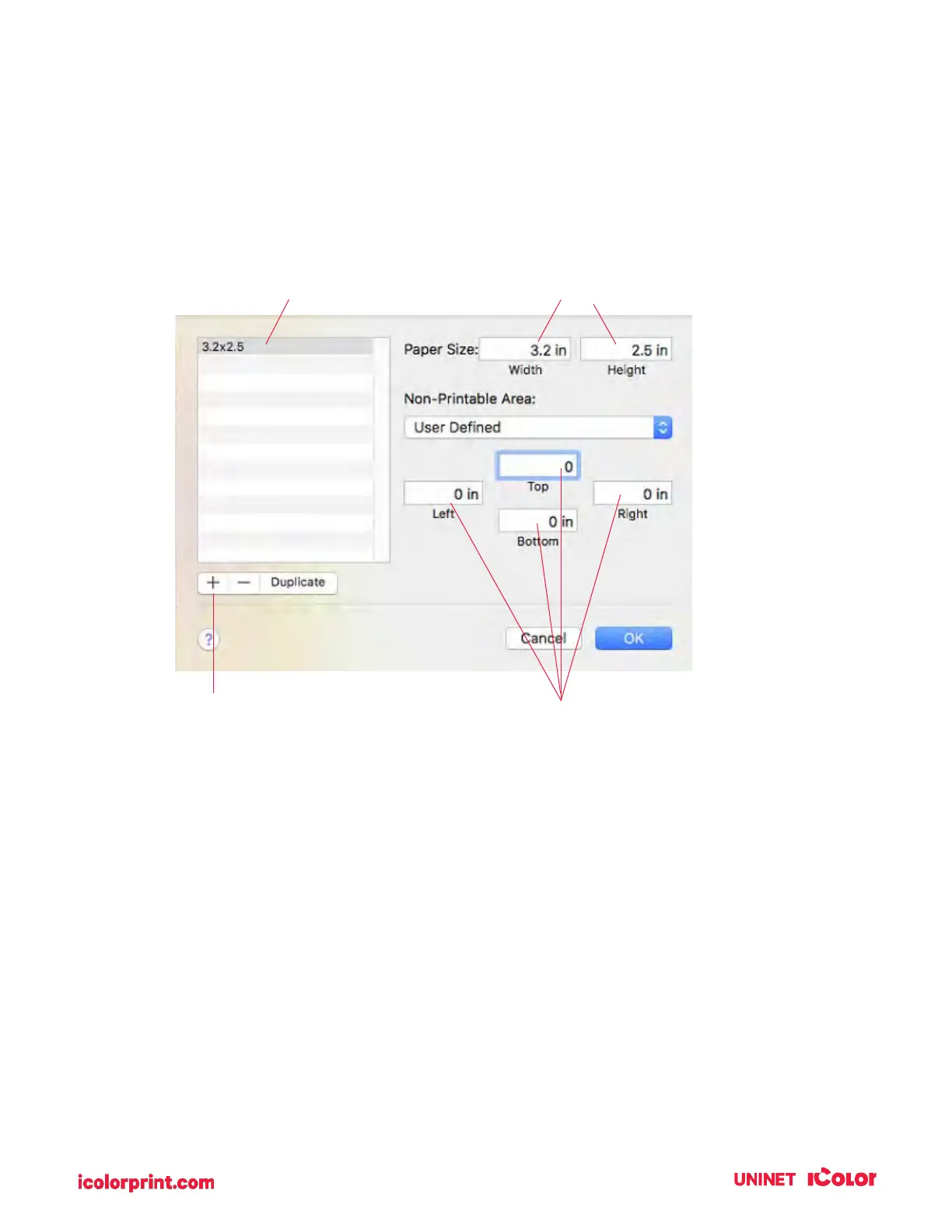
2. Click the + sign to create a new size.
3. Enter the actual width and height of your label stock.
4. Set all margins to zero.
5. Rename the size the same as the width and height.
6. Your custom size will now appear at the bottom of the preset size list in this application and any
other application on this Mac.
NOTE: If you need to over bleed your image to achieve complete coverage of your label, you
would use this process to create a custom size that is .03 inches (or less) larger than your actual
label stock. For Example, 4.03 inches x 3.03 inches for a 4 inches x 3 inches label.
Click plus sign to create a new
size


 To Next Page