78
5B. Add Text, Barcodes, and Graphics to a Label in BarTender
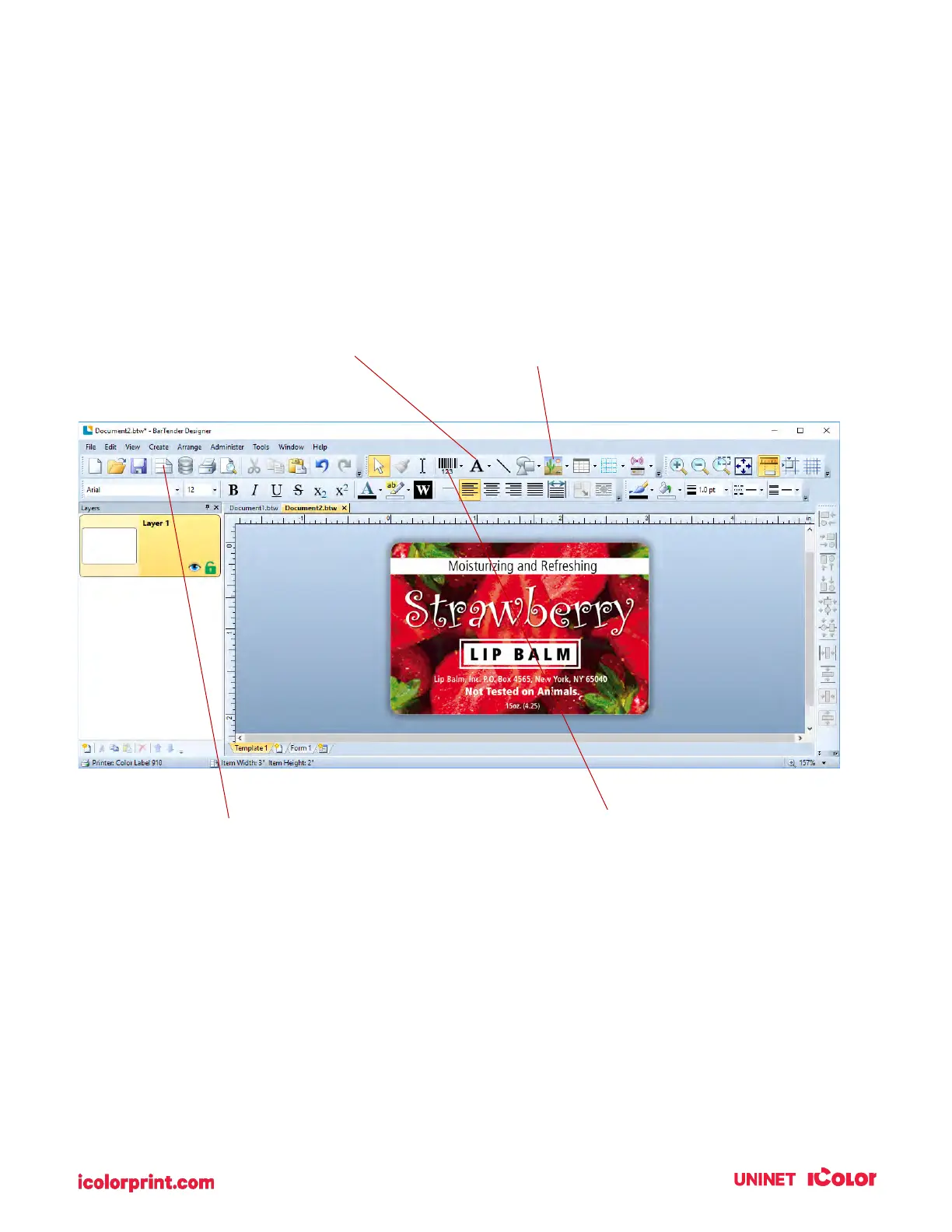
Once you have created your label size, you will be able to add text, a barcode, and/or graphics.
This can be done using one of the buttons on the button bar at the top of the screen.
Tip: Double-click any object to open settings for that object.
Tip: Go to the Help menu to access the BarTender Manual and Tutorials.
Add Text. Click the Text button. Now
click anywhere on your label. "Sample
Text" will appear. Edit the text on screen
or double click it to open up text settings
to change font, size and other settings.
Add Graphic. Click the Image button. Now
click anywhere on your label. An Image
icon will appear. Double-click it to open up
image settings and browse to the
image/graphic that you would like to
insert.
Add Barcode. Click the Barcode button.
Now click anywhere on your label. A
barcode settings window will appear. Here
you can choose any type of barcode and
enter the value.
Page Setup. Click the Page Setup button
to change your label size, adjust corner
radius or change the shape.


 To Next Page