4
Section 1: Getting Started
Say hi to the most versatile and lowest-priced label ink-based printer + die cutter all-in-one
solution in the marketplace.
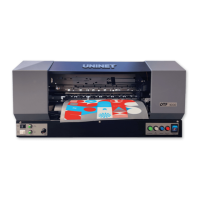
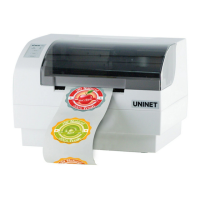
The UNINET IColor 250 is a Desktop ink-based, full color, built-in full die cutter, and full steam ahead for
short-run professional label production like you’ve never experienced before.
The IColor 250 is packed with the IColor CustomCUT Software, which means you don’t just cut labels; you
model them into your desired shape. This Software includes a robust set of tools to properly layout prints
and die-cuts for your UNINET IColor 250 printer. It features capabilities to cut standard label shapes,
create contour cuts, import a wide variety of file formats, advanced design tools, and more.
Also, the UNINET IColor 250 comes with superb versatile capabilities for Print only, Cut only or Print and
Cut functions, and equipped with an all-in-one high-capacity single ink cartridge technology with built-in
print-head (cyan, magenta, yellow, process black) for both pigment and dye-based applications.
This User's Manual is your complete step-by-step guide to quickly and easily setting up and printing with
your new IColor 250 Label Printer!
1A. Choosing a Good Location
• Place the printer on a flat surface in a location with adequate air circulation to prevent internal
heat buildup.
• Do not place the printer near heat sources such as radiators or air ducts, or in a place subject to
direct sunlight, excessive dust, mechanical vibration, or shock.
• Allow for adequate clearance in front of the printer to accommodate the printed label stock as it
is leaving the printer to avoid the possibility of binding or jamming of the label stock.
• Allow for 6” of clearance behind the printer to accommodate loop creation during cutting
operations. The area directly behind the printer must also not be obstructed by USB or power
cables connected to the printer.
• Allow for adequate overhead clearance for opening the top cover to allow easy access to the label
stock and ink cartridge. The printer will require 7 inches (17.78 cm) of additional space on the top
side to completely open the cover (Total = 16.5" or 41.91 cm).


 To Next Page