89
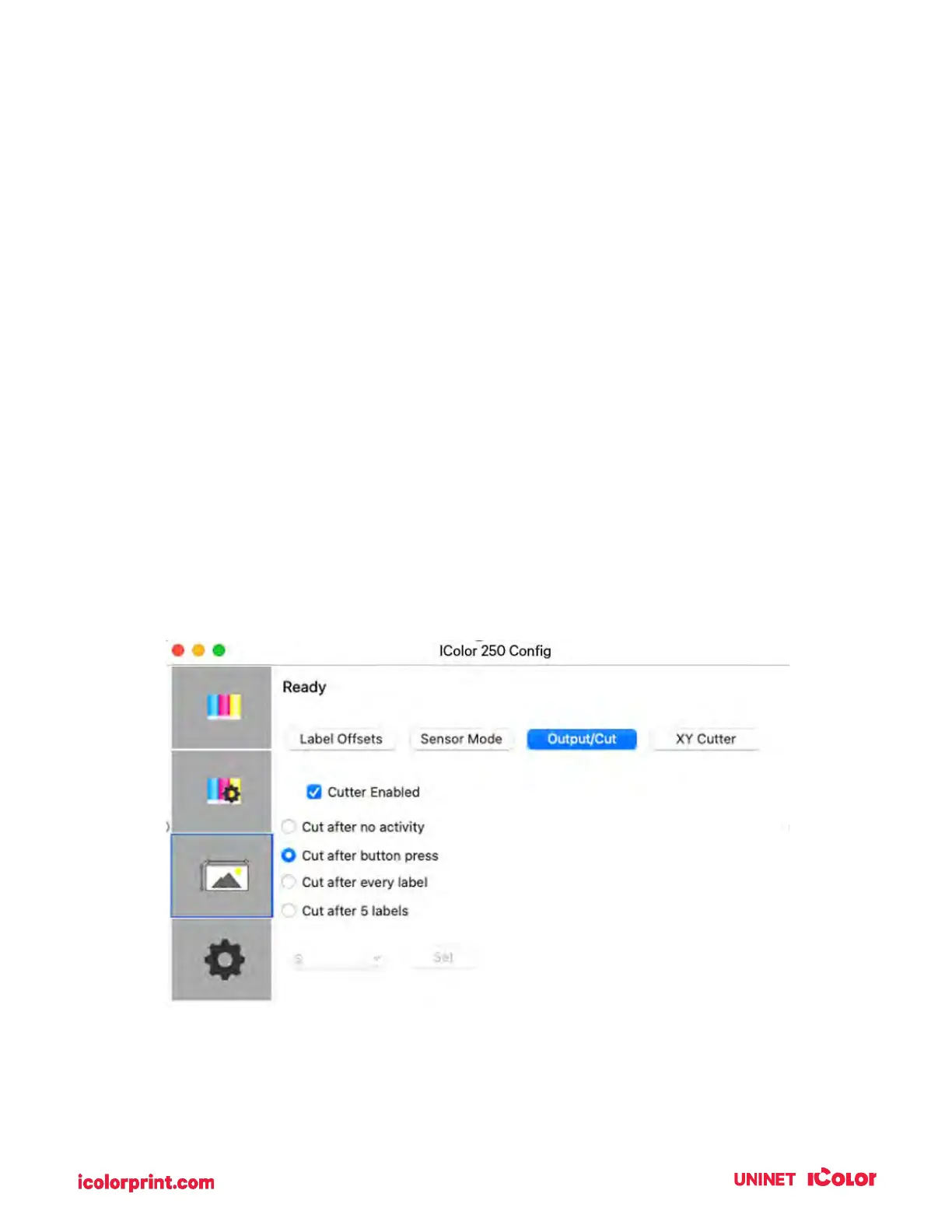
6D. Set the Output Mode
Use the Present/Cut Mode to adjust how the printer presents labels after they are printed or if/when they
are cut after printing. There are different options available which change if the Cutter is enabled or
disabled. If the Cutter is disabled, the label present options will be available. If the Cutter is enabled the
present options are no longer available but cut options become available.
• Cut Options (Check Cutter Enabled):
• Cut after no activity. This setting will cut at the end of a print job if the printer does not
receive another print job within one second of the last print job in the queue. You can use
this feature to cut at the end of a multi-copy job, multi-page job, or multiple individual jobs
in the queue.
• Cut after button press. This setting will cut after you press the Load/Feed button on the
printer. This can be used after one label or an entire job. This feature is useful if you will
not be present at the end of the print to catch the cut label.
• Cut every label. This setting will cut after every label.
• Cut after label count. This option will cut after the number of labels specified in the
toggle box that appears when this option is selected. This is useful if you have front/back
labels or sets of labels.


 To Next Page