79
5C. Printing From Other Programs
Since this printer uses a standard Windows printer driver you can print from any application you would
like. There are just a few things to remember that will make it much easier.
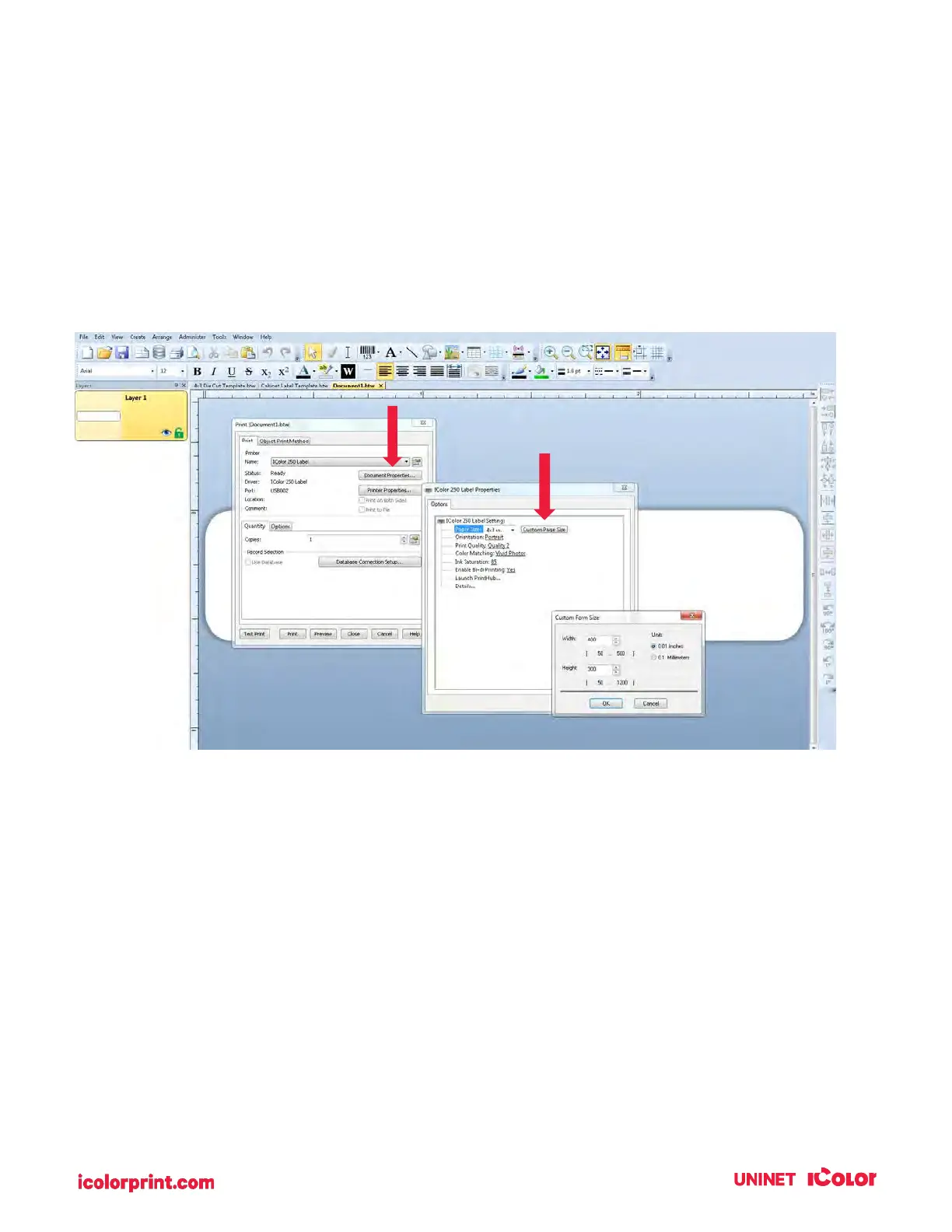
1. Set the Page/Label Size in the Driver. BarTender automatically prompts you for the size of the
label that you are using. When printing from any other program you must do this manually.
Before you print, simply set the custom page size just as you would set print quality in the
document properties.
2. Check the image or document size. The image size or document size set in Illustrator should
match the Page/Label Size set in the driver. If you have set your page size to 4" x 4" but your
image is 5" x 3" the printer driver will automatically shrink your image to fit inside the 4" x 4" label.
The result is that the actual printed label is 4" x 2.4". Avoid this by setting your document size or
image size to match the label size.
3. Choose the right printing program. Many different applications are capable of printing to the
IColor 250. However, there are only a few that are ideal printing applications. For example, Adobe
Illustrator is an excellent design program but is not always the best printing program. It can be
difficult to find the printing preferences or to know the exact size of the artboard. It is best to
save as a PDF file and print from Adobe Reader or export as a 300 dpi JPG and print from
BarTender.


 To Next Page