111
Instructions:
Cleaning Cards are used to clean the output cutter wheel that cuts between each label or at the end of a
group of labels. If the cutting wheel cuts through continuous adhesive-backed paper (such as IColor 250
digital-die cutting media), it can accumulate adhesive build-up that will eventually cause cutting
problems.
Recommend Cleaning Interval:
Every 2000 Labels UNINET IColor PrintHub software tracks this and will alert you when cleaning is
necessary.
Cleaning Cards are used to clean the output cutter wheel that cuts between each label or at the end of a
group of labels. If the cutting wheel cuts through continuous adhesive-backed paper (such as IColor 250
digital die-cutting media), it can accumulate adhesive build-up that will eventually cause cutting
problems.
Recommend Cleaning Interval:
Every 2000 Labels UNINET IColor PrintHub software tracks this and will alert you when cleaning is
necessary.
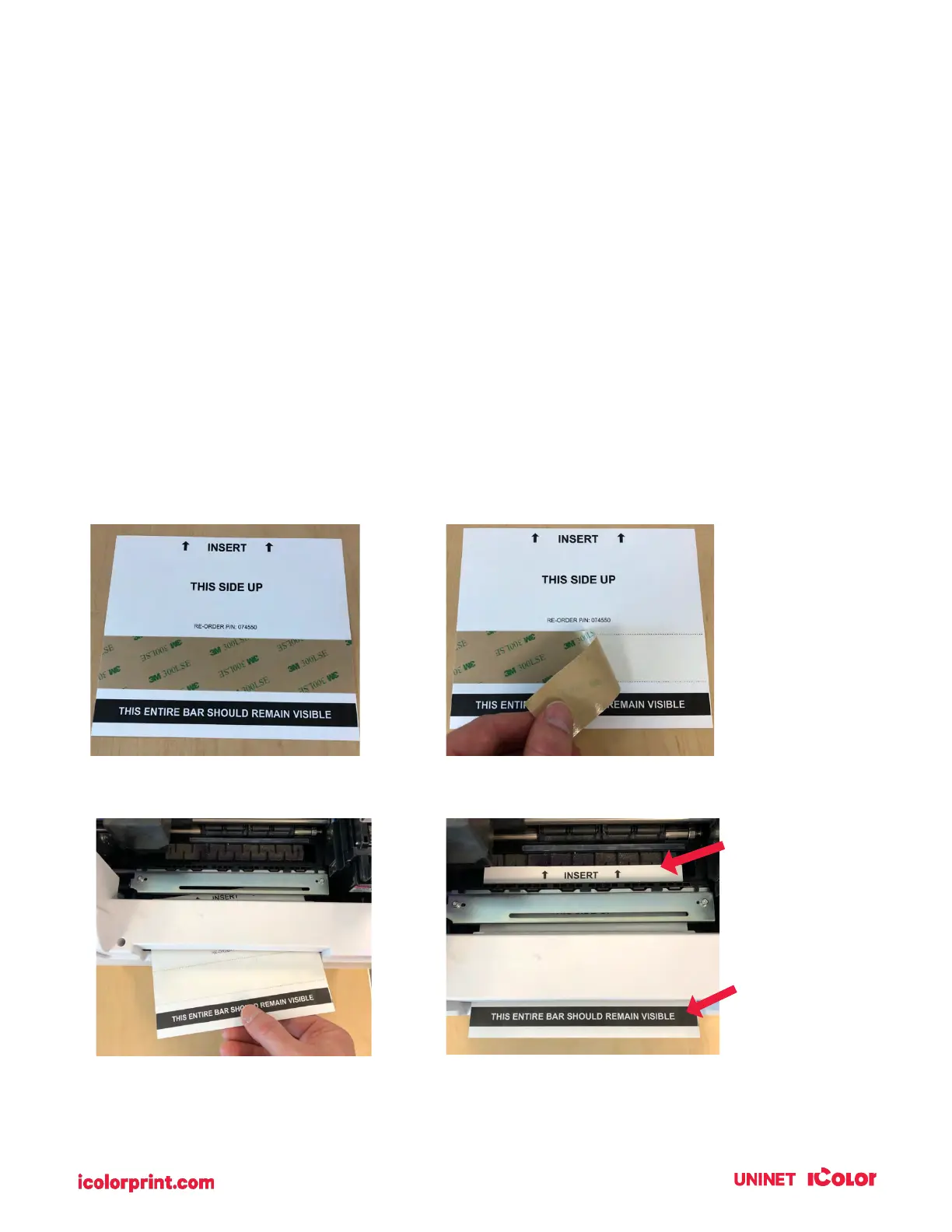
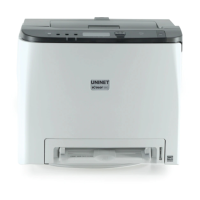
2. Peel off the protective strip covering the adhesive.
1. Locate the cleaning card.
3. Unload label stock from the printer.
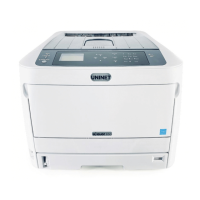
Insert the cleaning card into the front output
of the printer.
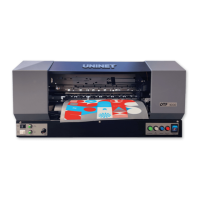
4. When the exposed adhesive strip is aligned with the Output
cutter path, open the UNINET IColor PrintHub – select Printer
Settings – Advanced. Click on Output Cutter Cleaning. Once the
cutter cycles, remove both parts of the card from the printer.


 To Next Page