41
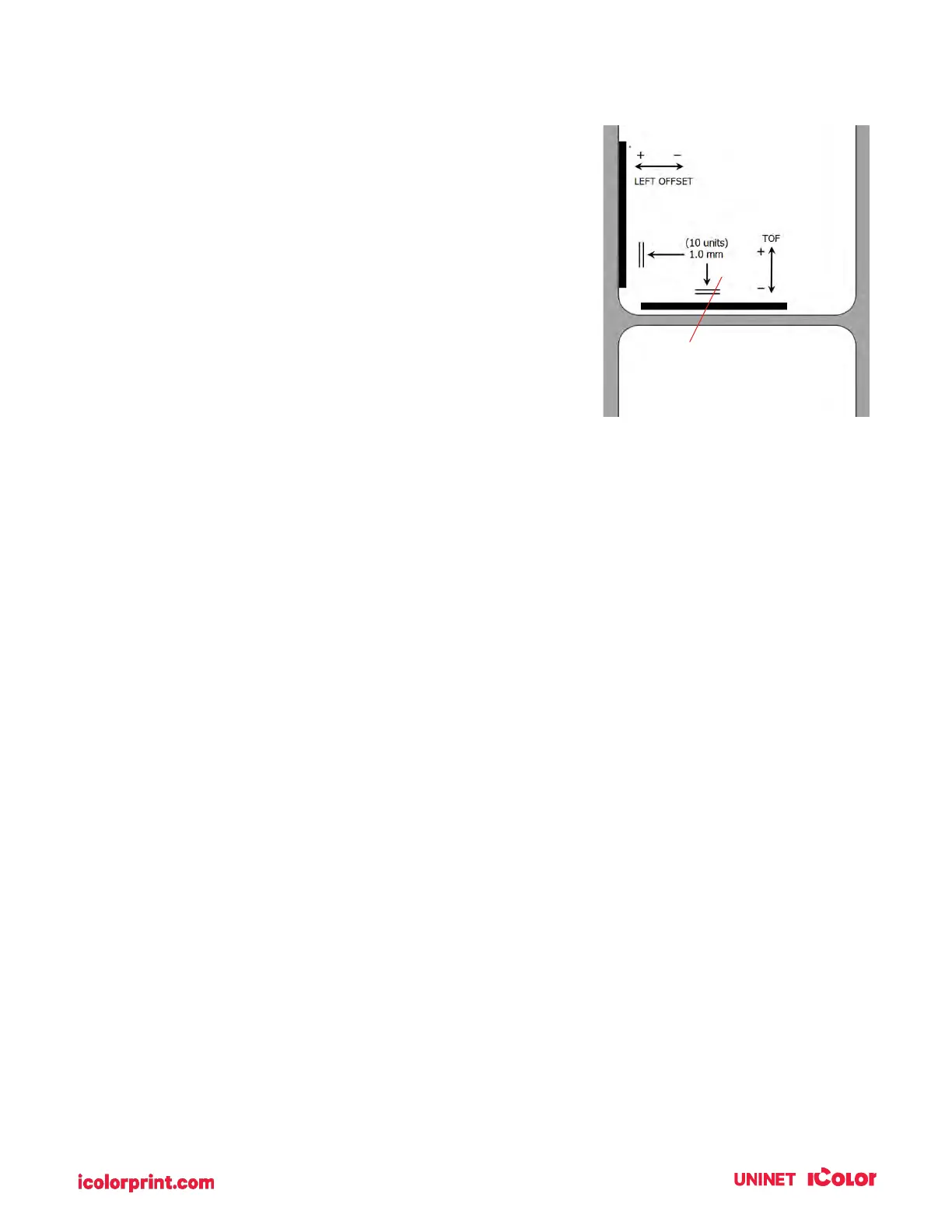
Click on Test Alignment to print the alignment shown to the right.
Look at the print to determine how much white space is visible on the
edges. The black lines should print right on the leading edge and left
edge. In this example, the Top of Form needs approximately - 10.
1. Left Margin Offset. This value moves the printed label left or
right. Add to the current value to move the printed label to the
right. Subtract from the current value to move the printed label
to the left.
2. Top of Form (TOF). This value moves the print start position
up or down on the label. Add to the current value to move the
printed label down or toward the printer. Subtract from the
current value to move the printed label up or away from the
printer.
The value is automatically saved as soon as you set it. You may have to make several adjustments
to one or more of these values. After each adjustment, you can click the Test Alignment button to
print a small test pattern on the label. This will help you find the proper alignment value.
3. Tear off/Cut Position. This value adjusts the position of the last label printed after it has been
presented. This only applies if the output mode is set to "Present the label." Add to the current
value to move the tear point closer to the printer. Subtract from the current value to move the
tear point away from the printer. The value is automatically saved as soon as you set it.
Top of Form -10


 To Next Page