Advanced Digital Video Platform Hybrid-DVR User’s Guide
1.2 DESCRIPTION OF FRONT PANEL
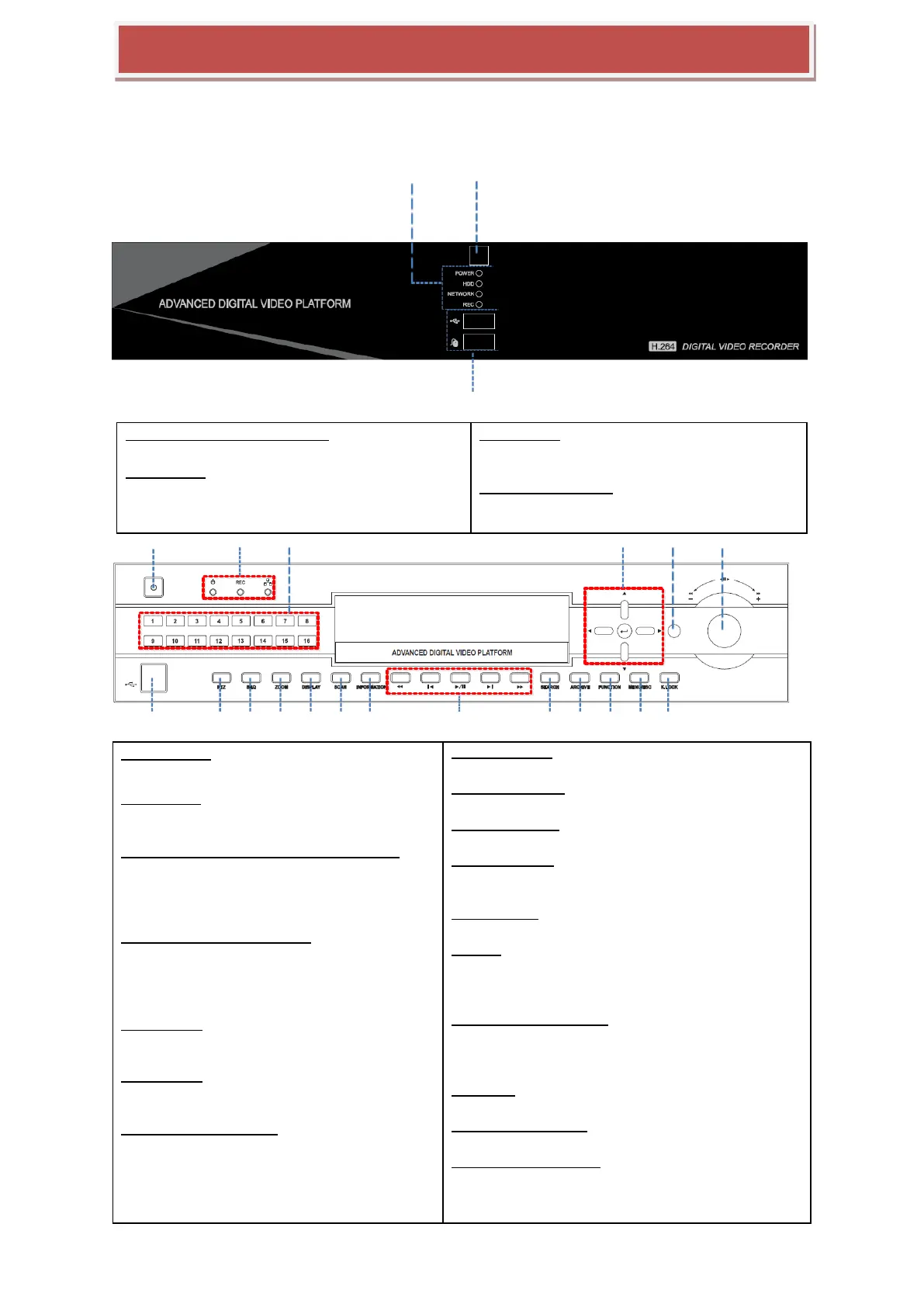
[Front panel of 4 / 8CH HYBRID-DVR]
1.CUSTOMER’S BRAND LOCATION
OEM brand & Design location
2.STATUS LED
Displays the information of the DVR (Stand –By), Record
/ HDD read/write and Network transmission.
3.IR RECEIVER
Infrared signal receiver for the IR remote contro
ller.
4.FRONT USB 2.0 PORT
USB 2.0 ports. Provides functions like ‘Copy to USB
storage’, ‘F/W Upgrade’ and ‘mouse’ operation.
2
5
1
3 4
6
87 9 10 11 12 13 14 15 16 17 18 19
[Front panel of 16CH HYBRID-DVR]
1.Power Switch
Switch to turn the DVR ON & OFF.
2.STATUS LED
Displays the information of the DVR (Stand –B
y), Record and Network transmission.
3.CHANNEL SELECT / NUMERIC KEYPAD / MULTI
Selects the desired channel and show it with the
full scale.
Enter the number on the numbers required to be
input, Password, IP address, Time & Date and Etc.
4.Direction button/ Enter button
Direction button: On menu, move to
above/below/left/right
Enter button: This button is used to confirm
selection in any of the menu.
5.IR RECEIVER
Infrared signal receiver for the IR remote contr
oller.
6.Jog&Shuttle
Using the jog&shuttle can control the playback
screen
7.FRONT USB 1/2 2.0 PORT
Top Device: USB 2.0 ports. Provides functions lik
e ‘Copy to USB storage’, and Etc
Bottom Device: USB 2.0 ports. Provides functions
like ‘Copy to USB storage’, ‘F/W Upgrade’ and Etc
8.Pan/ tilt button
enter into pan/tilt mode
9. AUTO SEQUENCE
Enters PTZ control mode.
10. DIGITAL ZOOM
Enters digital zoom mode.
11.Display button
In live view and playback, switch display mode to 4ch or
9ch and 16ch
12.Scan button
Search supported camera configue in DVR
13. INFO
Executes the selected function in the menu screen or
enters the selected submenu.
Accesses the status window from the live screen.
14.Playback control button
In playback, backward quick search/backward still sea
rch/search & pause/ forward still search/forward quic
k search.
15.SEARCH
Enters the search menu screen.
16. Simple Copy Button
is used to enter to Easy copy menu
17.Special Feature button
It Is used to Special feature on HYBRID-DVR



 To Next Page