Advanced Digital Video Platform Hybrid-DVR User’s Guide
7.1.1 CONNECT TO WEB SERVER
Enter the IP address of HYBRID-DVR into the ULR bar referring to the below picture.
NOTE) You can know the IP address of HYBRID-DVR from the ‘INFO’ section under the OPERATION SETUP of
HYBRID-DVR menu. If the local IP which starts with ‘192.168.xxx.xxx’ is used in the HYBRID-DVR, you have to set
the ‘Port Forwarding’ properly in your router. The port number to set can be get from ‘HYBRID-DVR PORT’ in the
NETWORK SETUP. If your router supports the ‘uPNP’ feature, there is no need to set ‘Port Forwarding’ manually
because the HYBRID-DVR supports the ‘Auto Port Forwarding’ function using the ‘uPNP’ protocol. (Some routers
can make the compatibility issues to the uPNP protocol of HYBRID-DVR)
NOTE) If the access to the web server can’t be established after setting the ‘Port Forwarding’, you may need to
check the firewall of router and your PC. The port used in the HYBRID-DVR should be allowed to access by the
firewall.
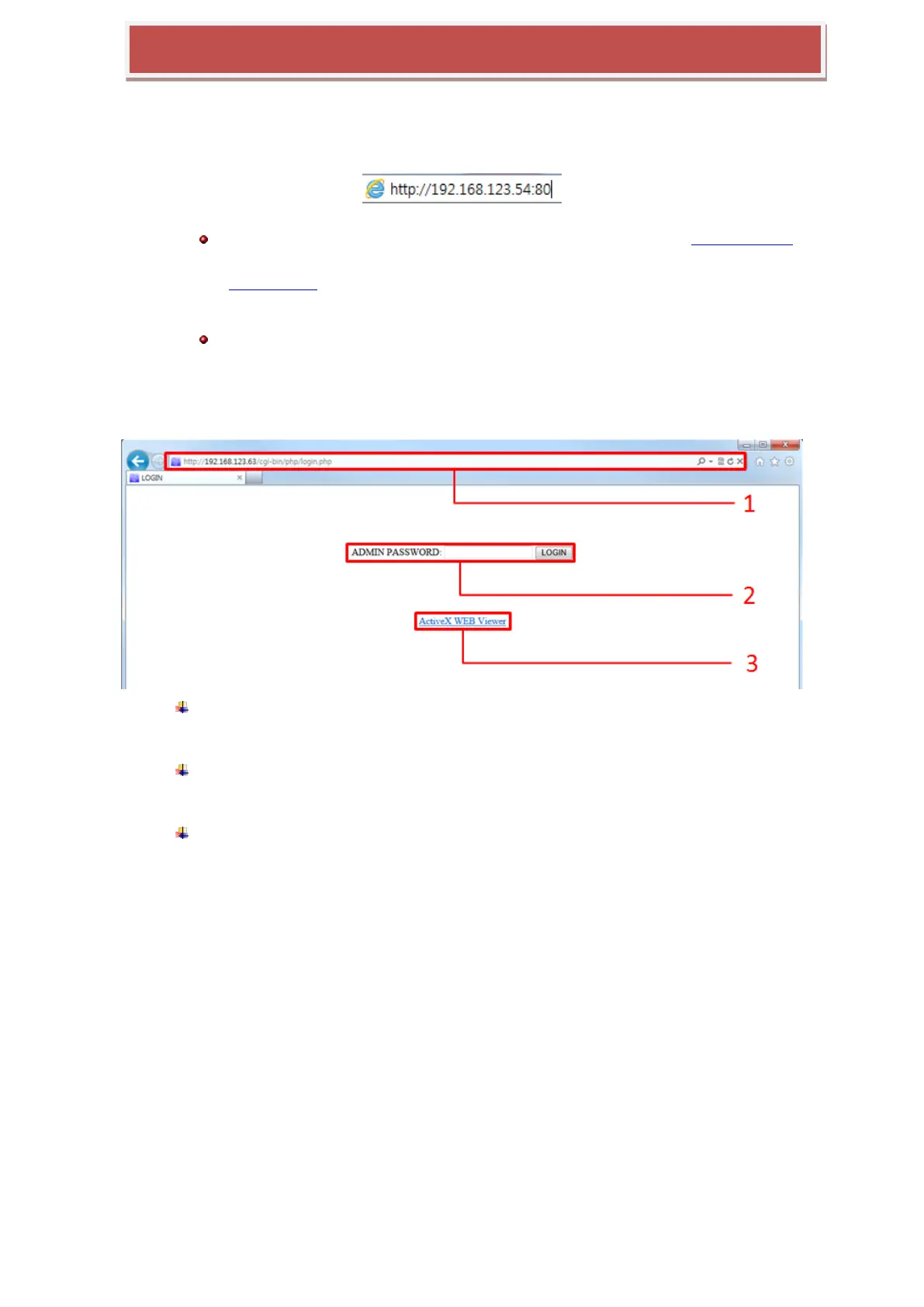
[The initial screen of Web Server]
1: Enter the IP address of your HYBRID-DVR. If you don‟t use the default port number
of HTTP, 80, you may add the port number following the IP address. Ex.
http://192.168.123.63:80
2: Input the administrator‟s password beside of the „ADMIN PASSWORD‟. Only
administrator can log in for the HYBRID-DVR configuration. Clicking the „LOGIN‟ button
will guide you to the HYBRID-DVR configuration pages.
3: ActiveX based Web Viewer: Clicking the link execute the „WebViewer‟ or initiate the
installation of ActiveX plugin.



 To Next Page