Advanced Digital Video Platform Hybrid-DVR User’s Guide
Plug the prepared USB thumb drive in the USB port of DVR.
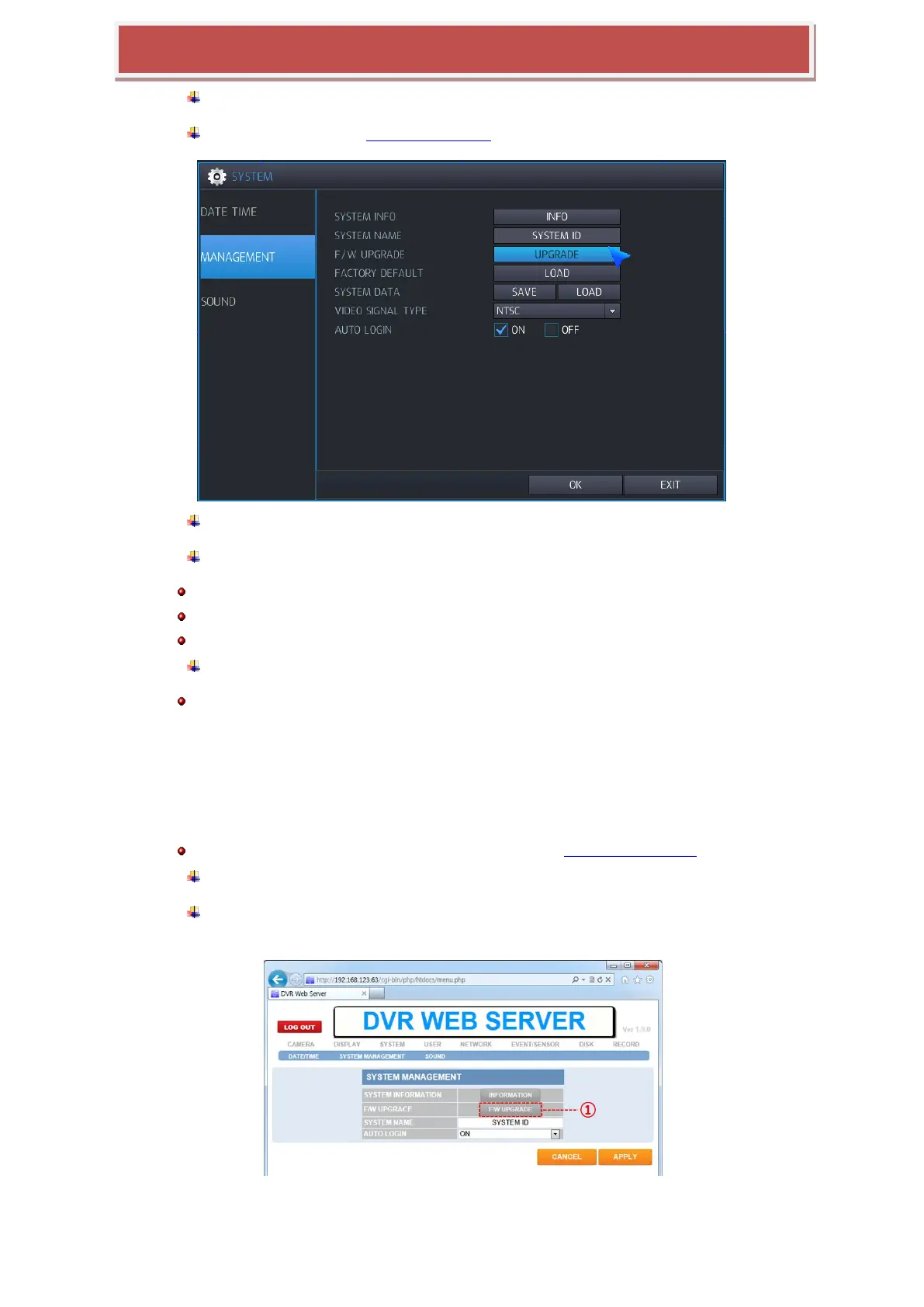
You need to move to mangement menu of System Section.
Press and enter „Upgrade‟.
You need to step following procedure of Firmware upgrade.
The whole upgrading process can take some times from several minutes to tens of minutes.
Don’t remove the USB thumb driver during upgrading.
Don’t’ turn off power of system during upgrading.
If the firmware upgrade is finished, system will start auto re-booting.
Note) if the USB thumb driver exists during the reboot, the upgrading process will start again. If so, you must wait one
more upgrading to avoid the system F/W being broken.
1.1.2 UPDATING FROM THE WEB MENU
The web menu service prepared in the DVR provides the way to update the system F/W remotely. The following
steps explain how to do this.
To know the way how to access the internal web menu service, refer the section 7.1, ‘WEB SERVER’ of this user’s guide.
Login the web server in the DVR
Enter the „SYSTEM MANAGEMENT‟ page under the „SYSTEM‟ menu page. Refer to
the below picture.



 To Next Page