Advanced Digital Video Platform Hybrid-DVR User’s Guide
following connection information.
HYBRID-DVR Address : specify the IP address of the HYBRID-DVR
HYBRID-DVR Port : the port number for HYBRID-DVR connection. The value should be
same as the one specified port number of your HYBRID-DVR.
USER : user ID to be used in the login
PASSWORD : password for the selected user.
User name and password is case-sensitive.
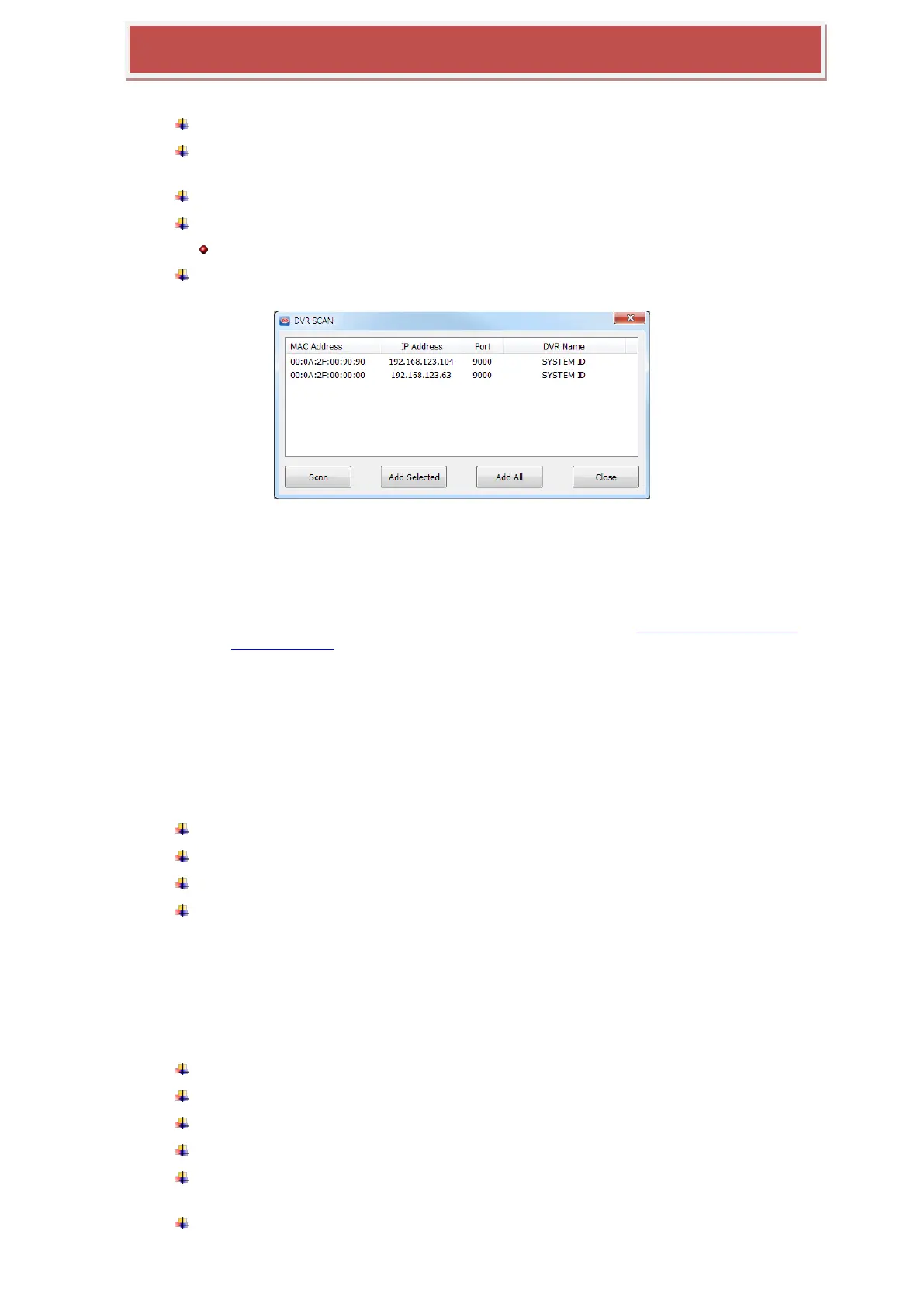
HYBRID-DVR SCAN: scan the local network and show the detected HYBRID-DVRs in
the list.
MAC Address :show the MAC address of HYBRID-DVR resulted from scanning
IP Address: show the IP address of HYBRID-DVR resulted from scanning.
PORT : show the PORT number of HYBRID-DVR which has the above MAC and IP address.
HYBRID-DVR Name: show the name of HYBRID-DVR which has the above MAC and IP
address. This is named as a value of „SYSTEM NAME‟ under the „MANAGEMENT‟ page of
„SYSTEM‟ menu.
Re-scan: execute scanning the LAN again.
Add : register the selected HYBRID-DVR into the HYBRID-DVR list of CONNECTION
MANAGER.
Add All : register all the scanned HYBRID-DVR into the HYBRID-DVR list of CONNECTION
MANAGER.
Close: Close the HYBRID-DVR SCAN window.
Add: add new HYBRID-DVR into the HYBRID-DVR list.
Edit : edit the connection information of the selected HYBRID-DVR.
Remove : remove the selected HYBRID-DVR from the HYBRID-DVR list.
Close : close the CONNECTION MANANGER
7.4.5 LIVE VIDEO WINDOW
The transferred live camera video are monitored in this window,
Features of LIVE VIDEO WINDOW
Monitoring live camera video
Swap the position of two cameras
Snapshot and save it into the PC as JPEG file.
PAN/TILT Control remotely
Configure directly the quality and resolution for the transferred video.(ADMIN account
only)
Live audio from HYBRID-DVR



 To Next Page