Advanced Digital Video Platform Hybrid-DVR User’s Guide
2. GETTING STARTED
Controlling and setting Hybrid-DVR by remote control is limited to some of function, recommend you to use
mouse operation of HYBRID-DVR for using all the function.
2.1 CONNECT AND SWITCH ON
Please check if power of HD-SDI or SDI camera is turn on.
Connect one or more monitors to Hybrid-DVR using Digital Video output, VGA and CVBS.
Connect power to Hybrid-DVR. Press the power button on the back panel of Hybrid-DVR to begin operation.
8/16ch Hybrid-DVR automatically when power on.
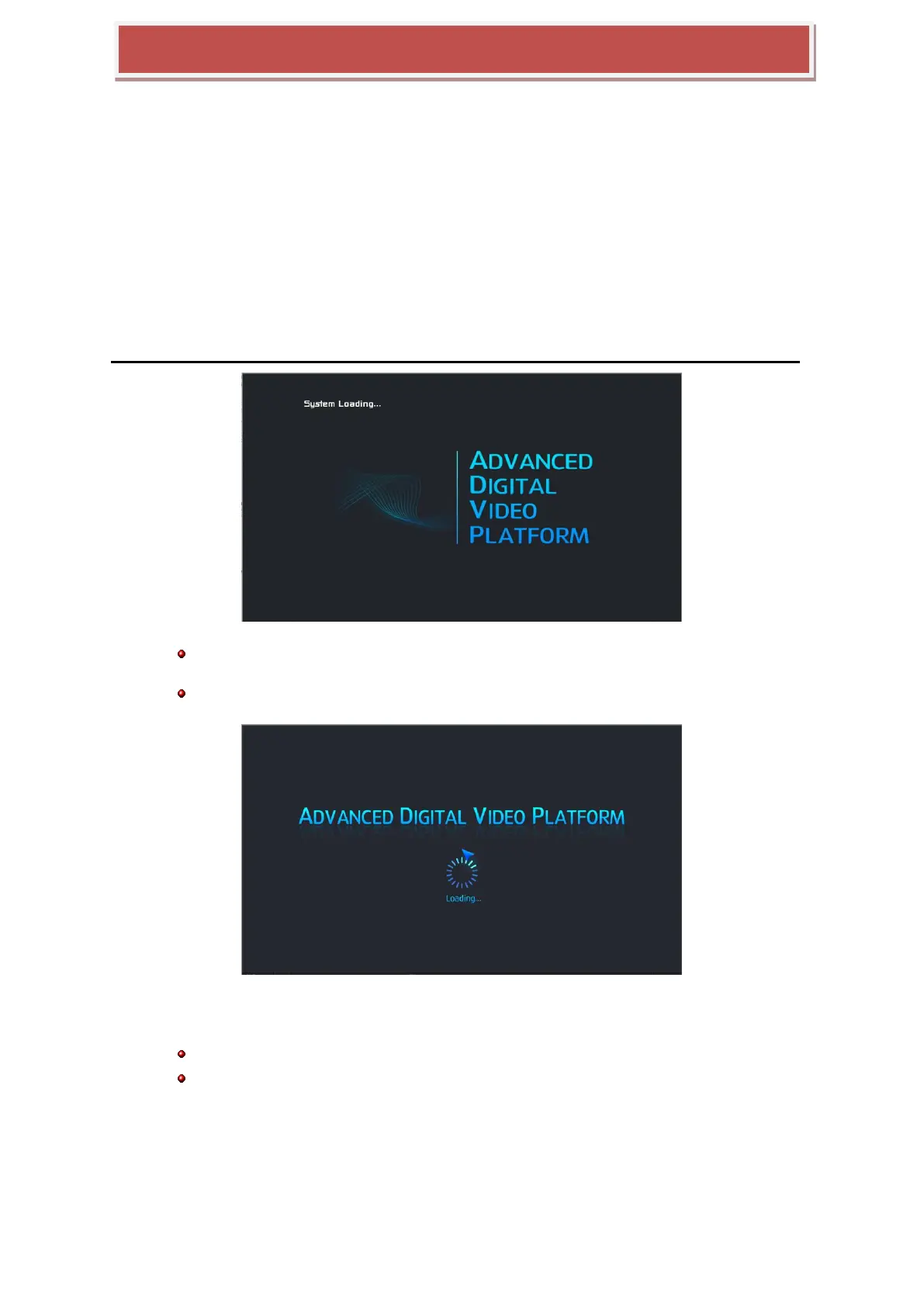
When you make system boot up, you can view following system loading process after boot up logo image.
[Logo Image]
Depending on Monitor which you connect to Hybrid-DVR, initial logo is not displayed because your monitor is not support
low resolution, so it is not a defect.
Initial set resolution is 1024 x 768, so you should use monitor higher than 1024x768
[Loading….]
When Hybrid-DVR is prepared for initial operation, display system preparing screen as above and show booting
progress.
From loading screen display, recording starts according to pre-set condition.
When loading, screen could be flashed, happening odd color while HYBRID-DVR is processed to optimize display.
All operation of Hybrid-DVR is ready, automatically log-in and show as below screen.



 To Next Page