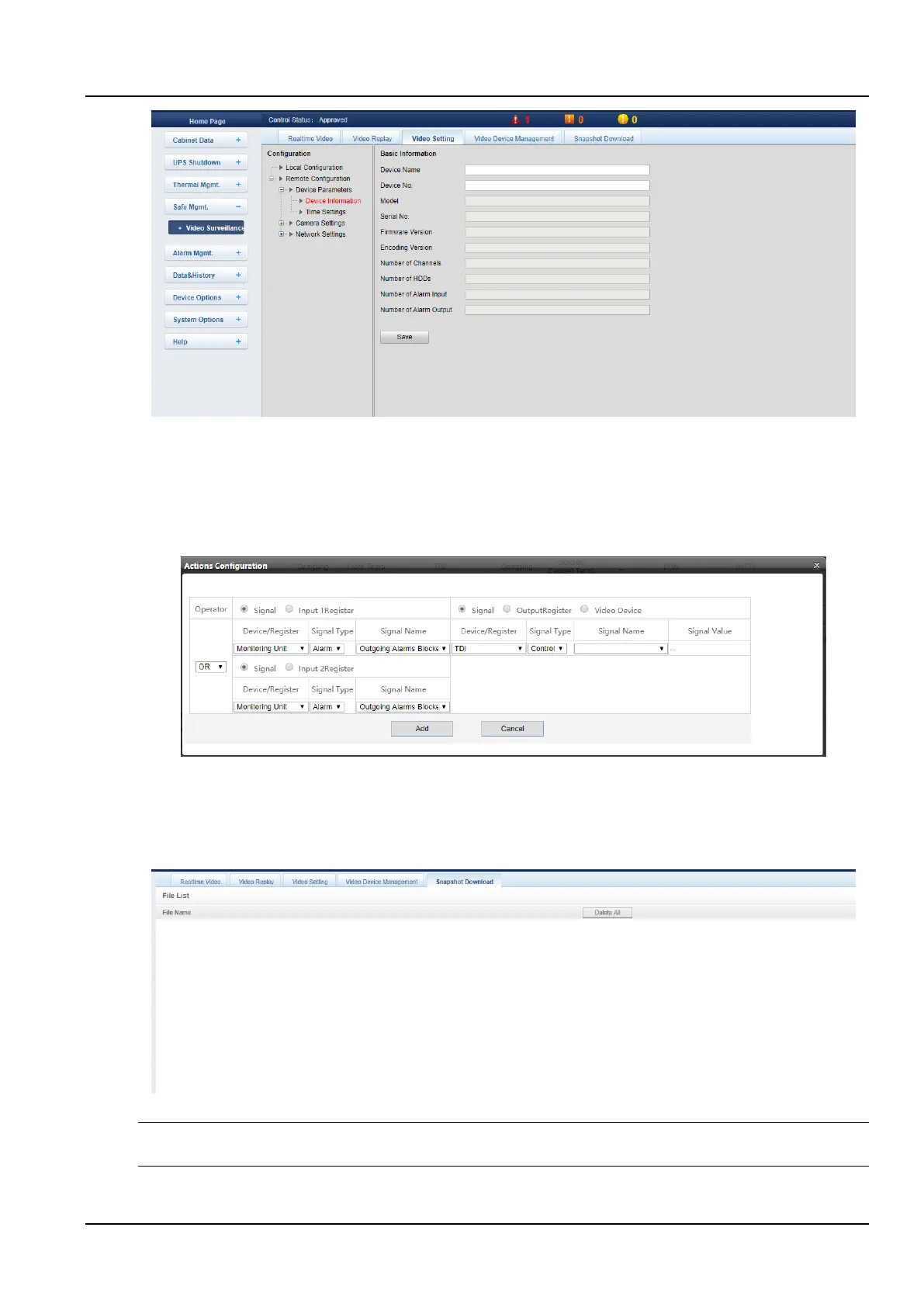
Figure 3-55 Video Setting
The video setting tab provides settings for various parameters of the camera. For details of the parameters, please
refer to the Operation Manual provided with the IPC camera.
e) Snapshot download
Click the Alarm Actions submenu under the Alarm Mgmt. menu to add the alarm actions configuration, as shown in
the Figure 3-56.
Figure 3-56 Alarm Actions Configuration
After the configured alarm condition is triggered, the video device will capture or record the captured image. The
captured image can only be downloaded through the web page by clicking Snapshot Download in the Video
Surveillance menu, and you can also view and delete the image, as the Figure shows. Up to 50 latest photos can be
saved. The captured video can be viewed through the Video Replay tab under the Video Surveillance menu.
Figure 3-57 Snapshot Download
Notices
The video triggered by the linkage is displayed as a yellow manual video recording during replay.
3) Door Access



 To Next Page