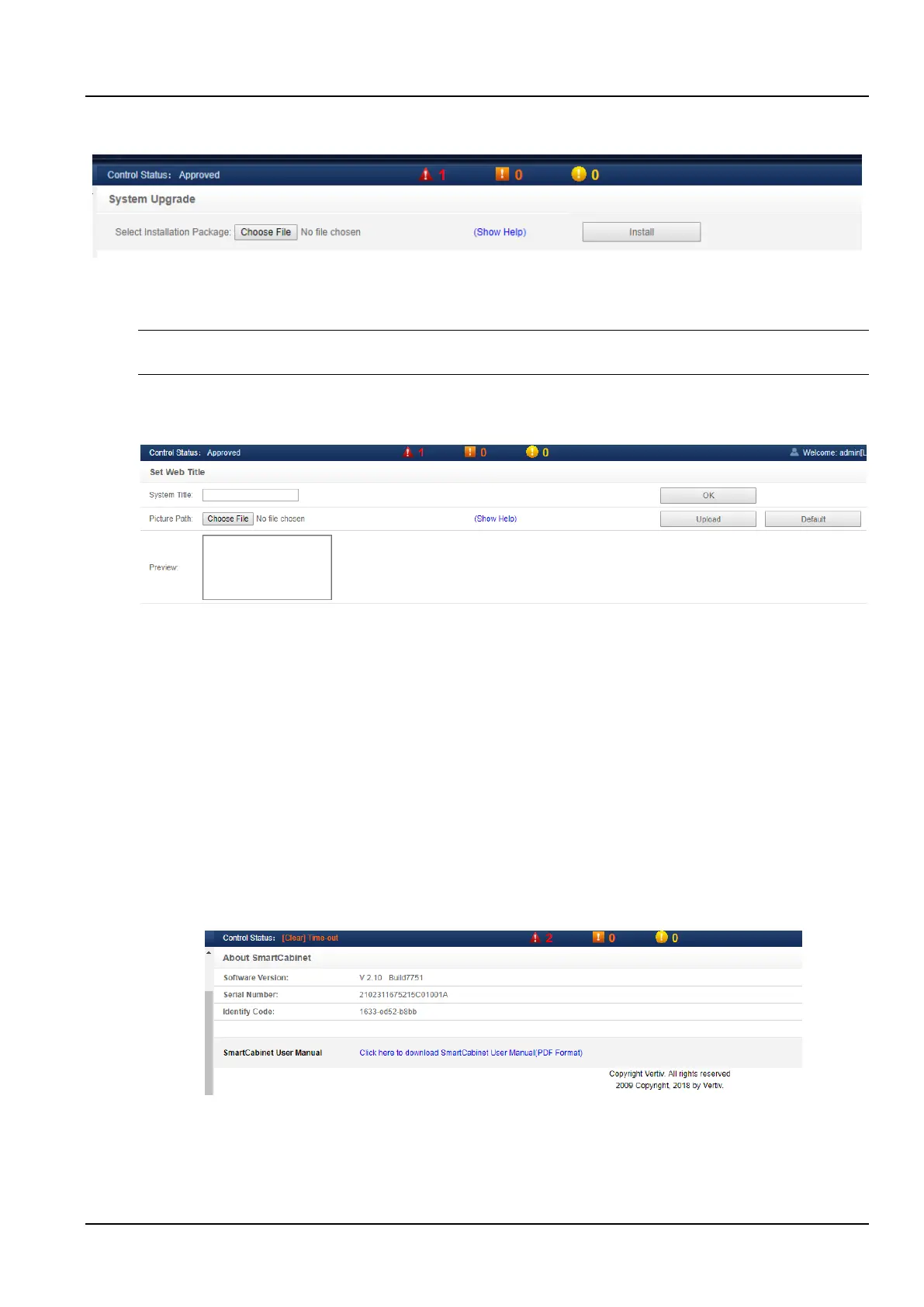
Click the System Upgrade submenu under the System Options menu to pop up the page as shown in the Figure 3-
100.
Figure 3-100 System upgrade
In the page shown, click the Choose File button to download the Upgrade Package (.rdu file format) from the local
directory, and then click the Install button to perform the firmware upgrade.
Notices
The intelligent monitoring system supports the incremental upgrade function.
h) System Title
Click the System Title submenu under the System Options menu to pop up the page as shown in the Figure 3-101.
Figure 3-101 System title
In the page as shown in the Figure 3-101, the user can upload the System Logo image to replace the Logo Image at
the top right of the page, click the Choose File button, select the Logo Image to be uploaded, and then click the
Upload button to upload the file to the intelligent monitoring system. Only images in [.gif] or [.bmp] or [.jpg] format can
be uploaded to the intelligent monitoring system, and the image size does not exceed 500K. Click the Restore
Default button to restore the default Logo Image.
User can also modify the system title directly above the page. Enter the customized system title in the System Title
text box and click the OK button to make it effective.
9. Help
In the homepage of the intelligent monitoring system, click on the Help menu on the left, and you will see a submenu,
namely: About SmartCabinet.
About SmartCabinet
The “About SmartCabinet” page displays the intelligent monitoring system Software version, Serial number,
Identify code and other information, and provides a download link for the user manual, as shown in the Figure 3-102.
Figure 3-102 About SmartCabinet



 To Next Page