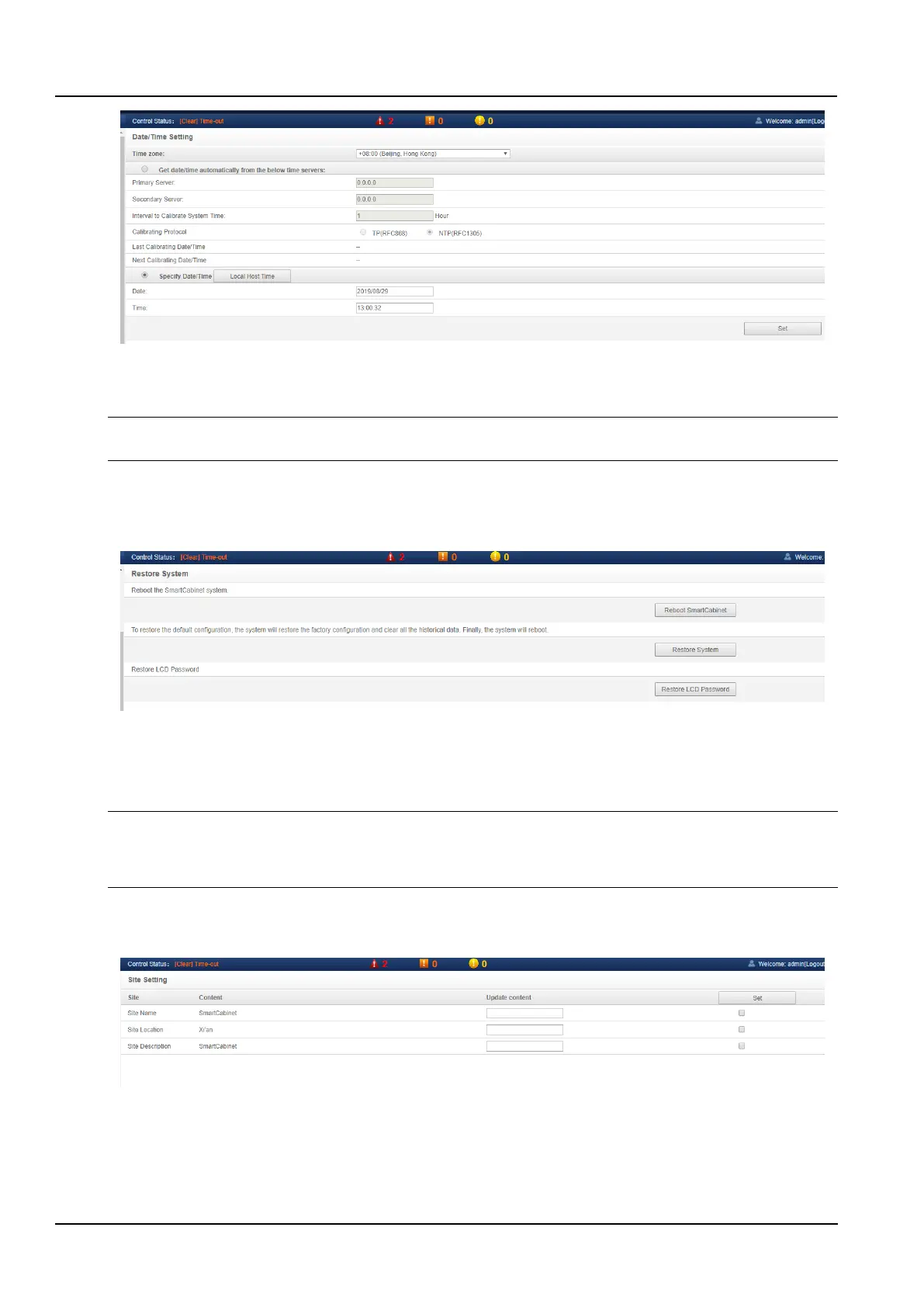
Figure 3-97 Date/Time Setting
The intelligent monitoring system can also obtain the local time, select Use current time to calibrate the time and
click the Get local time button to get the local time, and then click the Set button to make the new time take effect.
Notices
Time calibration defaults to Use current time to calibrate the time.
e) Restore System
Click the Restore System submenu under the System Options menu to pop up the page as shown in the Figure 3-
98.
Figure 3-98 System Reset
Click the Reboot SmartCabinet button to restart the system.
Click the Restore System button to restore the Intelligent Monitoring to the default settings.
Click the Restore LCD Password button to trigger the LCD local display password recovery.
Notices
If the user uses the recovery function, the intelligent monitoring system will restore the original configuration scheme. After the
recovery operation, please confirm to wait for 1 minute and then re-enter the intelligent monitoring system through the network
to enable the system to complete initialization.
f) Site settings
Click the Site Settings submenu under the System Options menu to pop up the page as shown in the Figure 3-99.
Figure 3-99 Site setting
As shown in the Figure 3-99, the user can modify the site information of the intelligent monitoring system, including
the Site name, Site location, and Site description.
g) System upgrade



 To Next Page