VR Technology Limited
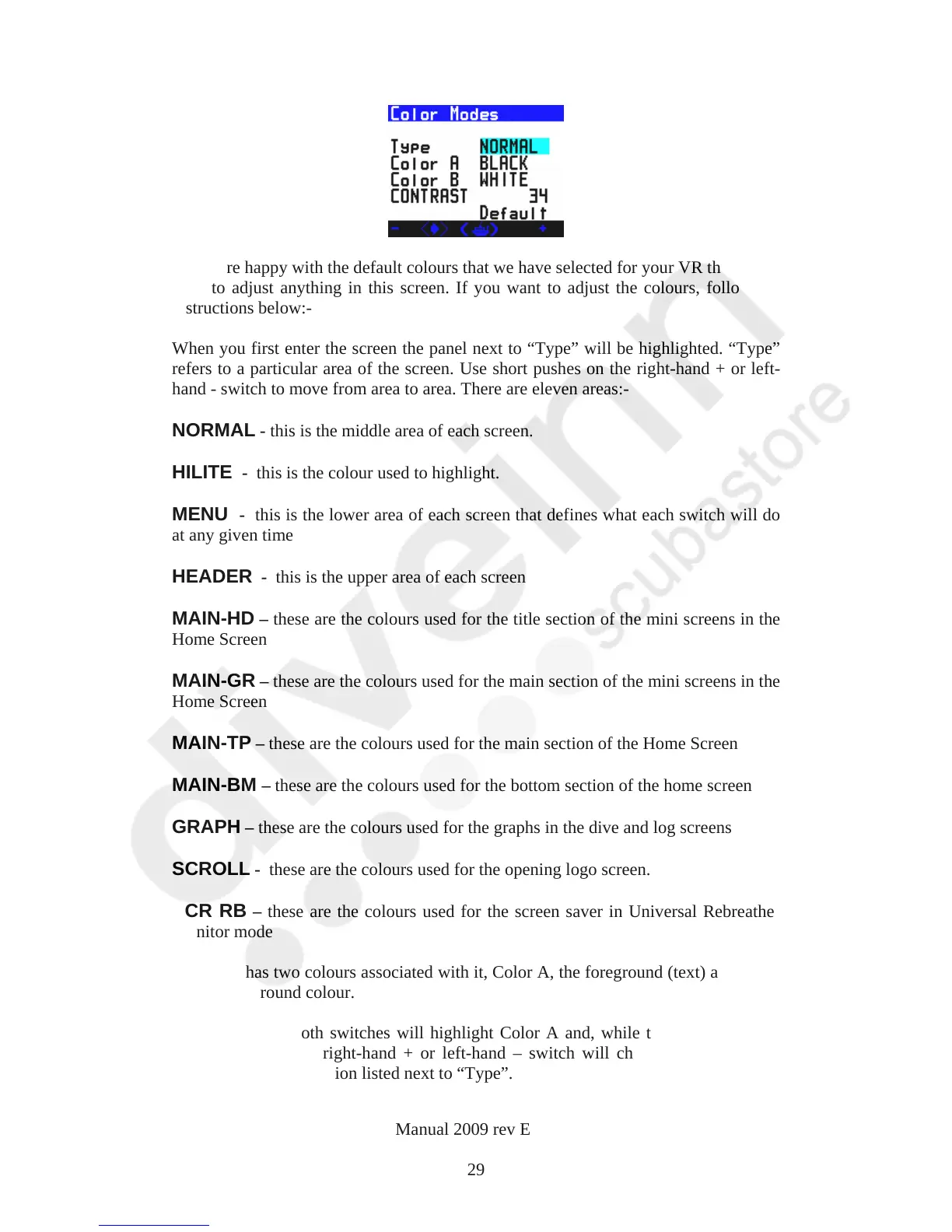
If you are happy with the default colours that we have selected for your VR there is no
need to adjust anything in this screen. If you want to adjust the colours, follow the
instructions below:-
When you first enter the screen the panel next to “Type” will be highlighted. “Type”
refers to a particular area of the screen. Use short pushes on the right-hand + or left-
hand - switch to move from area to area. There are eleven areas:-
NORMAL - this is the middle area of each screen.
HILITE - this is the colour used to highlight.
MENU - this is the lower area of each screen that defines what each switch will do
at any given time
HEADER - this is the upper area of each screen
MAIN-HD – these are the colours used for the title section of the mini screens in the
Home Screen
MAIN-GR – these are the colours used for the main section of the mini screens in the
Home Screen
MAIN-TP – these are the colours used for the main section of the Home Screen
MAIN-BM – these are the colours used for the bottom section of the home screen
GRAPH – these are the colours used for the graphs in the dive and log screens
SCROLL - these are the colours used for the opening logo screen.
SCR RB – these are the colours used for the screen saver in Universal Rebreather
Monitor mode
Each area has two colours associated with it, Color A, the foreground (text) and Color
B, the background colour.
A short push of both switches will highlight Color A and, while this is highlighted,
short pushes on the right-hand + or left-hand – switch will change the foreground
(text) colour in the section listed next to “Type”.
VR Dive Computer Operations Manual 2009 rev E 28/01/2009
29



 To Next Page