VR Technology Limited
Warranty & Support Guidelines
To set up and get optimum performance from your computer, please refer to the
Instruction Manual on the enclosed CD.
In the unlikely event that you experience any difficulty there is a comprehensive
Frequently Answered Questions (FAQ) section on our website www.vr3.co.uk .
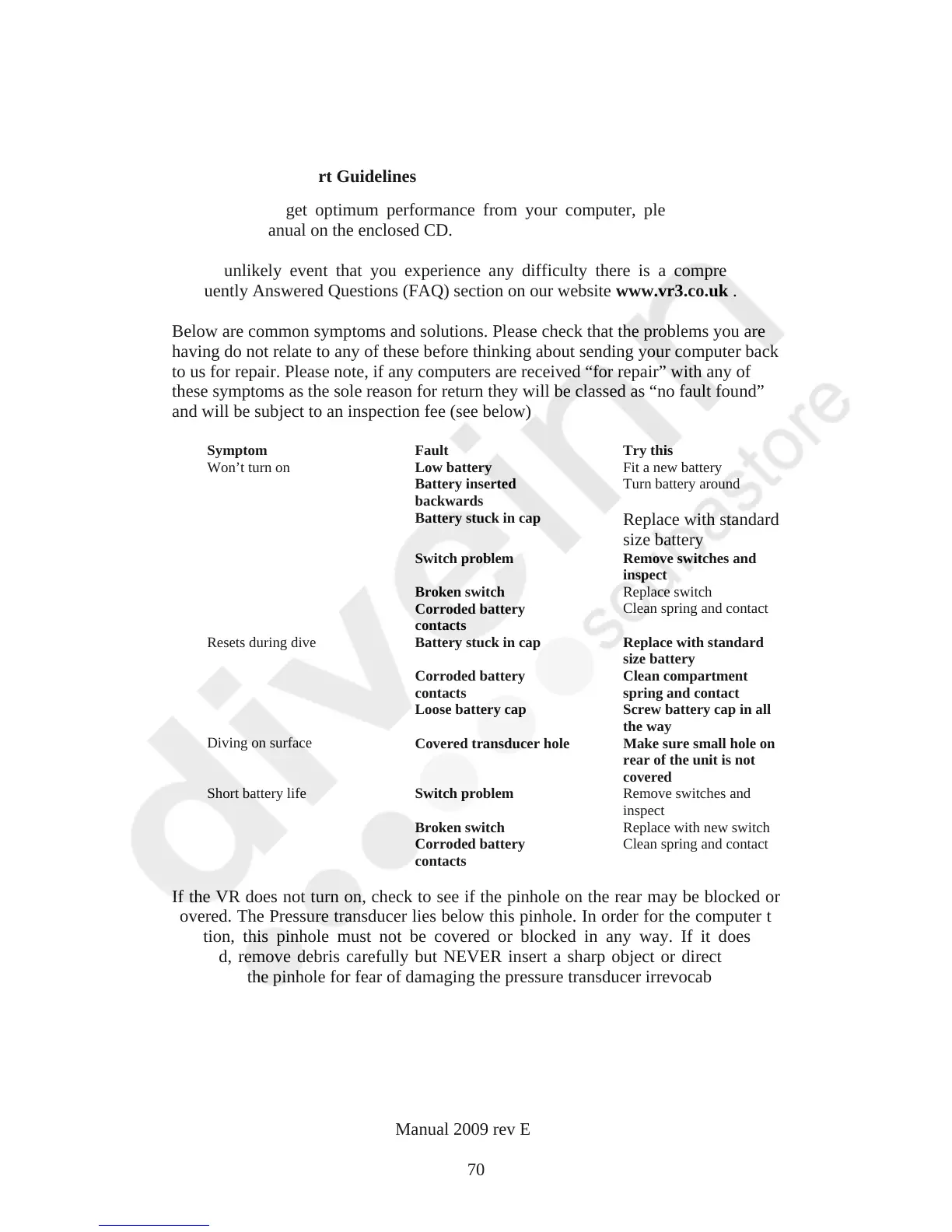
Below are common symptoms and solutions. Please check that the problems you are
having do not relate to any of these before thinking about sending your computer back
to us for repair. Please note, if any computers are received “for repair” with any of
these symptoms as the sole reason for return they will be classed as “no fault found”
and will be subject to an inspection fee (see below)
Symptom Fault Try this
Low battery
Fit a new battery
Battery inserted
backwards
Turn battery around
Battery stuck in cap
Replace with standard
size battery
Switch problem Remove switches and
inspect
Broken switch
Replace switch
Won’t turn on
Corroded battery
contacts
Clean spring and contact
Battery stuck in cap Replace with standard
size battery
Corroded battery
contacts
Clean compartment
spring and contact
Resets during dive
Loose battery cap Screw battery cap in all
the way
Diving on surface
Covered transducer hole Make sure small hole on
rear of the unit is not
covered
Switch problem
Remove switches and
inspect
Broken switch
Replace with new switch
Short battery life
Corroded battery
contacts
Clean spring and contact
If the VR does not turn on, check to see if the pinhole on the rear may be blocked or
covered. The Pressure transducer lies below this pinhole. In order for the computer to
function, this pinhole must not be covered or blocked in any way. If it does get
blocked, remove debris carefully but NEVER insert a sharp object or direct a jet of
water into the pinhole for fear of damaging the pressure transducer irrevocably.
VR Dive Computer Operations Manual 2009 rev E 28/01/2009
70



 To Next Page