November 16, 2016, 715004521 Rev. C
Page 110
C.3.0.5 Run a sample queue
Prior to running a sample queue, the Instrument Matching wizard appears so you can associate
the primary and secondary column managers’ physical addresses with the instrument method.
To match the column managers’ addresses to the instrument method:
1. In the Empower Run Samples dialog box, from the Inject menu, select Run Sample Set.
Alternative: Click (Run).
2. When the Instrument Matching wizard appears, click Next.
Result: “ACQ-CM”, indicating the first column manager, appears in the Channel field.
3. Select the primary column manager from the table, and then click Next.
Requirement: If the primary column manager is not listed first in the table, the system is not
configured correctly. Follow the procedure “Setting up a primary and secondary column
manager”on page 106.
Result: “ACQ-CM-2”, indicating the second column manager, appears in the Channel field.
4. Select the secondary column manager from the table, and then click Finish.
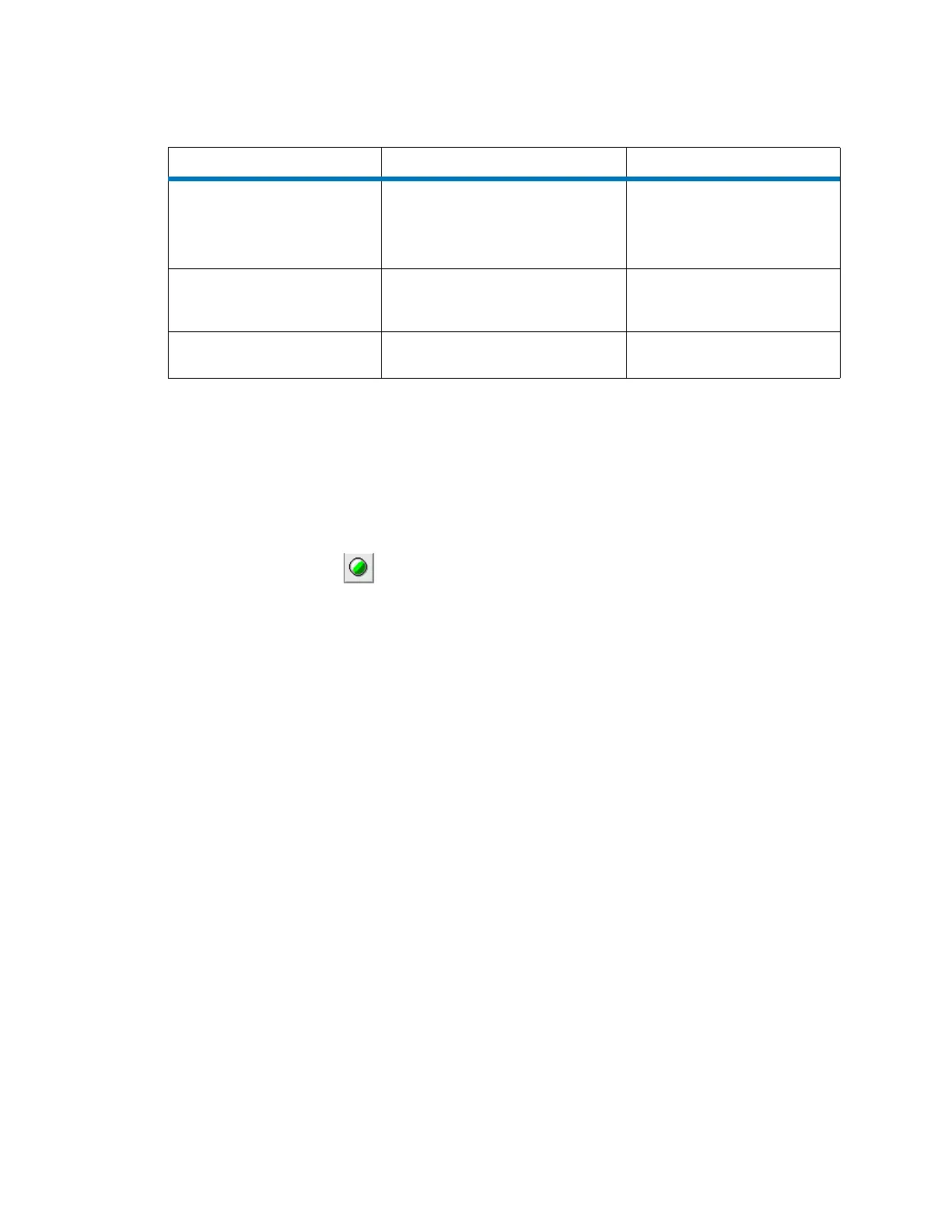
Table C–1: “Multi mode column selection is out of range” alarms
Column Selection Situation Resolution
Instrument method
Control panel
Console
System startup
You selected Bypass in one
column manager and a column
number or No Change in the
other column manger.
Replace Bypass with None.
Instrument method
System startup
You selected a column number or
No Change in both column
managers.
Select None in one of the
column managers.
Instrument method
System startup
You selected None in both
column managers.
Select a column in one of the
column managers.



 To Previous Page