Chapter 4: Connecting to the Sensor
•
35
Making a virtual connection
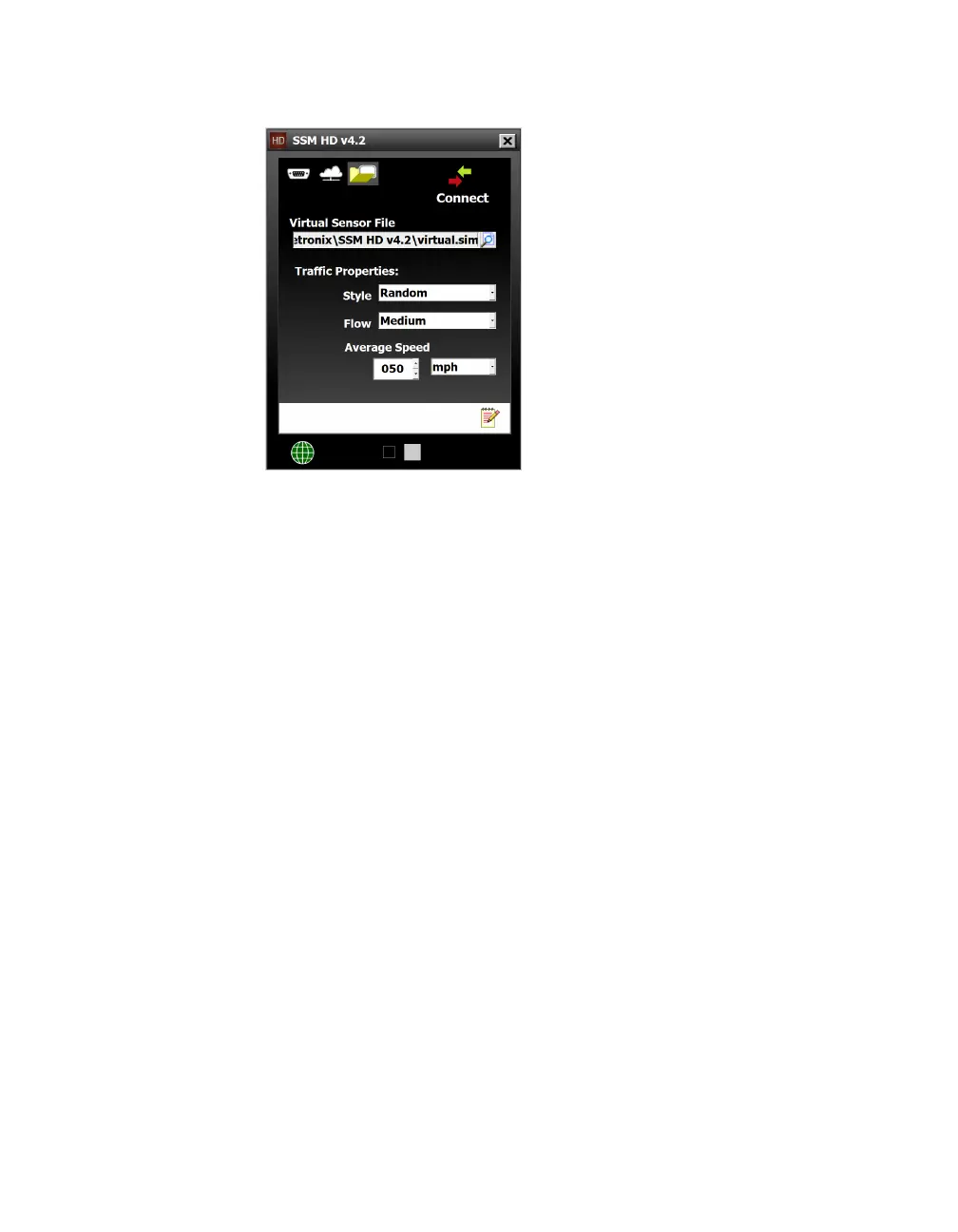
Figure 35. Virtual Connection screen
1 Click the folder icon on the Connect button of the main screen
to open the Virtual Connection screen.
2 Under Virtual Sensor File, click the magnifying glass icon to
navigate to the virtual sensor file you want on your hard drive.
You can also create a new virtual sensor file in the window that
pops up by navigating to the desired save location, typing in a
new file name, and clicking OK.
3 If you want to change the simulated trac, use the three set-
tings under Trac Properties: to change the style, flow, and
average speed of the trac.
4 Click Connect.
About virtual sensor files
If you make changes to the sensor’s setup while using a virtual
connection, those changes are saved to the virtual sensor file,
which by default will be saved to C://ProgramFiles/Wavetronix/
SmartSensorManagerHD vX.X.X/bin/.
If you want, you can back up those virtual sensor settings; that will
create a sensor setup file which can then be restored to an actual
sensor. More on the backup/restore tools in the Tools chapter.
Definition. A
virtual sensor
connection lets
you see simulated
trac in SSMHD
without actually
being connected
to a sensor—great
for demos!



 To Next Page