58
•
SmartSensor HD User Guide
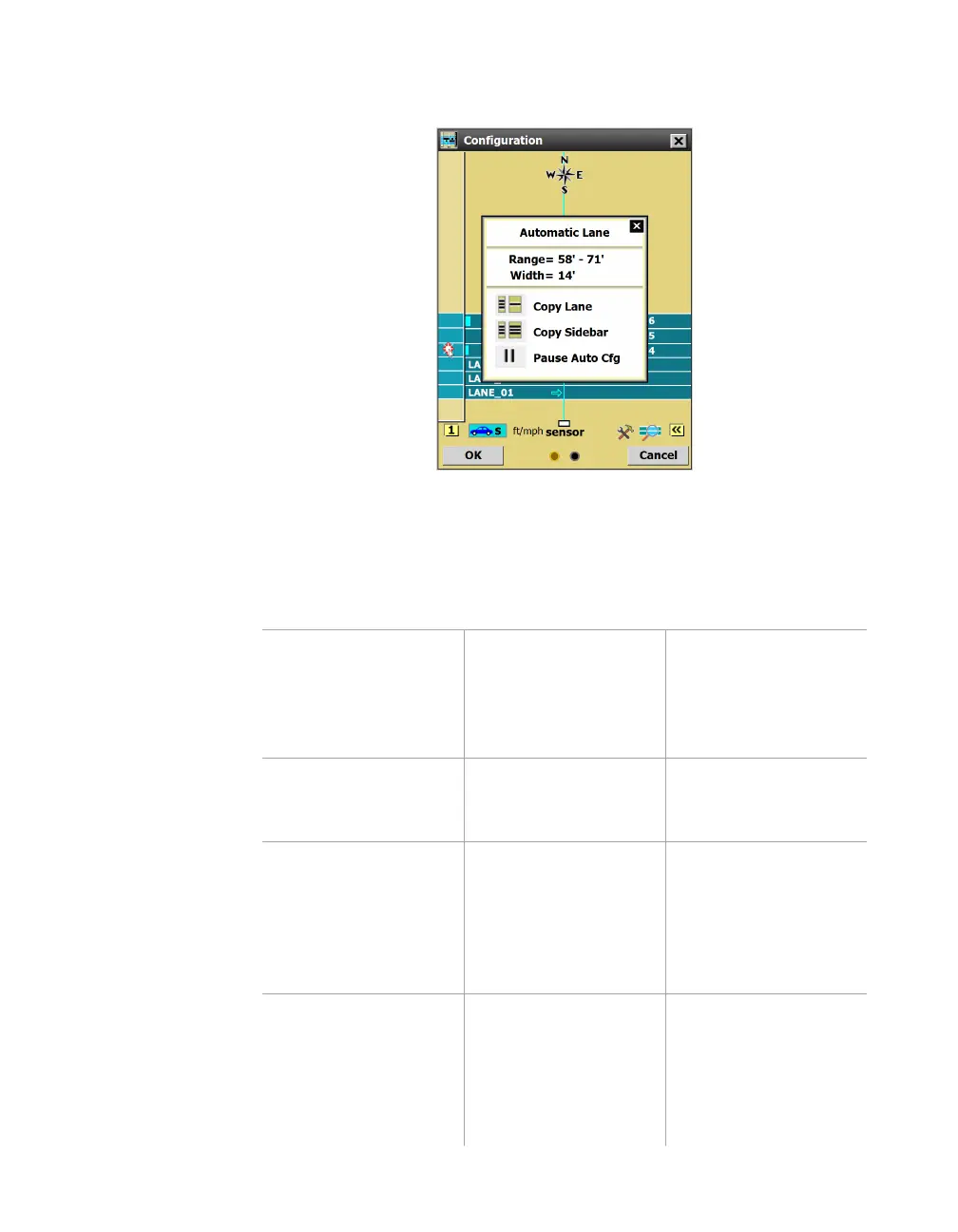
Using the Automatic Lane sidebar window
Figure 61. Sidebar 1 (automatic configuration) window
When sidebar 1 (automatic configuration) is open, click on one of
the lanes in the sidebar to open this window.
Setting Description Details
Range & Width Shows the size and
placement of the
lanes (Range refers to
the distance from the
sensor).
Can’t be changed.
Copy Lane Saves the lane you
clicked on to the edit
area.
An automatic lane will
appear blue; a saved
lane turns black.
Copy Sidebar Saves all the lanes
currently shown in the
sidebar to the edit
area.
This is the
recommended
method for saving
automatically
configured lanes to
your configuration.
Pause Auto Config This temporarily
halts the automatic
configuration process;
no new lanes will be
placed until you click
again to resume.
Use this if, during the
configuration process,
there are traffic
events you don’t
want to be part of the
sensor’s calculations.



 To Next Page