36
•
SmartSensor HD User Guide
Troubleshooting a connection
Some or all of the following may help you troubleshoot:
˿
Make sure that all power and communication wiring is correct.
˿
Check the port settings (baud rate, port ID).
˿
Make sure the sensor ID is correct.
˿
Make sure the terminal server is configured properly.
˿
If a failure occurs repeatedly, contact support@wavetronix.com.
Advanced communication tools
Once you’ve made a connection, the Connect button of the main
screen should now be animated, with arrows moving past each
other, and it should now say "Connected."
Viewing connection information
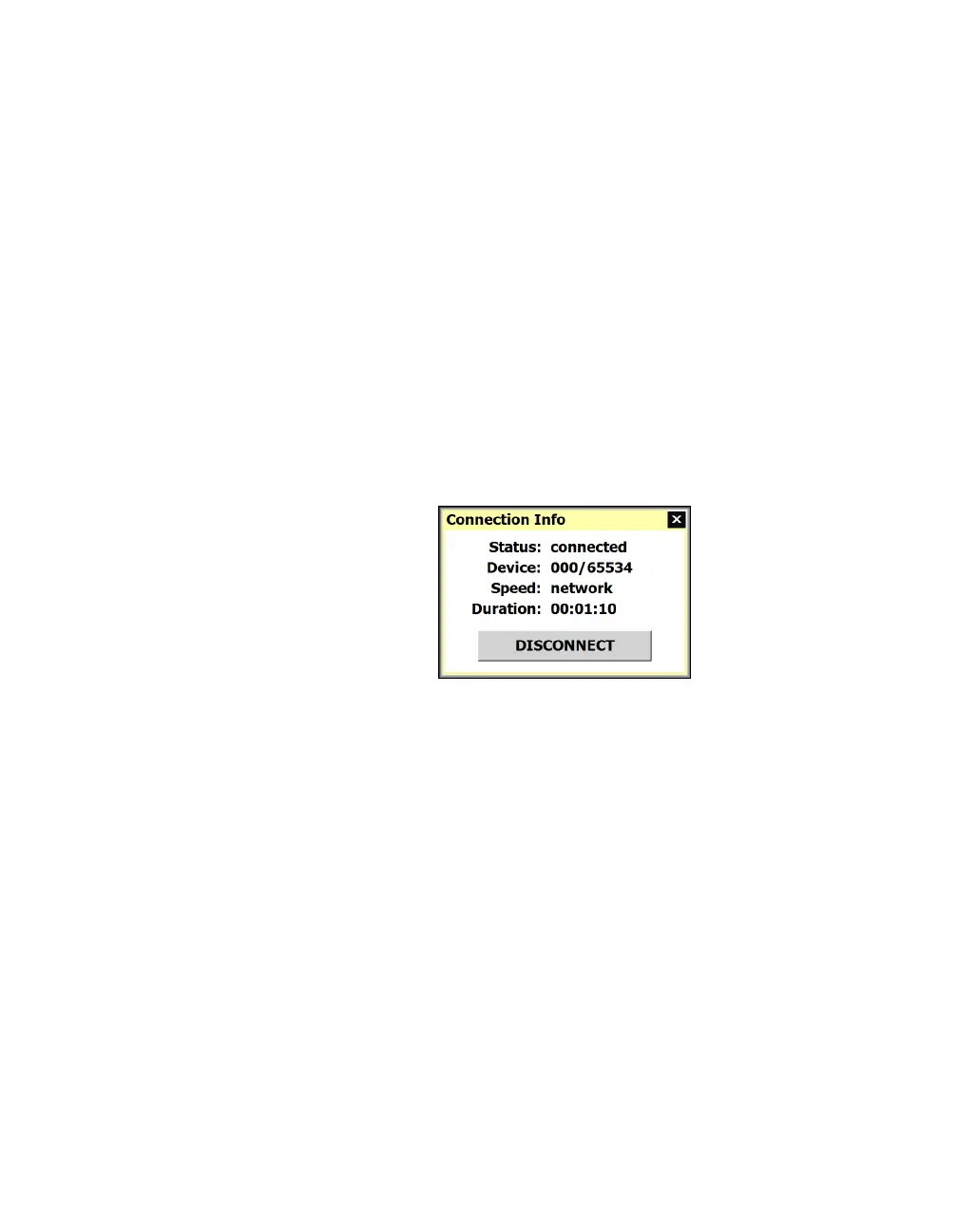
Figure 36. Connection Info window
1 Click Connected.
2 This will bring up the Connection Info window, with information
about the connection status, device (subnet and sensor ID),
speed in bps, and duration.
Disconnecting from a sensor
1 Click Connected.
2 This will bring up the Connection Info window. Click
Disconnect.



 To Next Page