Chapter 6: Configuring Lanes
•
55
3 Click the X in the upper right corner to save and close the
window.
Deleting a lane
1 Click on the lane you want to delete. The Lane window will
appear.
2 Click Delete. Be aware that if the lane was automatically config-
ured, and if Show Auto Lanes is turned on, once it is deleted it
will still appear as a blue automatic lane.
Saving the configuration
Any of the following will save the configuration:
˿
Click OK.
˿
Click on the gray dot under the sensor for a shortcut to the Ver-
ification screen.
Either of these will cause a prompt to appear, asking if you want to
save. Click Yes .
Sidebars, menus, and windows
Sidebar
Sidebar button
Sidebar button
View menu
View menu
Vehicle Display menu
Tools menu
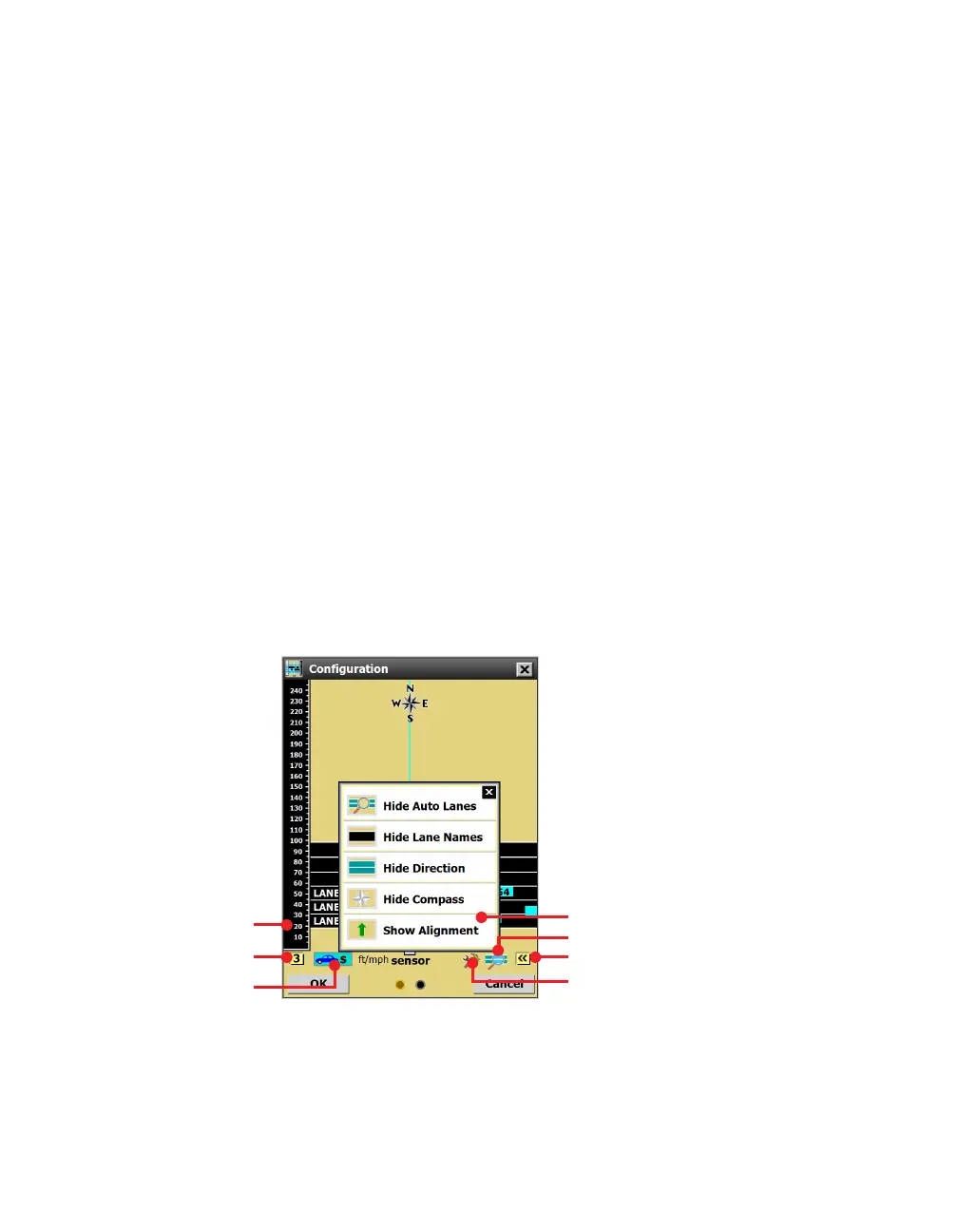
Figure 59. Tools for accessing menus and windows
The following section outlines all options available in the various
sidebars, menus and windows accessible from the Configuration
screen. Some of these change software functionality, while others
simply change how things are displayed.



 To Next Page