Chapter 6: Configuring Lanes
•
59
Sidebar 1 shoulder area window
If you click the shoulder area, instead of a lane, it will open a
window with just the range/width of the shoulder and the Copy
Sidebar option.
Using the Saved Lane sidebar window
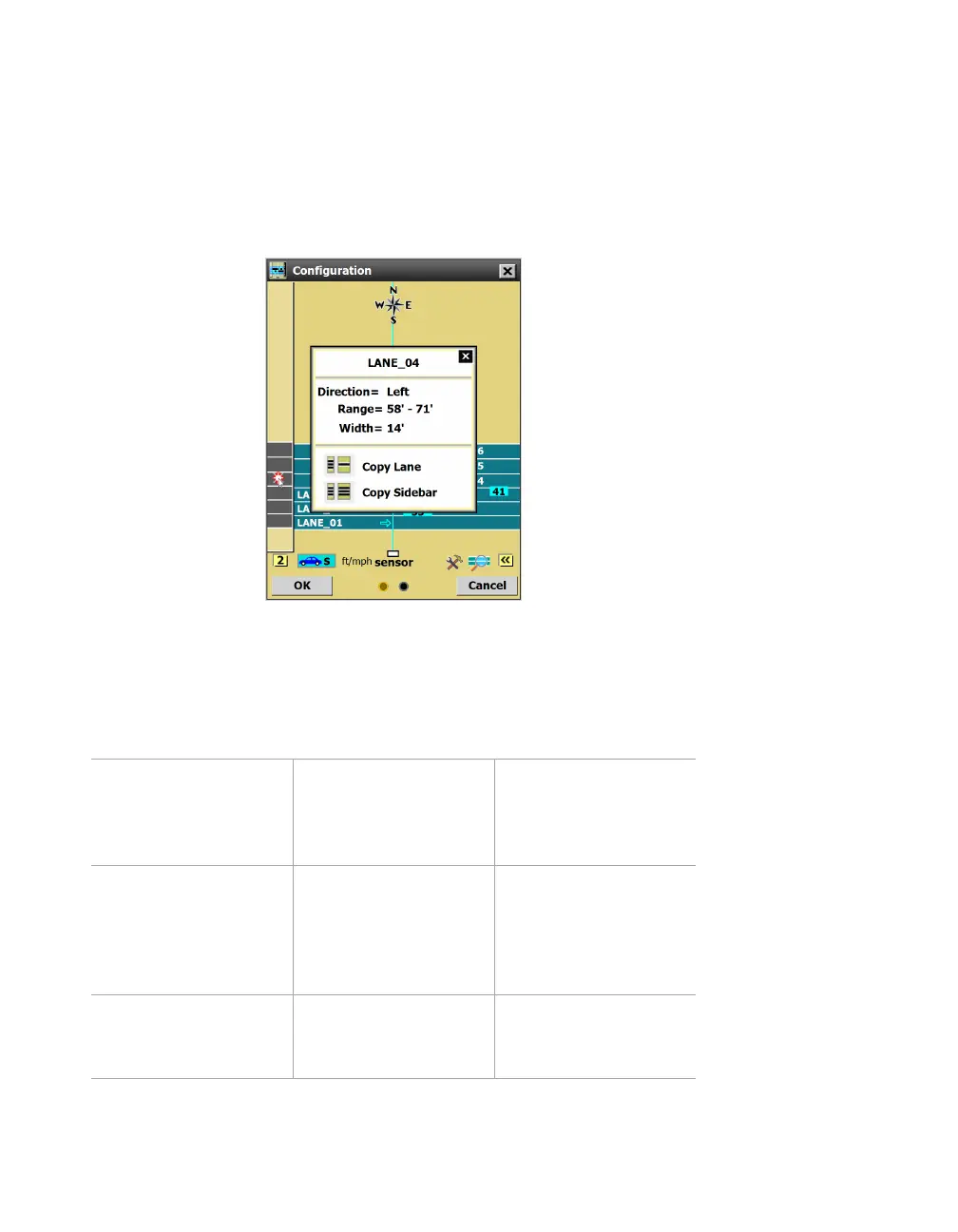
Figure 62. Sidebar 2 (saved configuration) window
When sidebar 2 (saved configuration) is open, click on one of the
lanes in the sidebar to open this window.
Setting Description Details
Direction Shows the direction
of traffic, as it’s been
detected by the
sensor.
Can’t be changed
here, but can be
changed in the Lane
window.
Range & Width Shows the size and
placement of the
lanes (Range refers to
the distance from the
sensor).
Can’t be changed
here, but can be
changed in the Lane
window.
Copy Lane Saves the lane you
clicked on to the edit
area.
An automatic lane will
appear blue; a saved
lane turns black.



 To Next Page