70
•
SmartSensor HD User Guide
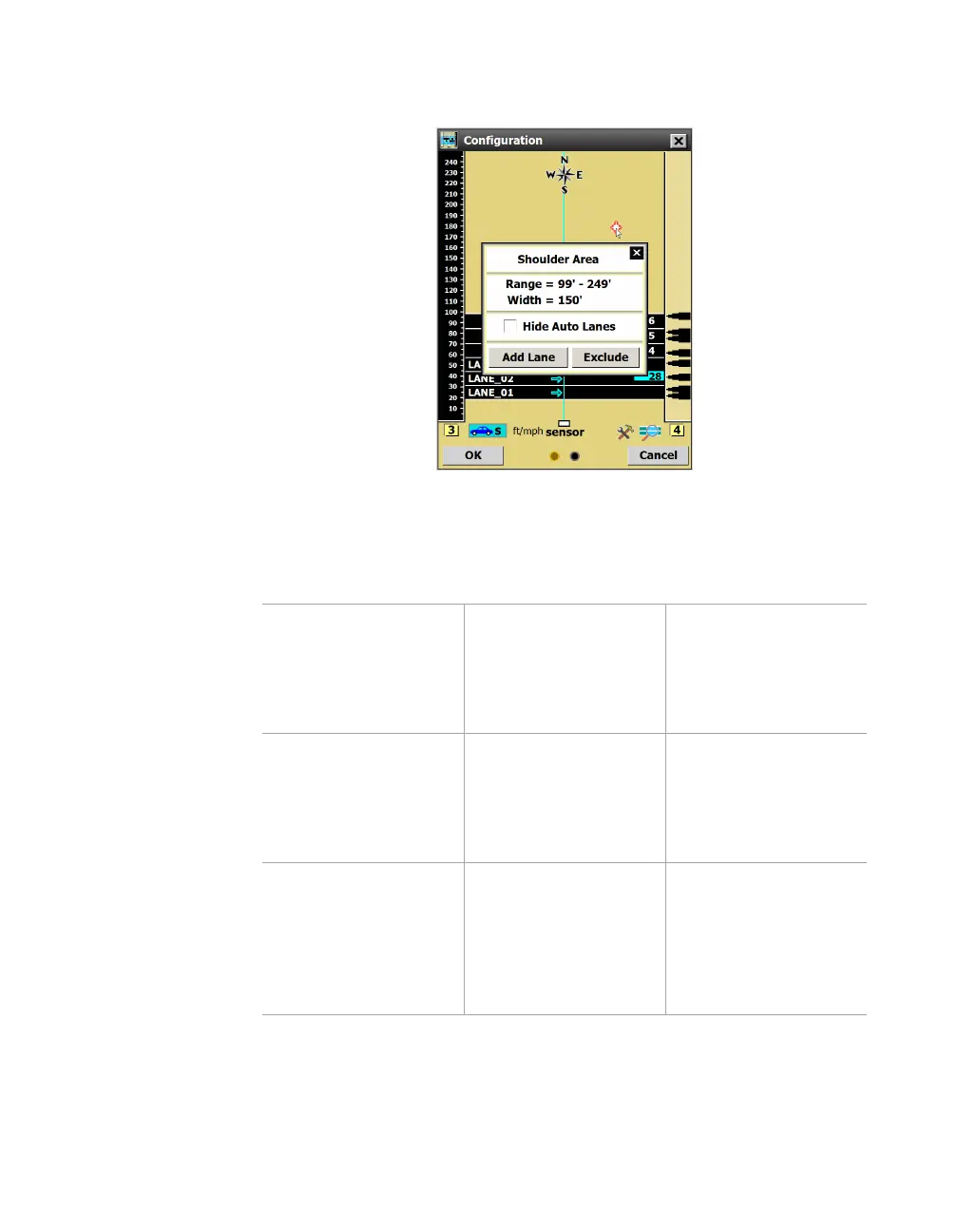
Using the Shoulder Area window
Figure 68. Shoulder Area window
Click in the shoulder (tan) area to open this window.
Setting Description Details
Range & Width Shows the size and
placement of the
lanes (Range refers to
the distance from the
sensor).
Can’t be changed.
Hide Auto Lanes Hides (but does
not delete) the
automatically
configured lanes from
the edit area.
This can also be done
through the View
menu.
Add Lane Creates a new lane in
the spot you clicked
on.
Unlike automatically
configured lanes,
which are blue when
they first appear,
user-created lanes
will appear black.



 To Next Page