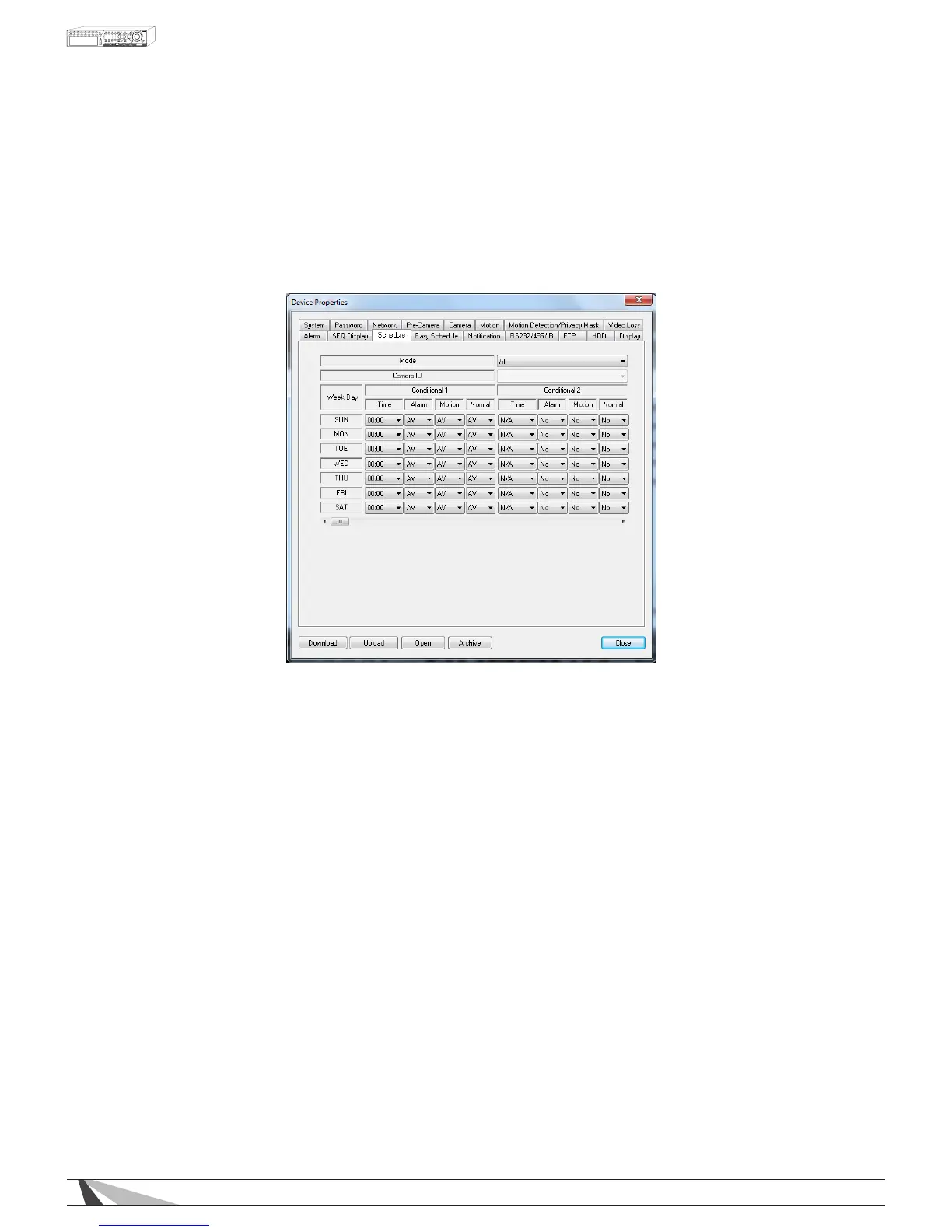
9.3.11. SCHEDULE
The Scheduled Record Setup allows the administrator to dene when and how video (and audio) will be
recorded. This feature may be useful to increase hard drive storage space by dening what types of events
are recorded on specic days of the week. For example if Normal Recording (recall that the DVR is capable
of always recording video even without event triggers such as motion or alarm) is not necessary, this feature
can be disabled on a daily basis. To further dene when and how the DVR records, up to 16 time segments
(Conditional 1 – Conditional 16) are available for each day of the week.
Thefollowingisabriefdescriptionforeachiteminthismenuanditsspecicoperations:
•MODE
Allows choice of scheduling for all cameras simultaneously, or scheduling by individual camera number.
•CAMERAID
Determine which camera's schedule is being congured when using the Individual mode.
•TIME
Set the start time of this time segment (conditional) in increments of 30 minutes in military time format. The
end time of this conditional is implicitly set as the start time of next conditional.
Example: If the following start times are set:
• Conditional 1 = MON at 9:00
• Conditional 2 = MON at 18:00
• Conditional 3 - Conditional 16 = MON as N/A (Not Available)
--- then ---
• Conditional 1 = MON 9:00-18:00
• Conditional 2 = MON 0:00-9:00 and 18:00-24:00
•ALARM
Dene if Alarm events are recorded. Options include V for Video only, AV for Audio and Video, NO for No
Recording (provides event notications without event recording), and OFF to turn all event notications and
recordings off.
•MOTION
Dene if Motion events are recorded. Options include V for Video only, AV for Audio and Video, NO for No
Recording (provides event notications without event recording), and OFF to turn all event notications and
recordings off.



 To Next Page