•NORMAL
Dene if normal video and audio (non-event based video and audio) is recorded. Options include V for
Video only, AV for Audio and Video, NO for No Recording, and OFF for recording but no event notication.
NOTE:IfbothAlarmandMotionaresettoOFF,thenallvideoandaudiorecordingswillbeconsidered
“normalrecording”unlessthereisVideoLossforaparticularcamera.
•BUZZER
By default, the internal buzzer is enabled to sound when video loss for the camera is detected.
9.3.12. EASY SCHEDULE
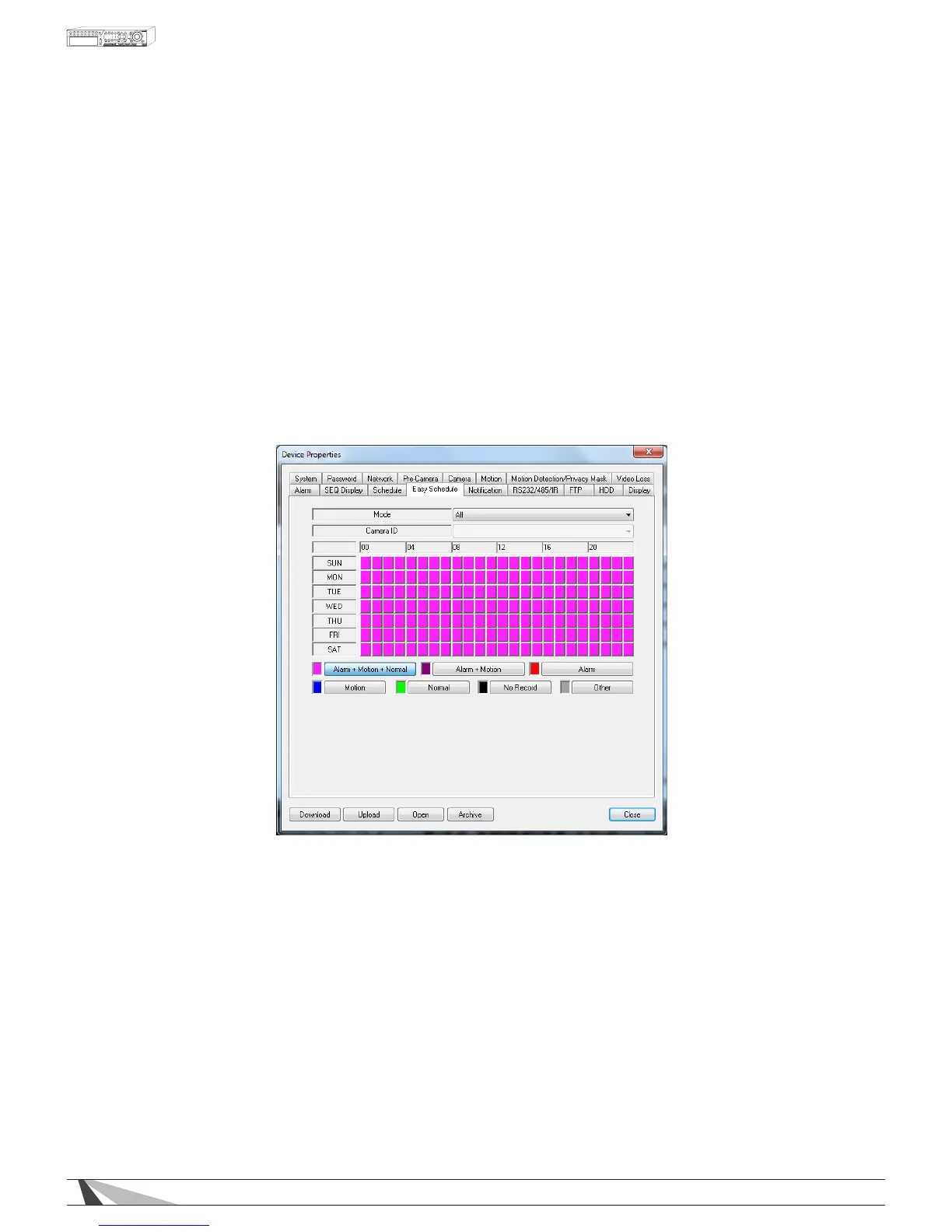
The Easy Schedule Record Setup allows the administrator to visually dene when and how video (and audio)
will be recorded. The simple seven day by 24 hour grid, allows push-button scheduling by assigning various
record modes by day/hour/mode.
Simply select a record mode and then assign that mode to the grid by day and hour. (The grid is setup as seven
days by twenty four hours per day in one hour blocks.)
•MODE
Select the cameras to be scheduled from the drop-down menu. OPTIONS: All, Individual.
•CAMERAID
If 'Individual Mode' was selected, select the camera to be scheduled from the drop-down menu.. OPTIONS:
1-16.
Select a record mode or combination of record modes for the selected camera(s). Select a record mode and
then click in the grid for the days/hours that mode is to be applied. To change record modes, select a different
mode and click the days/hours on the grid.
•ALARM+MOTION+NORMAL
Select to record 24/7 plus logging and notications of alarm and motion events.
•ALARM+MOTION
Select to disable 24/7 recording while maintaining logging and notications for alarm and motion events.
•ALARM
Select to disable 24/7 recording and motion event logging and notications while maintaining logging and
notications for alarm events only.
•MOTION
Select to disable 24/7 recording and alarm event logging and notications while maintaining logging and
notications for motion events only.



 To Next Page