•MODE
Press this button on the front panel of the DVR or remote control to Set/Reset the whole video area.
Alternatively use the mouse to select this icon.
•ESC
Press the ESC button on the front panel of the DVR or remote control to escape from this menu and return
to the Smart Search menu. Alternatively use the mouse to exit the sub menu by clicking on the “X.”
Another method to escape is to use the mouse to “right-click,” and exit the sub menu.
8.4. SEARCH ARCHIVED FILES
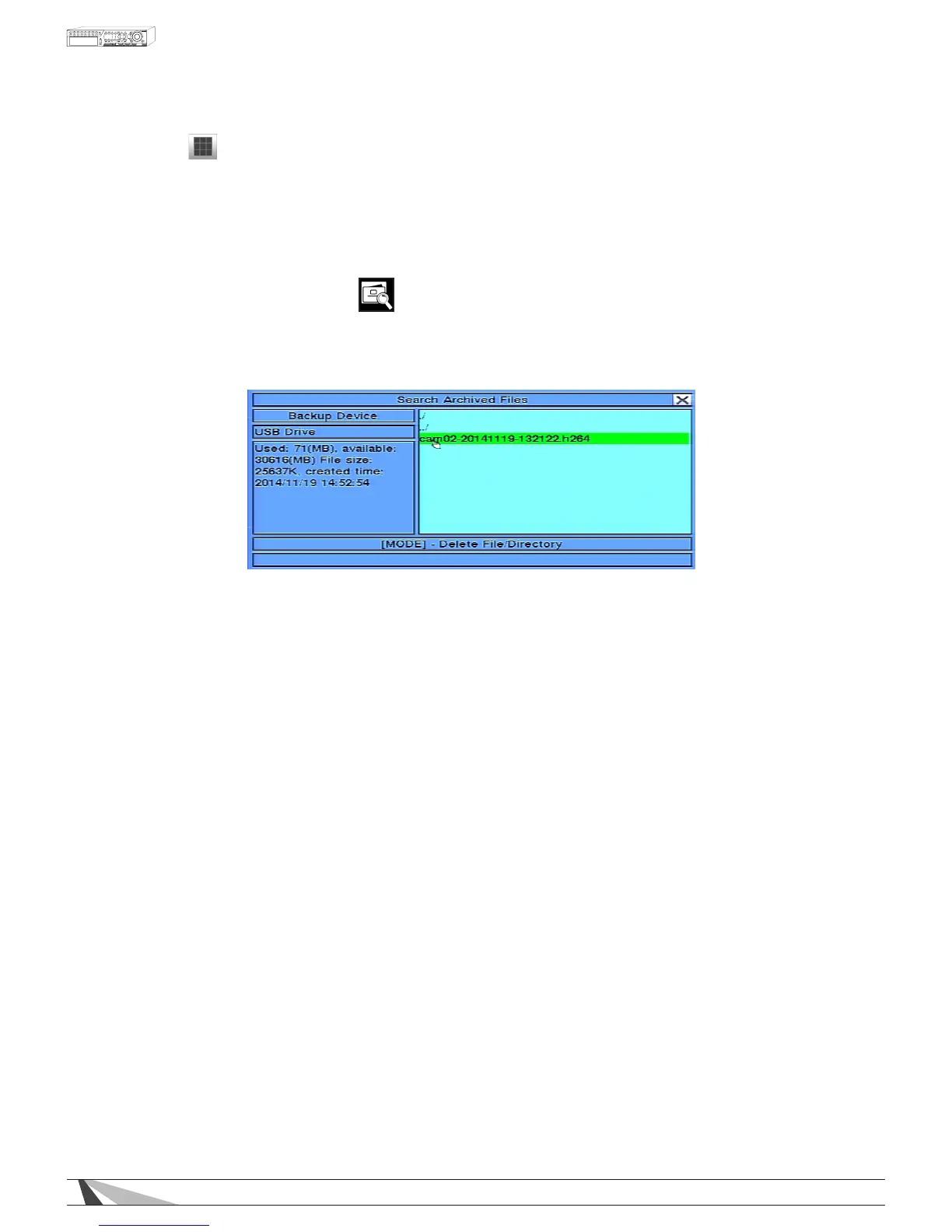
The Search Archived Files feature allows the user to search les on a storage devices such as a USB thumb drive.
Thefollowingisabriefdescriptionforeachiteminthesubmenuanditsspecicoperations:
•BACKUPDEVICE
Press ENTER on the front panel of the DVR or on the remote control to connect to the backup device and
display the les on the device. Alternatively use the mouse to connect to the backup device and display
the les.
•ARCHIVEDFILELIST
Select the appropriate le from the le list and then press ENTER to begin playback. Pressing the Play button
(►/II) on the front panel of the DVR or on the remote control, or double-clicking the left mouse button
will also begin playback. Refer to Section 8.5 Playback For Archived Files for the detailed operations. To
delete a le, press the MODE button on the front panel of the DVR or on the remote control. Alternatively
use the mouse to select les, begin playback or delete les.
NOTE:FilenameformatforcamNN-YYYYMMDD-hhmmss.h.264isasfollows:
•NN = camera number(01-08)
•YYYY = year
•MM = month
•DD = day
•hh = hour
•mm = minute
•ss = second
•.h.264 = le type



 To Next Page