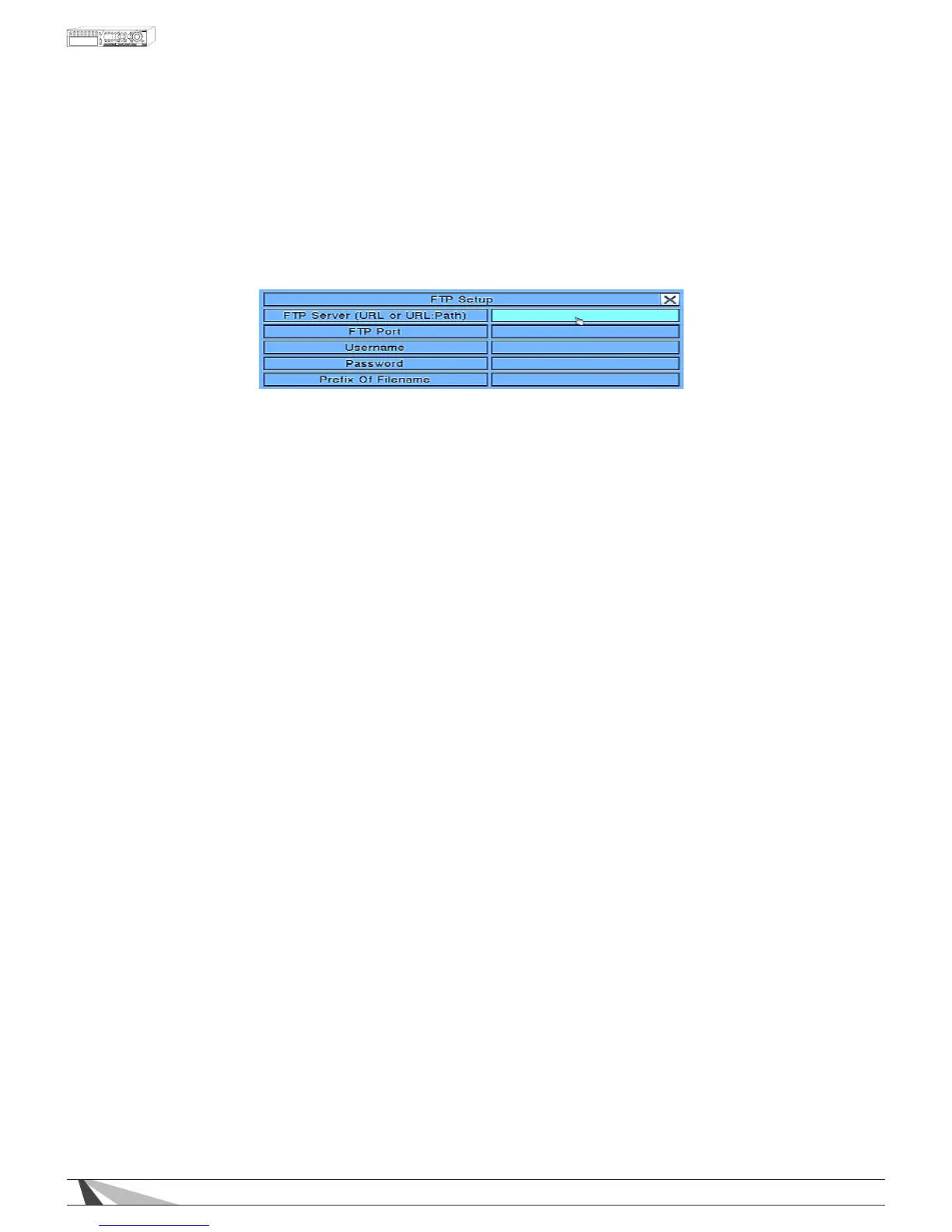
6.11.2. FTP SETUP
FTP Setup allows the administrator to set FTP related parameters. When an event occurs and FTP is enabled for
the action, the recorded video and audio for that event will be sent to the FTP server based on the parameters
set in this menu.
In Network Setup, press ENTER to display FTP Setup as shown when the highlighted option is FTP.
To navigate and operate this menu:
•▲▼◄►
Press these buttons on the front panel of the DVR or remote control to select an item. Alternatively use the
mouse to select an item.
•ESC
Press the ESC button on the front panel of the DVR or remote control to escape from this menu and
return to the main menu. Alternatively use the mouse to exit the sub menu by clicking on the “X.”
If the contents in this menu have been modied, a Save dialog box will be displayed requesting the
user to save the changes. Press ENTER on the front panel of the DVR or remote control to exit and
save, ESC to exit without saving. Another method to escape is to use the mouse to “right-click,”
and exit the sub menu.
Thefollowingisabriefdescriptionforeachiteminthismenuanditsspecicoperations:
Please follow the Text Input method described in Section 4.1 to modify these items. Alternatively use the mouse
and the pop-up keyboard to enter these settings. Consultation with the network administrator or the FTP server
provider may be required for these settings.
•FTPSERVER
Enter the FTP Server web/IP address.
•FTPPORT
Enter the FTP Port number. The default value is 21.
•USERNAME
Enter the Username for the FTP server.
•PASSWORD
Enter the Password for the FTP server.
•PREFIXOFFILENAME
Enter the PrexoftheFilenames for les sent to the FTP server. If this box is left empty, the lenames will
start with “cam” If a prex such as “Prex” is entered, the lenames will start with “Prex-cam.” For another
example, if the prex is “DVR01”, then the lenames will begin with “DVR01-cam.”



 To Next Page