9.2.6.2. SEARCH BY EVENT
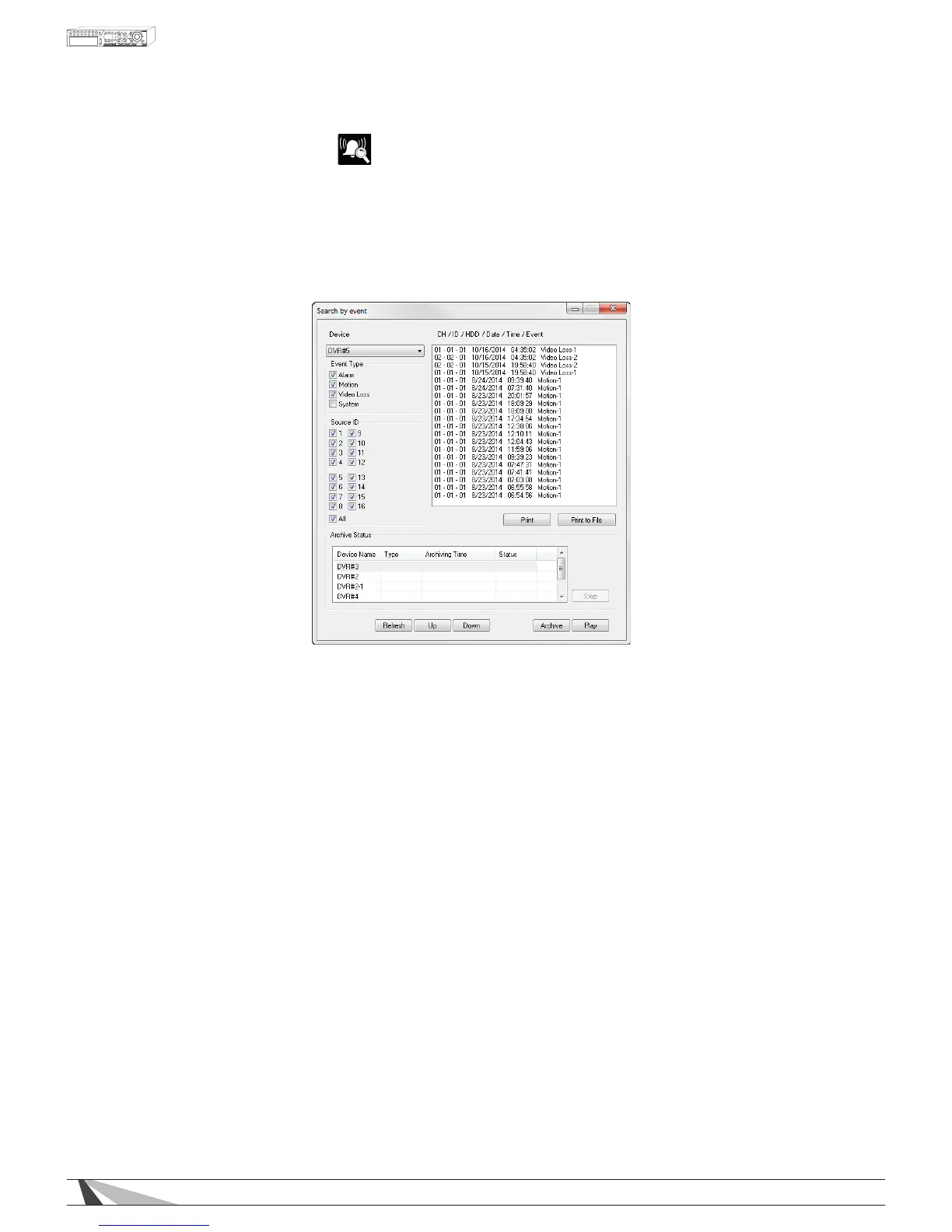
Use the Search by Event feature to search all recorded event types stored on the DVR’s hard drive. Click on
the Search by Event icon to display the Search by Event dialog box and the event log. Select the Device
(DVR) to search. Select the Event Type (Alarm, Motion, Video Loss or System) and Source ID (camera) to
search the event logs. Click on Refresh to update the event log and use the Up and Down buttons to scroll
to additional events. Click on the desired events to highlight and select them for Playback or to Archive
the les to the local PC. Use the Playback Panel icons to control the video. To exit playback, select the
LIVE icon at the bottom of the screen.
Thefollowingisabriefdescriptionforeachiteminthismenuanditsspecicoperations:
• DEVICE
Select the appropriate DVR to search
• EVENTTYPE
Select the event type(s) to search. System events include Login/Logout, e-mail errors, hard drive failures,
etc.
• SOURCEID
Select the camera ID number(s) to search
• PRINT
Print the event log to a printer
• PRINTTOFILE
Export the event log to a “.txt” le
• REFRESH
Refresh the event log after making changes to the search parameters
• UP
Scroll the event log results up
• DOWN
Scroll the event log results down
• ARCHIVE
Archive the selected event(s) to the local PC
• PLAY
Play the selected event(s)



 To Next Page