Thefollowingisabriefdescriptionforeachiteminthesubmenuanditsspecicoperations:
•START
Set the start time of this time segment (conditional) in increments of 30 minutes in military time format.
The end time of this conditional is implicitly set as the start time of next conditional. Press the +/- buttons
on the front panel of the DVR or the remote control to select the desired start time. Alternatively use
the remote control to set the desired start time.
Example: If the following start times are set:
• Conditional 1 = MON at 9:00
• Conditional 2 = MON at 18:00
• Conditional 3 - Conditional 16 = MON as N/A (Not Available)
--- then ---
• Conditional 1 = MON 9:00-18:00
• Conditional 2 = MON 0:00-9:00 and 18:00-24:00
•ALARM
Dene if Alarm events are recorded. Options include V for Video only, AV for Audio and Video, NO for
No Recording, and OFF for recording but no event notication. Press +/- buttons on the front panel of
the DVR or remote control to change the value. Alternatively use the mouse to adjust these options.
•MOTION
Dene if Motion events are recorded. Options include V for Video only, AV for Audio and Video, NO for
No Recording, and OFF for recording but no event notication. Press +/- buttons on the front panel of
the DVR or remote control to change the value. Alternatively use the mouse to adjust these options.
•NORMAL
Dene if normal video and audio (non-event based video and audio) is recorded. Options include V for
Video only, AV for Audio and Video, NO for No Recording, and OFF for recording but no event notication.
Press +/- buttons on the front panel of the DVR or remote control to change the value. Alternatively
use the mouse to adjust these options.
Note:IfbothAlarmandMotionaresettoOFFthenallvideoandaudiorecordingswillbeconsidered
“normalrecording”unlessthereisVideoLossforaparticularcamera.
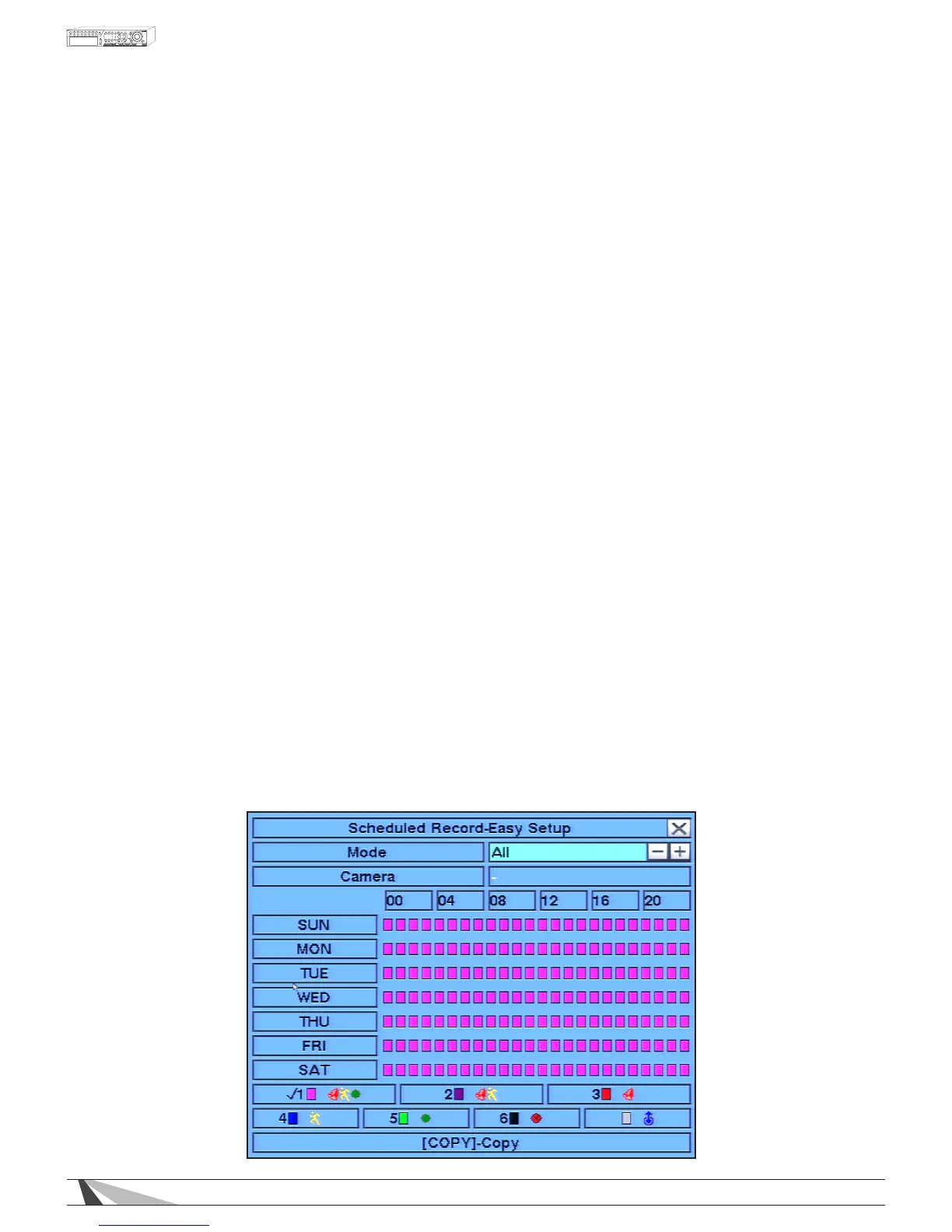
6.6.1. SCHEDULED RECORD – EASY SETUP
Within the Scheduled Record menu, Easy Setup allows the administrator to use a more visual method to setup
the scheduled record of the system.
Press the Mode button on the front panel of the DVR or the remote control to select Easy Setup from the
Scheduled Record menu. Alternatively use the mouse to select this sub menu.



 To Next Page