•LOG
By default, the DVR will log when video loss is detected in the Event Log (see Section 8.2). Highlight
this setting and press ENTER or +/- to enable or disable this item. Alternatively use the mouse to
left-click on this item.
•SCREENMESSAGE
By default, the DVR will display a video loss message in the System Status Bar when video loss is detected
for this camera. Highlight this setting and press ENTER or +/- to enable or disable this item. Alternatively
use the mouse to left-click on this item.
•E-MAIL
This DVR can send an email message to a predened email address in the event video loss is detected
for this camera. Highlight this setting and press ENTER or +/- to enable or disable this item. Alternatively
use the mouse to left-click on this item. The default setting is disabled. See Section 6.11.1 for more
information on e-mail.
•FTP
This DVR can send the recorded video loss event for this camera to a FTP server. Highlight this setting
and press ENTER or +/- to enable or disable this item. Alternatively use the mouse to left-click on this
item. The default setting is disabled.
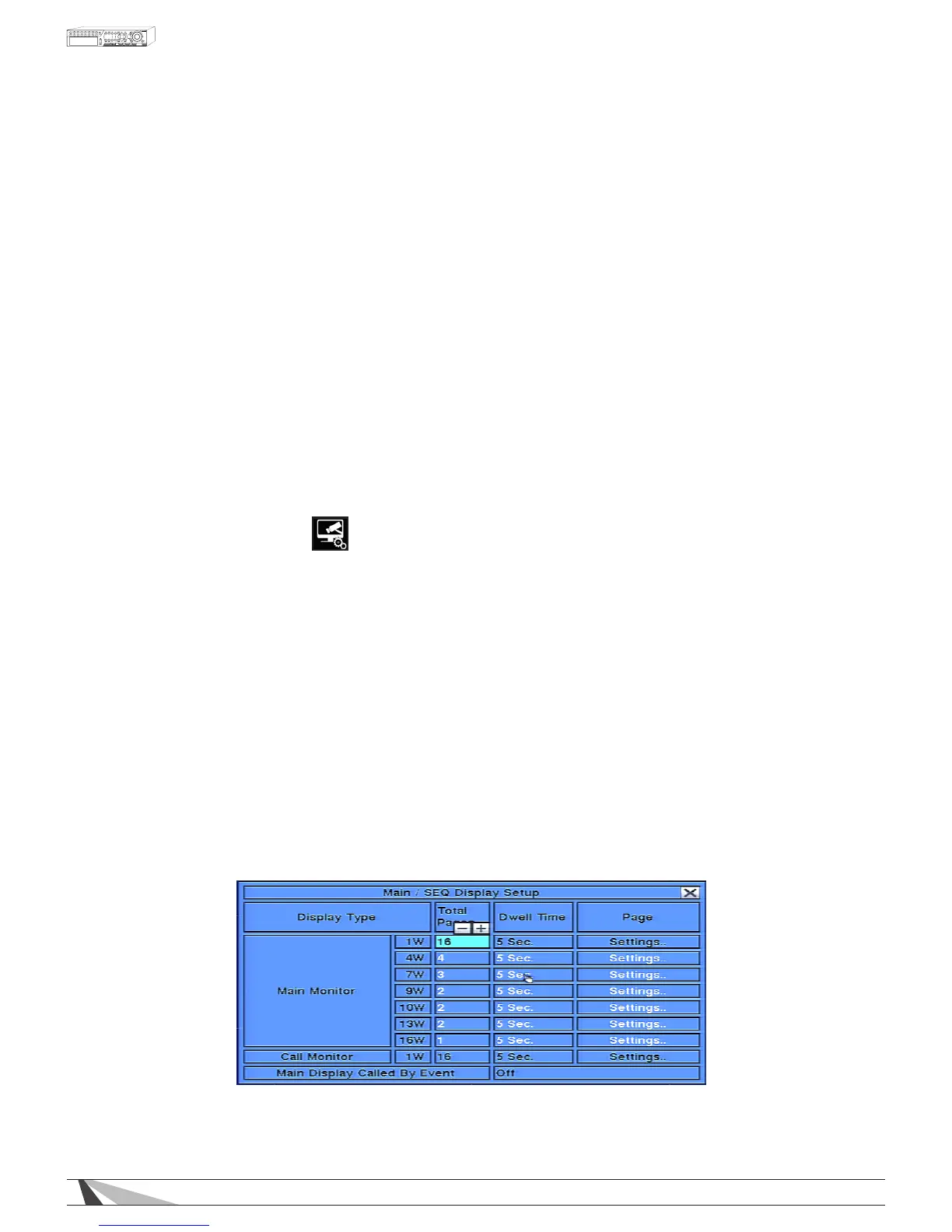
6.4. SEQ DISPLAY SETUP
The SEQ Display Setup allows the administrator to dene the displayed pages when in SEQ Display mode.
Display Type Options:
WPS-DVR-300-9CH WPS-300-DVR-16CH
• 1-Window • 1-Window
• 4-Window • 4-Window
• 9-Window • 7-Window
• 9-Window
• 10-Window
• 13-Window
• 16-Window
In the Setup Menu display, press ▲▼◄► on the front panel of the DVR or on the remote to change the
highlighted option to SEQ Display, and then press ENTER to display SEQ Display Setup as shown.



 To Next Page