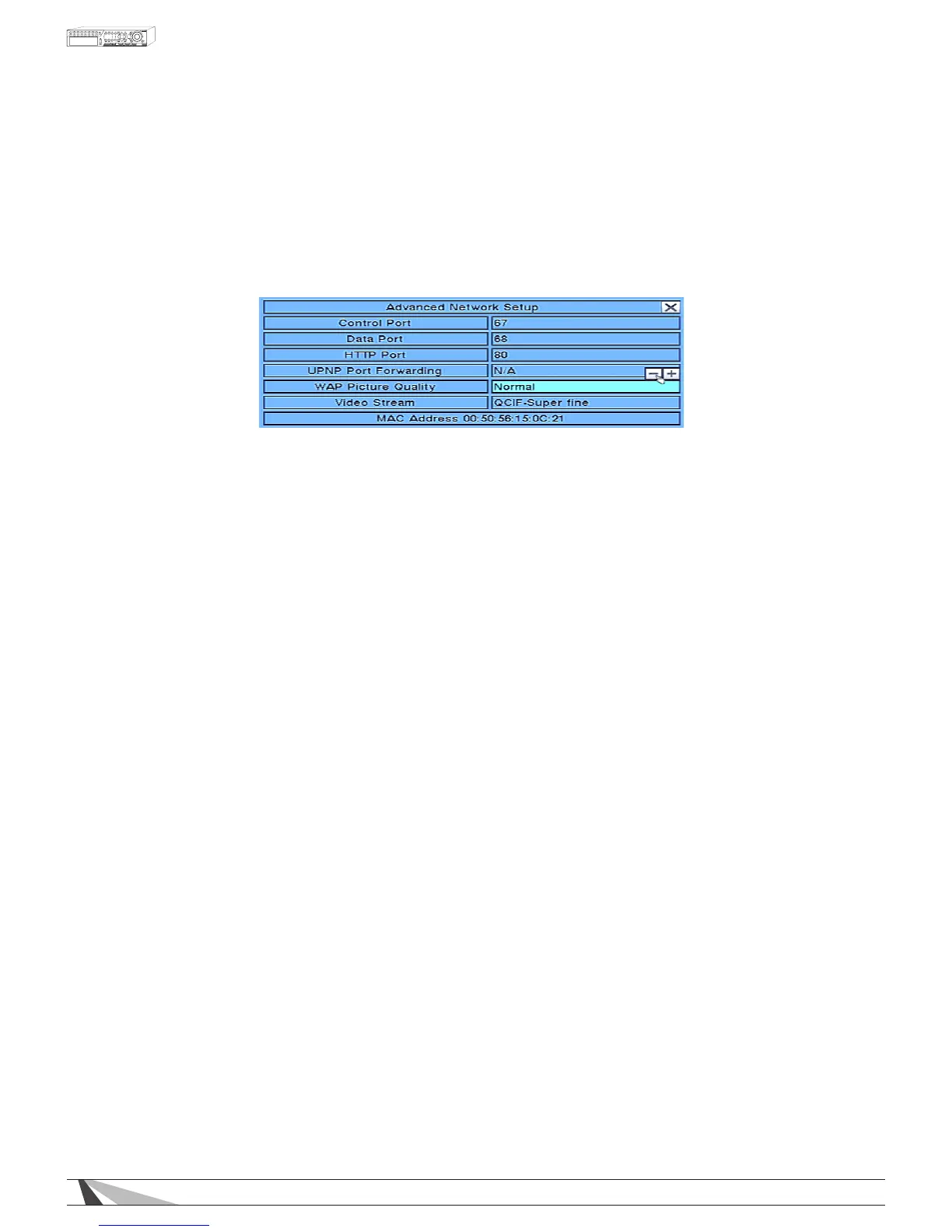
6.11.3. ADVANCED NETWORK SETUP
The Advanced Network Setup allows the administrator to set advanced network parameters use for
connection from remote devices such as PCs and Smart phones. Consultation with the network
administrator may be required for these settings.
In Network Setup, press ENTER to display Advanced Network Setup as shown when the highlighted
option is Adv.
To navigate and operate this menu:
•▲▼◄►
Press these buttons on the front panel of the DVR or remote control to select an item. Alternatively use
the mouse to select an item.
•ESC
Press the ESC button on the front panel of the DVR or remote control to escape from this menu and
return to the main menu. Alternatively use the mouse to exit the sub menu by clicking on the “X.”
If the contents in this menu have been modied, a Save dialog box will be displayed requesting the
user to save the changes. Press ENTER on the front panel of the DVR or remote control to exit and
save, ESC to exit without saving. Another method to escape is to use the mouse to “right-click,”
and exit the sub menu.
Thefollowingisabriefdescriptionforeachiteminthismenuanditsspecicoperations:
Please follow the Text Input method described in Section 4.1 to modify these items. Alternatively use the mouse
and the pop-up keyboard to enter these settings. See the Router Setup document located in the support tab
on the product page for more information on Router Setup and how it relates to these settings.
•CONTROLPORT
Enter the Control Port for remote access. The default value is 67.
•DATAPORT
Enter the Data Port for remote access. The default value is 68.
•HTTPPORT
Enter the HTTP (web page) port for remote access. The default value is 80.
•WAPPICTUREQUALITY
WAP (Wireless Application Protocol) is a simple standard for remote devices (such as Smartphones) to
access the DVR. Press +/- buttons on the front panel of the DVR or on the remote control to change the
value the WAP picture quality if WAP access will be required by remote devices.
•VIDEOSTREAM
Press the +/- buttons on the front panel of the DVR or on the remote to change the video quality sent to
remote devices such as PCs and Smartphones. Alternatively use the mouse to change this setting. If
Record is selected, the DVR will stream video at the same resolution as the Record setting (See Section 6.1).
Video Streaming allows for remote devices to receive lower resolution at higher speeds to the device
(see Section 9.4). This is especially helpful for remote devices on slower network. Reducing resolution sent
to these devices will speed up the delivery of the video. To enable Video Streaming, select one of the four
levels of QCIF (Fair is the lowest quality while Superne is the highest quality). If Video Streaming is used, the
total system recording rate will be reduced.
NOTE:TouseVideoStreaminginInternetExplorer,theusermustselecttheExtra VideoStream option in the
Modify Menu of the Device List(SeeSection 9.2.8.1).



 To Next Page