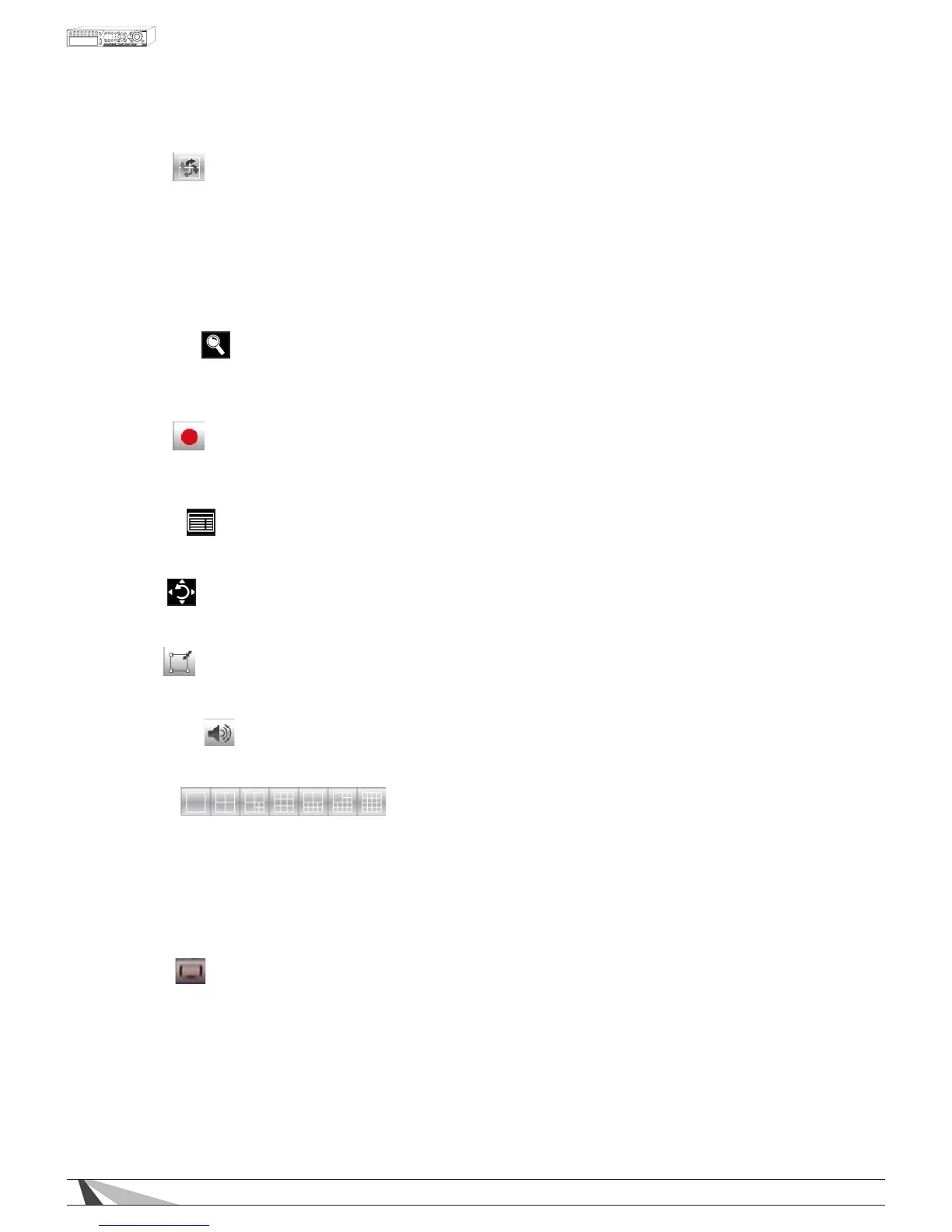
•SEQ
Press this button on the front of the DVR or the remote control to switch to or exit from the sequence display
mode. Alternatively use the mouse to select this icon. In sequence mode, each page in the sequence
will be shown sequentially for the preset time, and the SEQ icon will be shown in the System Status Bar in the
lower-right corner of the screen.
•CALL
Press this button on the front of the DVR or the remote control to switch to or return from full screen display
of the focus camera. Clicking the mouse in the focus camera window will achieve the same result.
•SEARCH
Press this button on the front of the DVR or the remote control to display the search menu. Alternatively use
the mouse to select this icon.
SEARCH is only available to an Administrator or Supervisor.
•REC
Press this button on the front of the DVR or the remote control to force manual recording. To stop manual
recording, press it again. Alternatively use the mouse to select this icon. All cameras will be recorded and
a red REC icon will be shown on the lower-right corner of the screen when manual recording is active.
•MENU
Press this button on the front of the DVR or the remote control (both labeled MENU/ESC) to display the main
Menu. Alternatively use the mouse to select this icon, or, “right-click” the mouse to display the Menu.
•PTZ
Press this button on the front of the DVR or the remote control to enter PTZ control mode if the focus camera
is a PTZ camera and this feature is enabled in setup. Alternatively use the mouse to select this icon.
•X2
Press this button on the remote control to enter the Digital Zoom mode when in full screen display.
Alternatively use the mouse to select this icon.
•VOLUME
Press these buttons on the remote control to control the gain (volume) of the AUDIO OUT jack. Alternatively
use the mouse to select this icon.
•GRID
Press the Grid buttons (next to the grid symbol) on the remote control to toggle through the available
split-window displays. Only 1, 4, and 9 split-window displays are available on the 9ch, and 1, 4, 7, 9, 10,
13 and 16 split-window displays are available on the 16ch. Alternatively use the mouse to select the split
window grid options.
•PAGE
When in split window view, press the Page button on the front of the DVR to toggle through multi-split-
window displays. Alternatively use the mouse to consecutively click on this icon.
•OSD
Use the mouse to select the OSD Display icon to enable or disable the following information from appearing
in the System Status Bar on the main display; Title, Time, Messages, Status and Rec%.



 To Next Page