HW-130 Programmer User Guide
1-16 Xilinx Development System
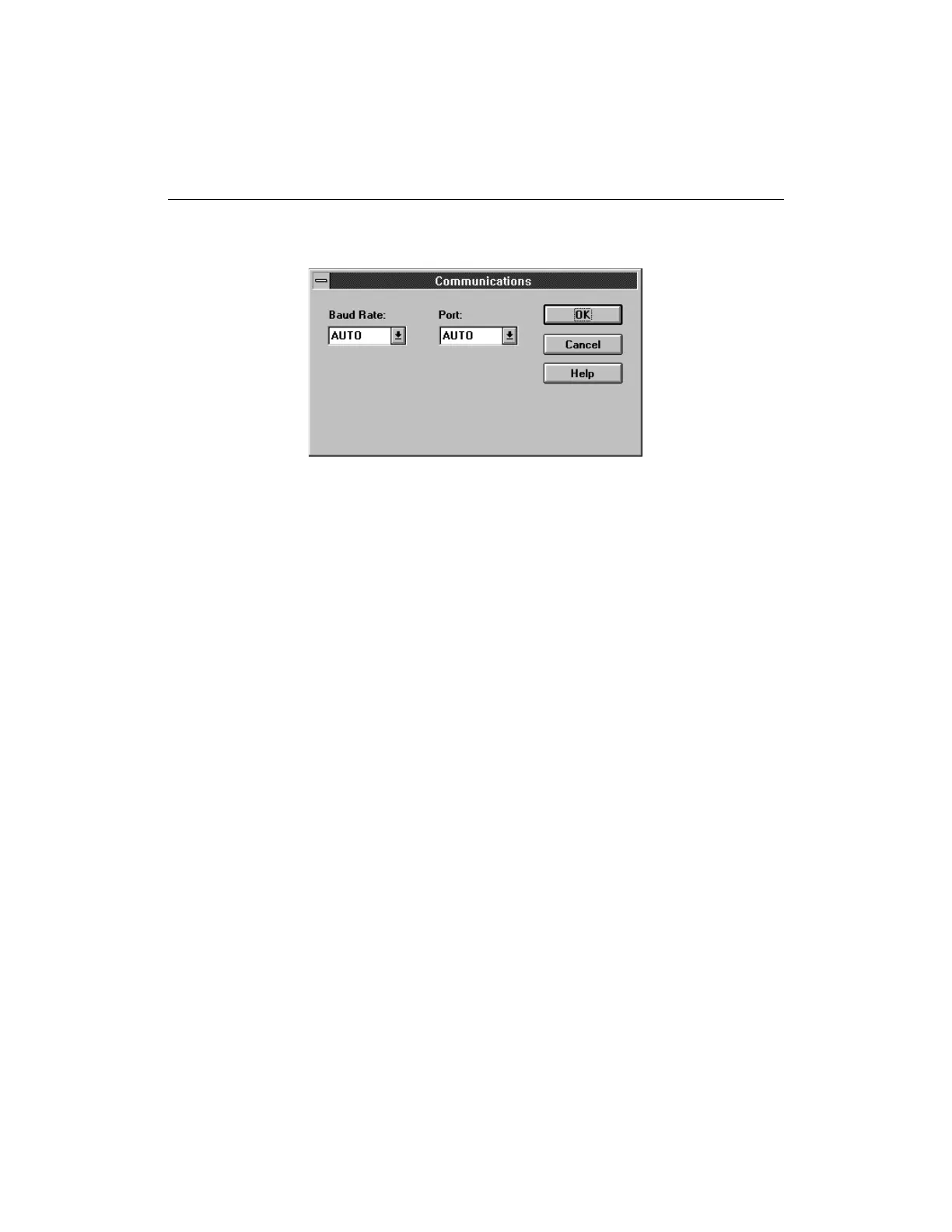
Communications dialog box.
Figure 1-8 Communications Dialog Box (Windows)
2. Select the baud rate you want.
3. Select the port type you want.
On a PC, the serial port options include AUTO, COM1, COM2,
COM3, and COM4. On a Sun Workstation, the serial port options
include AUTO, ttya, ttyb or any user defined serial device. On HP
workstations, the serial port options include AUTO, ttya, ttyb,
tty00, tty01 or any user defined serial device. On IBM
workstations, the serial port options include AUTO, ttya, ttyb,
tty0, tty1, or any user defined serial device. The software displays
only the port options for the ports available on your PC or
workstation. AUTO is the default. If you use the default, the
software searches for the programmer through all available
communications ports and negotiates the highest available baud
rate between the PC or workstation and the programmer.
On a workstation, select the port type you want by specifying the
path and device name for that port in the Serial Port Device name
box of the Communications dialog box, for example, /dev/ttya.
From the specified serial port box, you can also access different
serial device drivers, provided your system is configured to use
them.
4. Click on the OK button to exit from this window.
5. You can save these settings by selecting Save Settings in the
File menu. These settings will be used with your next
programming session.



 To Next Page