E-mail: sales@xtramus.com
Website: www.Xtramus.com
4. Making Settings with Front Panel Buttons & LCD
All parameters for DUT tests can be configured via control buttons located on the front panel. Also,
configuring, testing, and system information are displayed and can be viewed on the LCD screen as well.
Before performing any tests, NuStreams-P5G or NuStreams-P9A should be connected to DUT properly
according to DUT’s type. Please refer to 3. Hardware Installation of NuStreams-P5G & NuStreams-P9A
for more detail information.
4.1. NuStreams-P5G Front Panel Buttons & LCD
4.1.1. NuStreams-P5G Buttons Overview
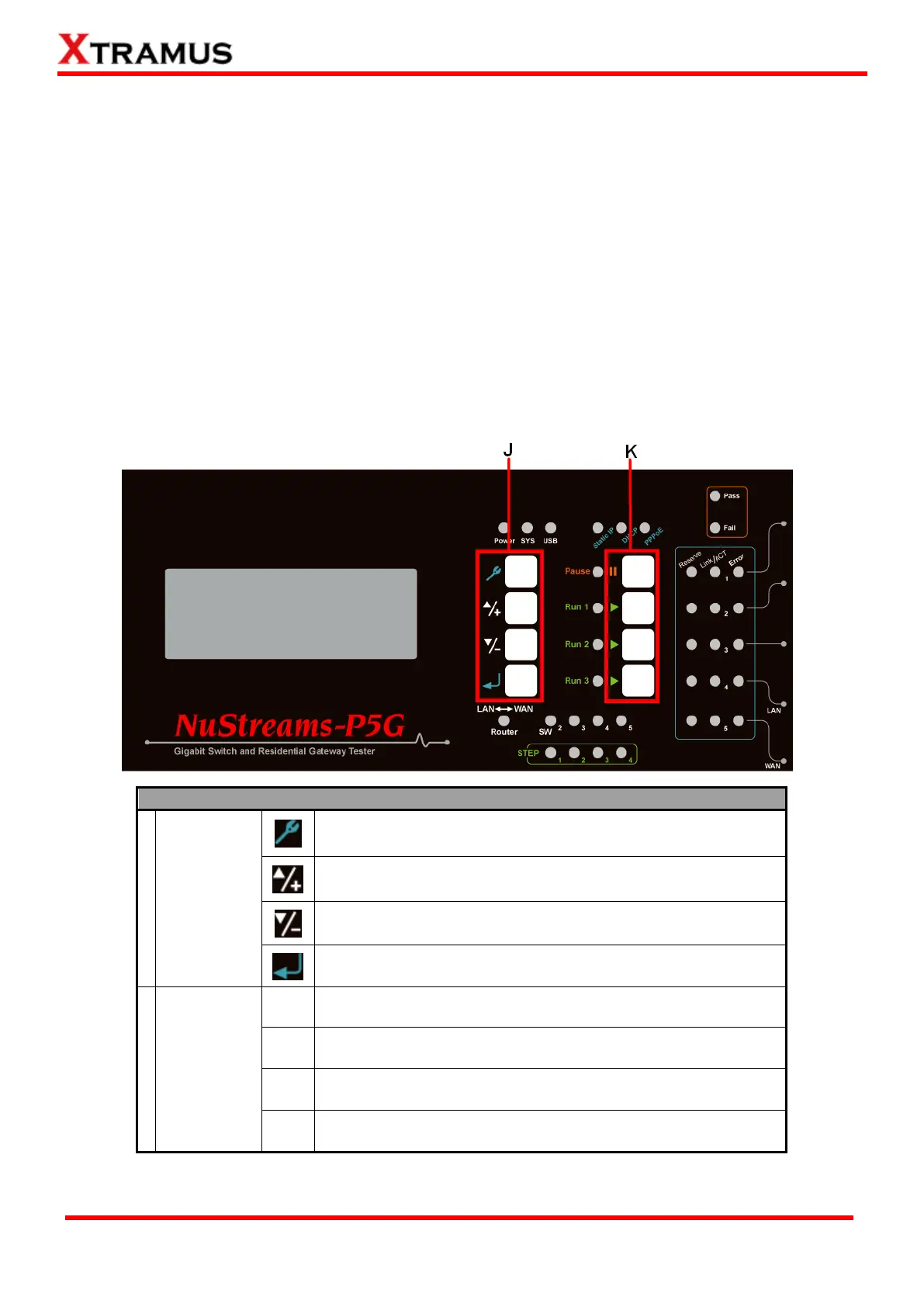
With NuStreams-P5G’s control buttons located on its front panel, all test parameters and system
configurations can be set via these buttons.
Enter the Main Menu(*) or return to the previous Menu
Move the select cursor up
Move the select cursor down
Execute the selected selection
Pause the current running test
Start all Tasks set in Run 1. Up to 4 Tasks can be configured in
Run 1 hotkey. Press this button to test ALL TASKS AT ONCE.
2
nd
hotkey that works as Run 1
3
rd
hotkey that works as Run 1
*Menu and setting options will be displayed on the LCD screen.



 To Next Page