E-mail: sales@xtramus.com
Website: www.Xtramus.com
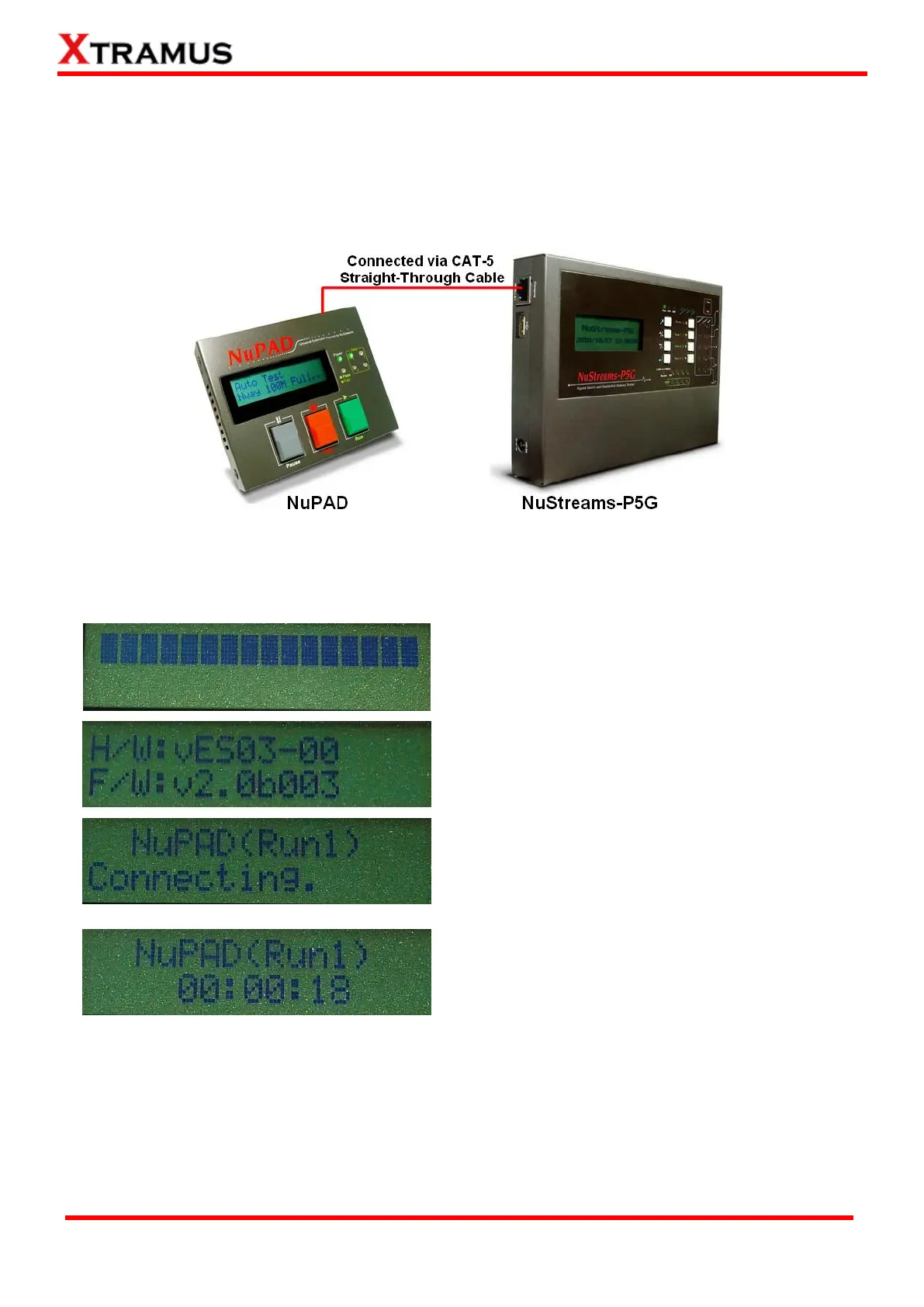
6.2. Connecting NuPAD with NuSTreams-P5G/NuStreams-P9A
Before using NuPAD as NuStreams-P5G/P9A’s assistant extension keypad, you have to connect
NuPAD’s Connection Port with NuStreams-P5G/P9A’s Console Port with a CAT-5 straight-through
cable first. The figure down below is an installation example of connecting NuStreams-P5G and
NuPAD.
After connecting NuStreams-P5G/P9A with CAT-5 straight-through cable, NuPAD will start
establishing connection with NuStreams-P5G/P9A, and its LCD will display system status as shown
down below.
2. Showing NuPAD’s hardware and firmware version.
3. NuPAD is starting connecting with
NuStreams-P5G/P9A. During this process, NuPAD’s
buzzer will be beeping.
4. Connection established, and NuPAD’s buzzer stops
beeping. If NuPAD’s buzzer keeps beeping and the
connection between NuStreams-P5G/P9A and
NuPAD can’t be established, please power off both
NuStreams-P5G/P9A and NuPAD, power them on,
and try again.
Please note that NuStreams-P5G/P9A cannot be connected to your PC and its LCD should be on the
Main Display menu when connecting NuStreams-P5G/P9A with NuPAD for controlling DUT tests.



 To Next Page