E-mail: sales@xtramus.com
Website: www.Xtramus.com
5.3.3. NuSet-MiniPG-Config Function – Quick Launch Buttons
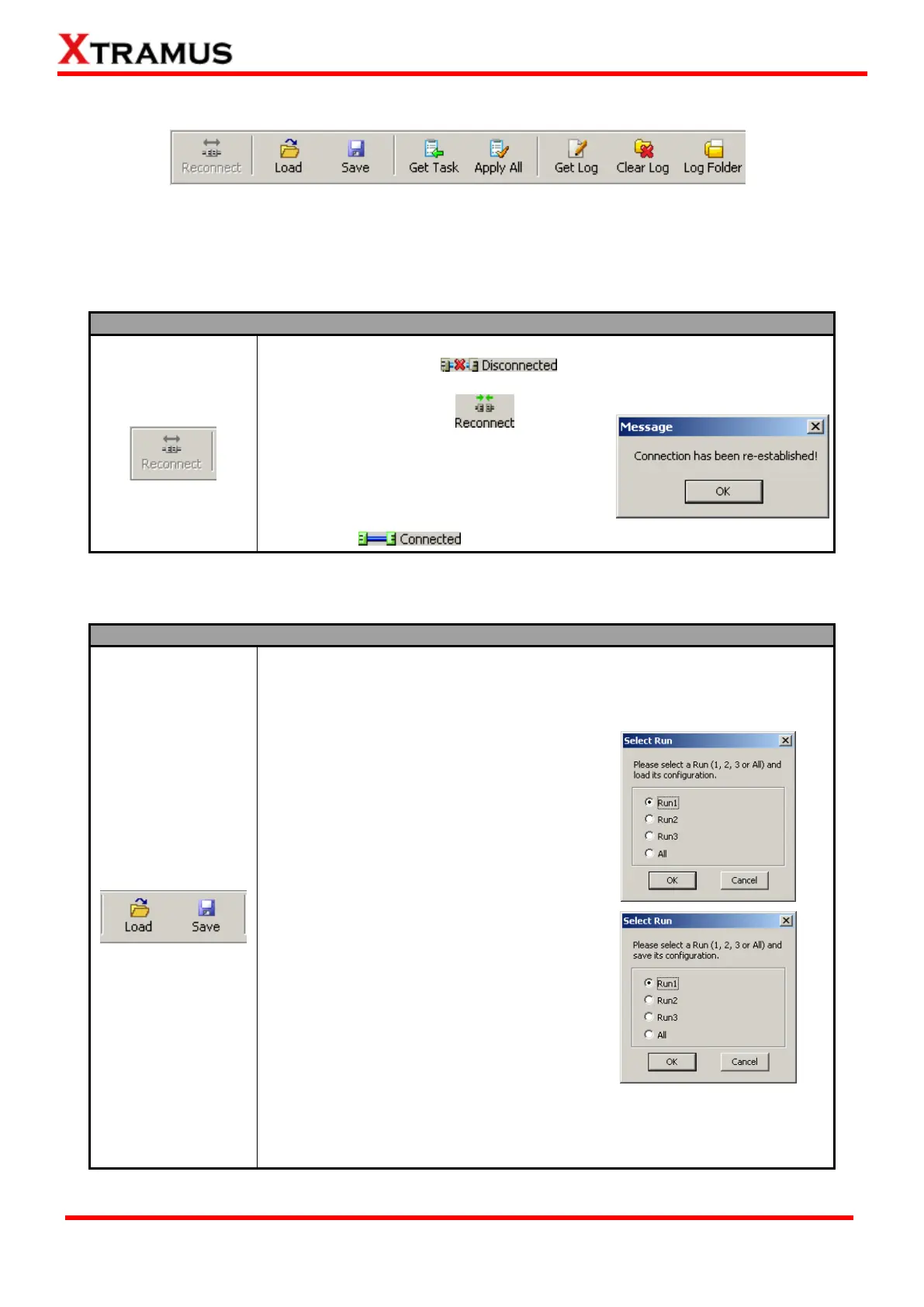
These Quick Launch Buttons allow you to reconnect NuStreams-P5G or NuStreams-P9A, access test
setting files from your PC or NuStreams-P5G/P9A, or managing test log files.
5.3.3.1. Quick Launch Buttons – Reconnect
If the USB connection between your PC and NuStreams-P5G/P9A is down,
a “Disconnected” icon will be shown in “USB Connection
Status”.
Press Reconnect button to
re-establish the connection between your PC
and NuStreams-P5G/P9A. If the connection
has been established successfully, a message
window will pop up, and the “USB
Connection Status” will be shown as
“Connected” .
5.3.3.2. Quick Launch Buttons – Load & Save
The Load and Save buttons allow you to load or save test settings from/to
your PC, identical to “Load Config. Profile From Existing Files” and “Save
Configuration” functions available in the Menu Bar mentioned in 5.3.1.1.
Menu Bar – File.
To load test setting files stored in your PC,
click “Load” button, select which Run (or
All 3 Runs) to apply the settings, and
choose the path which the test setting file
are located.
To save test setting on your PC, click
“Save” button, select which Run (or All 3
Runs) to save, and choose where you
would like to save the test settings.
Test setting files for each Run (Run 1~3) are named in the format of
“*.run”, while test setting files for all runs are named in the format of
“*.all”.



 To Next Page