5.4.2. NuSet-MiniPG-UG Function – Menu Bar
5.4.2.1. Menu Bar – File
5.4.2.2. Menu Bar – Upgrade
Before upgrading NuStreams-P5G or NuStreams-P9A’s firmware/FPGA, please
be sure that NuStreams–P5G/P9A and your PC are connected via mini-USB
cable all the time.
The following demonstrations will show you how to upgrade NuStreams-P5G’s
firmware. Processes for upgrading NuStreams-P5G’s FPGA and
NuStreams-P9A’s firmware/FPGA are quite the same and can be related.
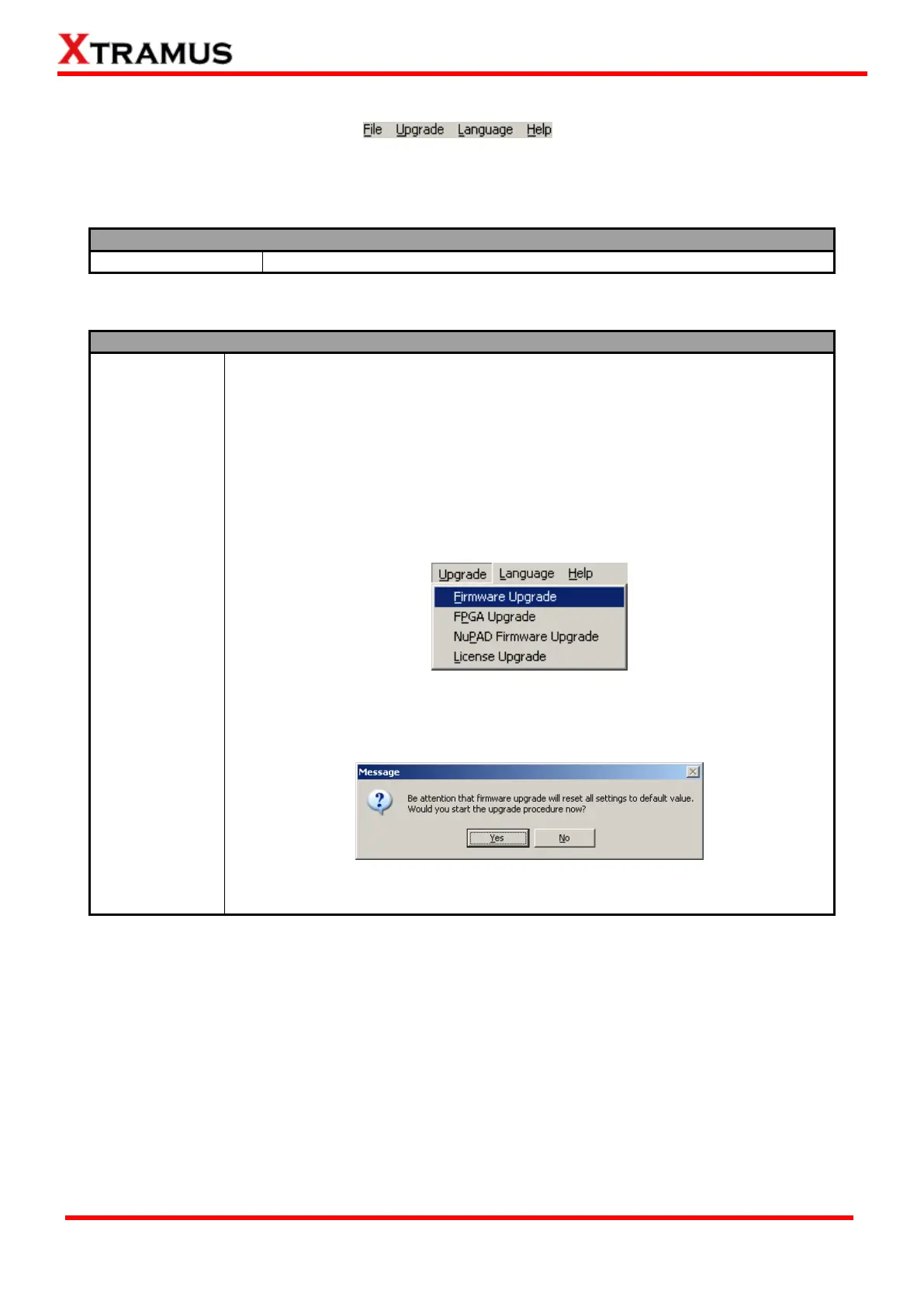
1. To start upgrading NuStreams-P5G’s firmware, click Upgrade → Firmware
Upgrade on NuSet-MiniPG-UG’s Menu Bar as shown in the figure down below.
2. A message window will pop up, reminding you that all NuStreams-P5G’s
settings will be reset to default after firmware upgrading. Please click Yes to
continue. Please note that all test logs stored in NuStreams-P5G will be erased
as well.
3. Select where NuStreams-P5G’s firmware file (in the format of “*.bin”) is stored
in your PC, then click “Open”.



 To Next Page