E-mail: sales@xtramus.com
Website: www.Xtramus.com
5.3.3.3. Quick Launch Buttons – Get Task/Apply All
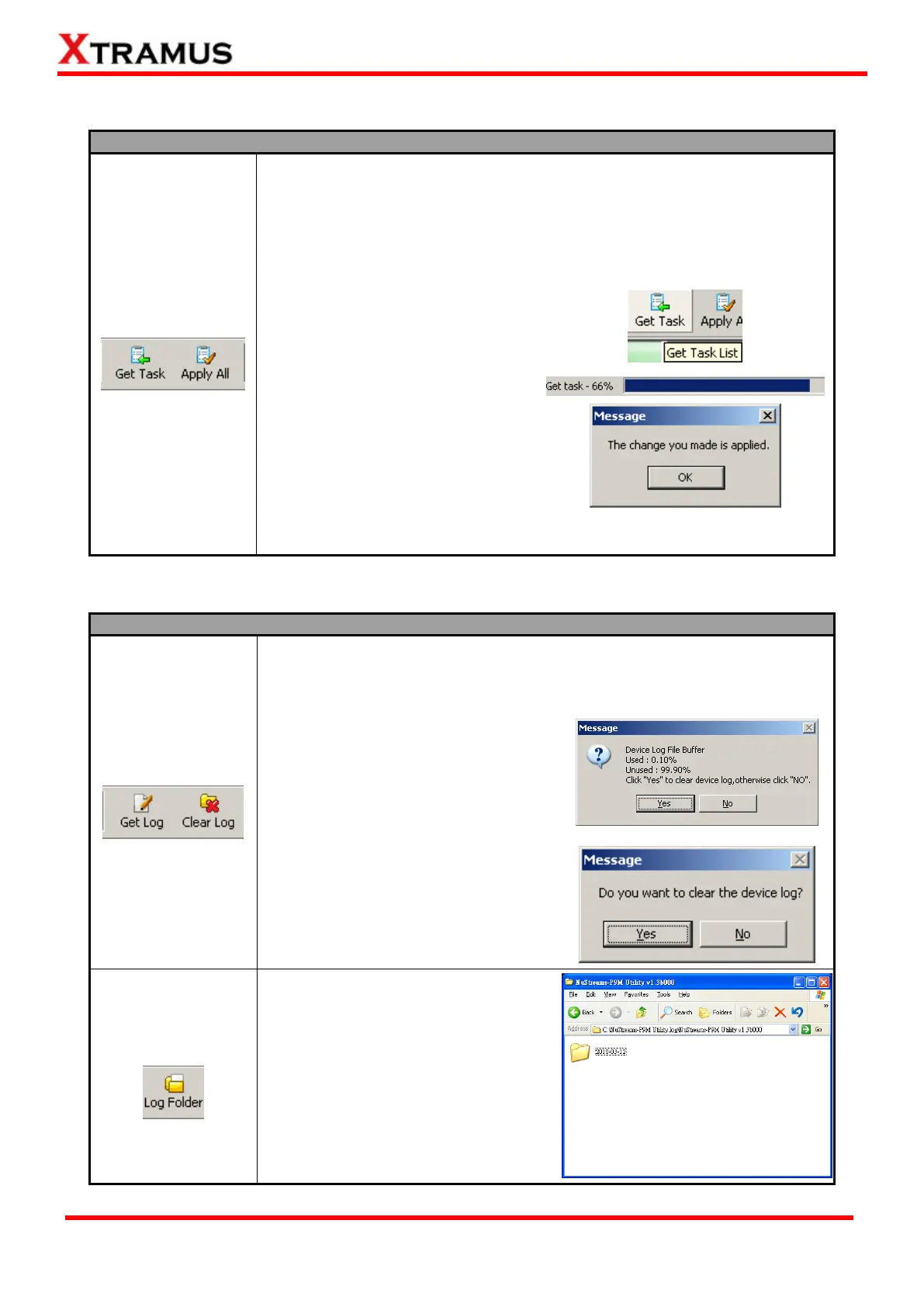
By clicking Get Task button, you can load test settings from
NuStreams-P5G, display all settings in Info/Run Select List and Main
Display Window.
On the other hand, Apply All button allows you to apply all the changes
you’ve made to all Runs and save these settings to your
NuStreams-P5G/P9A.
To load test settings from
NuStreams- P5G/P9A, click “Get
Task” button. Settings will be
displayed in Info/Run Select List
and Main Display Window.
To apply all the changes you’ve
made with the utility software and
save these settings to
NuStreams-P5G/P9A, click “Apply
All”.
Please note that the USB cable connection between PC and NuStreams-
P5G/P9A must be connected at all time while getting/setting tasks.
5.3.3.4. Quick Launch Buttons – Get Log/Clear Log/Log Folder
Get Log/Clear Log/Log Folder
Get Log and Clear Log buttons allow you to obtain test logs from
NuStreams-P5G/P9A or clear all test logs stored in NuStreams-P5G/P9A,
just like the “Get Device Log” and “Clear Device Log” on the Menu Bar.
To get all test logs from NuStreams-
P5G/P9A, click “Get Log” button. A
window with NuStreams-P5G/P9A log
memory space and log folder screen
will pop up. Click Yes to clear all test
logs in NuStreams-P5G/P9A, or click
No to leave these test logs be.
To clear all test logs stored in
NuStreams -P5G or NuStreams-P9A’s
log memory, click “Clear Log” button,
and click Yes.
Click “Log Folder” button to open the
folder where all test logs are stored on
your PC. All log folders are named with
the test date, and all logs are named
with the test date and time.



 To Next Page