E-mail: sales@xtramus.com
Website: www.Xtramus.com
5.3.2. NuSet-MiniPG-Config Function – Menu Bar
The Menu Bar includes configuration options such as File, Task, Log, Service, Language, and Help.
5.3.2.1. Menu Bar – File
Load Default
Config. Profile
The system will load the default test settings for Run 1~3. All test parameters in
Run 1~3 will be set to default value. However, loading test settings won’t be saved
to NuStreams-P5G until applied.
Load Config.
Profile From
You can choose to load test settings either from Existing Files, or Pre-defined
Files for Network Products.
Existing Files: NuSet-MiniPG-Config will load test settings which you saved
previously.
Pre-defined Files for Network Products: NuSet-MiniPG-Config will load
test setting samples for network products pre-defined by Xtramus. All these
test settings are stored in “Default Config Profile” folder located under
NuSet-MiniPG-Config’s installation folder. These test settings are named by
the format of A_B_C_D_E_F, which means:
A: Name of the testing device. In here
B: Type of the DUT (Chip or Model)
C: Name of the Manufacturer
D: DUT Model Name
E: DUT Version
F: Testing WAN type.
Please note that loading test settings won’t be saved to NuStreams-P5G or
NuStreams-P9A until applied.
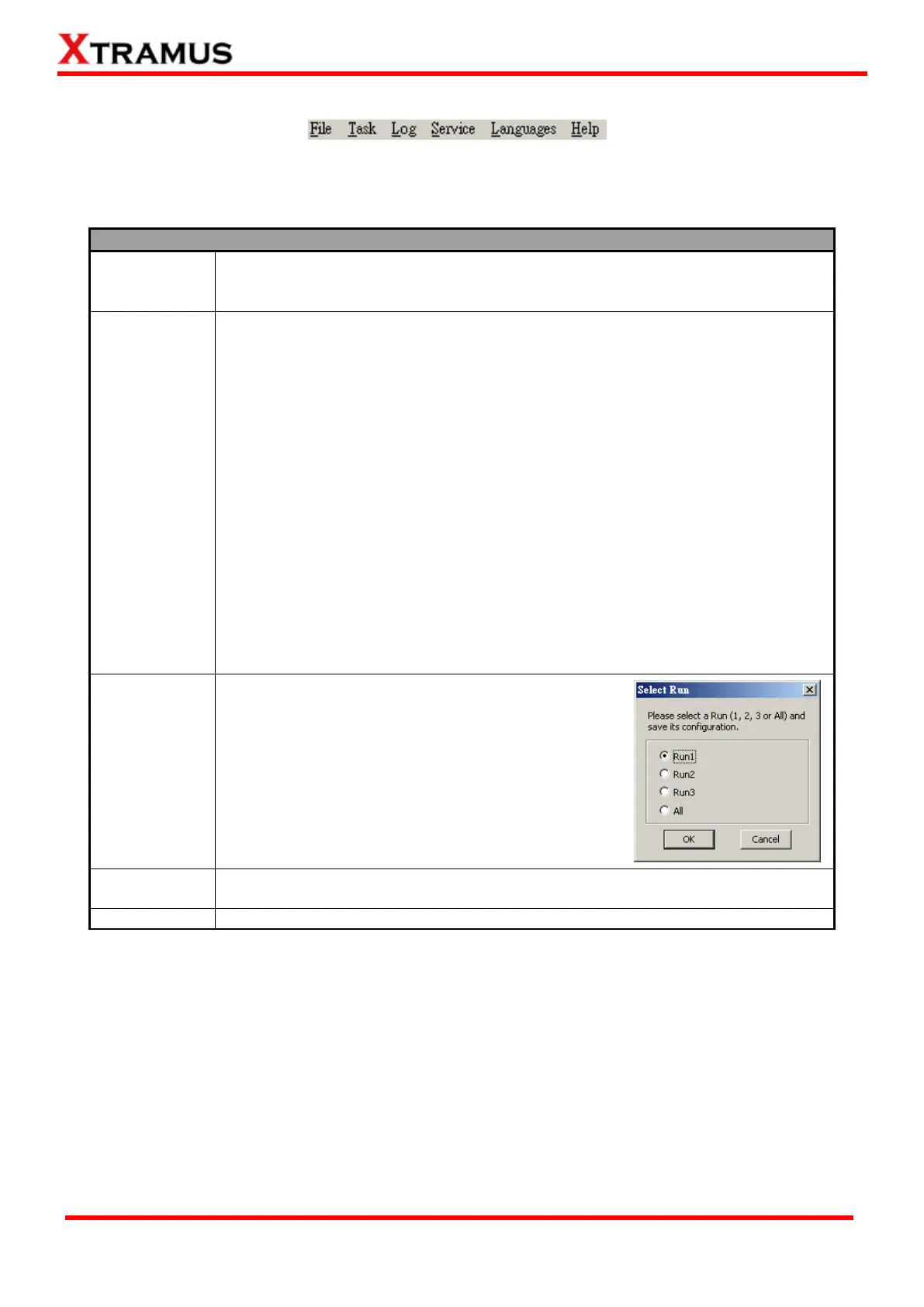
You can save all parameter changes through Run
1~3 you made to your PC. If you haven’t saved the
changes previously, a Select Run window will pop up
and ask you which test setting (Run) you would like
to save.
The “Save As…” function is similar to the “Save Configuration”. The only
difference is that you can save test settings (Run) with different file names.
Exit NuSet-MiniPG-Config.



 To Next Page