E-mail: sales@xtramus.com
Website: www.Xtramus.com
5.3.2.2. Menu Bar – Task
This function allows NuSet-MiniPG-Config to access all test settings (Run) from
NuStreams-P5G or NuStreams-P9A and show those settings in both Info/Run
Select List and Main Display Window.
As mentioned in sections above, each Run can hold up to 4 different Tasks. You
can add new Tasks to each Run with this function. To add a new Task, click the
Run you would like to add the new Task to from Info/Run Select List, then click
Task → Add Task on the Menu Bar.
You can delete an existing Task with this function. To delete an existing task,
click the Task you would like to delete from Info/Run Select List, and click Task
→ Delete Task on the Menu Bar.
Apply and save all changes you’ve made to NuStreams-P5G or
NuStreams-P9A.
*Please note that the connection (of mini-USB cable) between PC and NuStreams- P5G must be connected at
all time while getting/setting tasks.
5.3.2.3. Menu Bar – Log
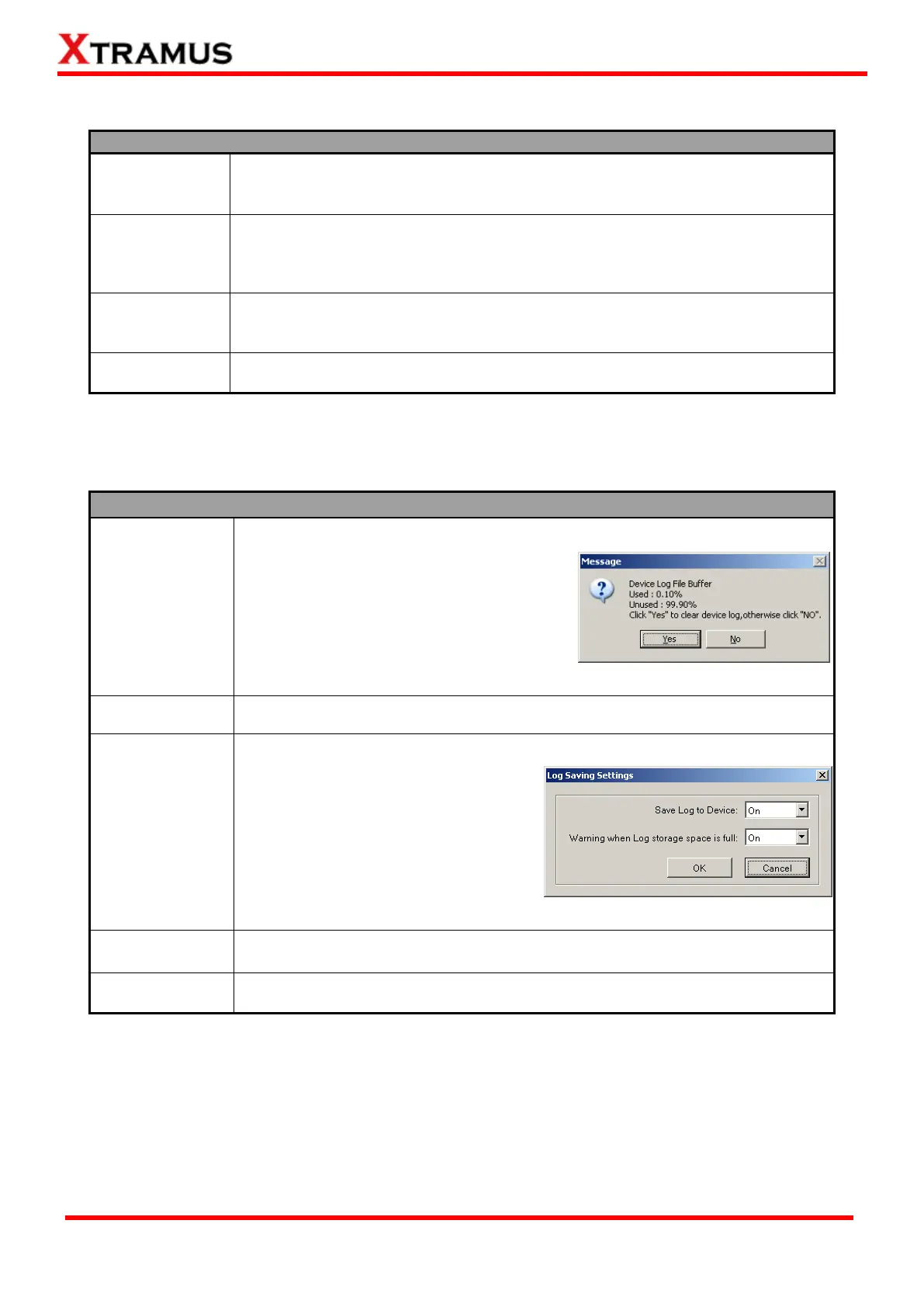
Accessing test logs from NuStreams-P5G or
NuStreams-P9A’s memory and save these
logs to a specific folder on your PC. After
retrieving test logs from NuStreams-P5G or
NuStreams-P9A, the log folder will pop up.
Also, a message window contains detail
information about system log file memory
buffer will pop up. Click YES if you want to
clear all stored logs or click NO to cancel.
Clear all test logs stored in NuStreams-P5G or NuStreams-P9A’s memory.
Log saving settings can be configured
here:
Save Log to Device: If this
function is ON, all test logs will
besaved in its log file memory
buffer.
Warning when Log storage
space is full: System will issue a
warning if the log file memory buffer
is about to full.
Show the file folder where test logs are stored.
Change where you would like to save test logs retrieved from NuStreams-P5G
or NuStreams-P9A. You can create new folders for log-saving as well.



 To Next Page