E-mail: sales@xtramus.com
Website: www.Xtramus.com
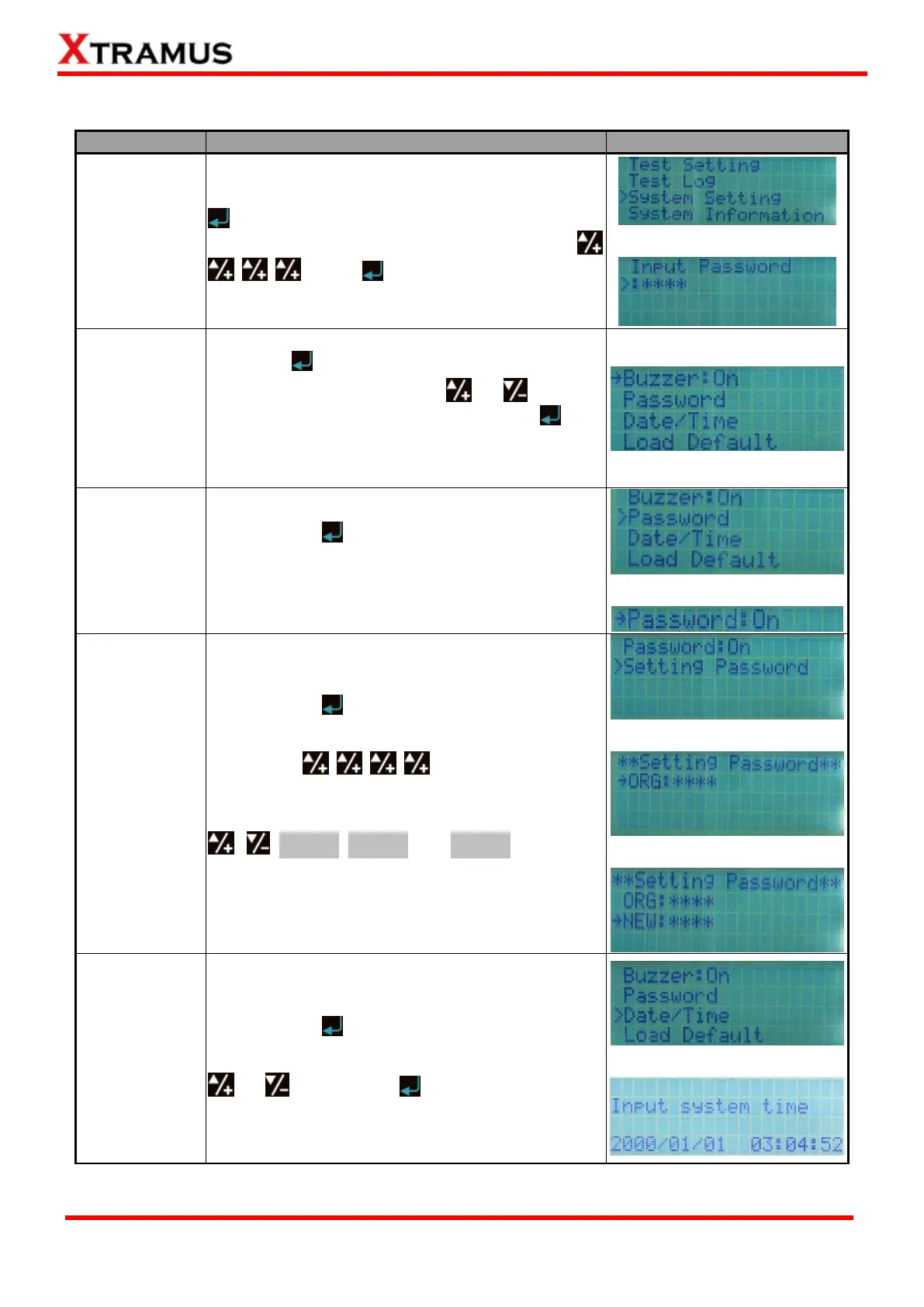
4.2.6. NuStreams-P9A Front Panel Functions – System Setting
Entering
System Setting
Menu
Move the cursor > to “System Setting”, and press
button. NuStreeams-P9A will prompt you to input
the system password. The default password is
. Press button after inputting the
password to enter the test setting menu.
Choose “Buzzer” from “System Setting” menu list,
and press button. The select cursor “>” will be
changed to “→” icon. Pressing or buttons
to set Buzzer function On or Off, and press
button to apply the changes. System will make a
buzz sound whenever you press a button if this
function is ON.
Choose “Password” from “System Setting” menu
list, and press button.
You can set the Password function On/Off by
selecting Password: On/Off. Using ▲/+ or ▼/-
buttons to set Password function On or Off.
Choose “Password” from “System Setting” menu
list, and press button.
You can change system password (Default
Password: ) under Setting
Password menu.
Password is a set of 4-button combination using
, , ►Run1, ►Run2, and ►Run3 buttons.
Please input your old password under “ORG: “, and
input your new password under “New: “.
Choose “Date/Time” from “System Setting” menu
list, and press button.
You can adjust system date and time by pressing
or buttons, and button to apply the
changes you’ve made.



 To Next Page