IP Address Retrieval
To retrieve the device IP address, take the following steps:
• Use the freely accessible 2N Network Scanner.
• Display information on the device display.
• Use hardware (RESET button).
IP Address Retrieval Using 2N Network Scanner
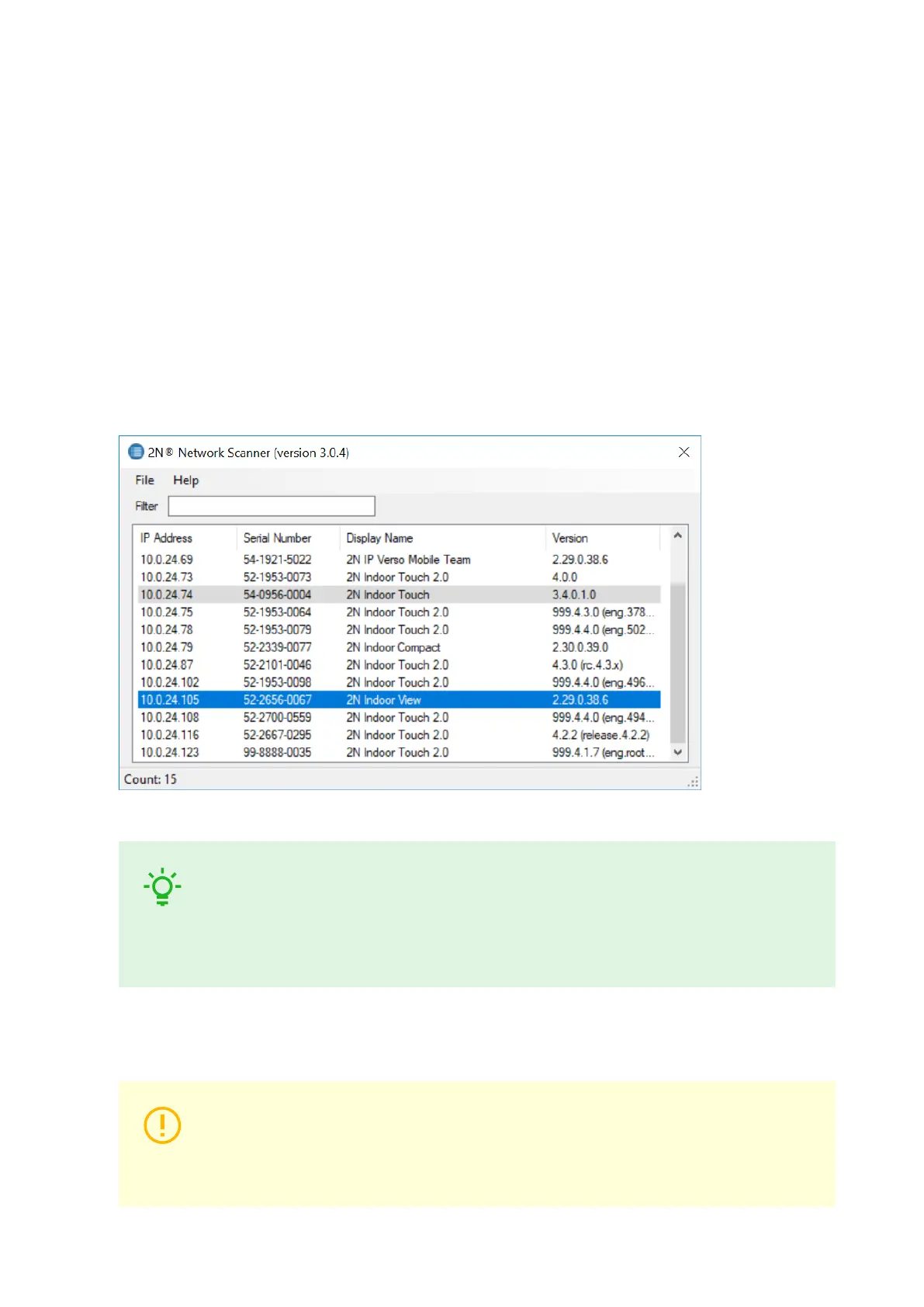
The application helps you find the IP addresses of all the 2N devices in the LAN. Download
2N Network Scanner from the 2N.com website. Make sure that Microsoft .NET Framework 2.0 is installed for
successful app installation.
1. Run the 2N Network Scanner installer.
2. The Installation Wizard will help you with the installation.
3. Having installed 2N Network Scanner, start the application using the Microsoft Windows Start menu.
Once started, the application begins to automatically search the LAN for all the 2N devices which have
been DHCP/statically assigned IP addresses. These devices are then shown in a table.
4. Select the device to be configured and right-click it. SelectBrowse... to open the device administration
web interface login box for configuration.
TIP
• Double click the selected row in the 2N Network Scanner list to access the device
web interface easily.
• To change the device IP address, select Config and enter the required static IP
address or activate DHCP.
The default login data are:
Username: Admin
Password: 2n
It is necessary to change the password immediately upon the first login.
CAUTION
If the found device is grey highlighted, its IP address cannot be configured using this
application. In that case, click Refresh to find the device again and check whether
multicast is enabled in your network.
Brief Guidelines
21



 To Next Page