The 3DGence INDUSTRY F340 printer is equipped with two extruders and two printing heads. It makes possible to use two
materials in a single printed model. This solution allows for:
• printing two-colored models,
• printing functional models combining the features of two specic materials in a desired way,
• printing geometrically complex models requiring soluble support structures.
With a wide range of target temperatures, the 3DGence INDUSTRY F340 printer allows for using a wide range of plas-
tics available in a vast palette of colors. Our Certied Material Base has been developed for the INDUSTRY printer and is
available at www.3dgence.com. The base includes a list of all materials supported by the Smart Material Manager (SMM)
system together with typical applications for those materials.
3DGence company recommends using the materials from the Certied Material Base. The materials are supported by the
SMM system making it possible to obtain the most accurate printing performance, automatic material type detection,
and as a result, a top print quality. For more information on SMM system please refer to section 4 Operating the device.
The 3DGence company does not restrict the use of uncertied materials, this however makes it impossible to use the
SMM system.
3DGence takes no responsibility for the quality of prints performed using off-the Base materials, does not take any respon-
sibility for damage caused by utilizing those materials, and provides no support for the quality of prints performed using
laments not listed on the Certied Material Base.
3. WARNING SIGNS
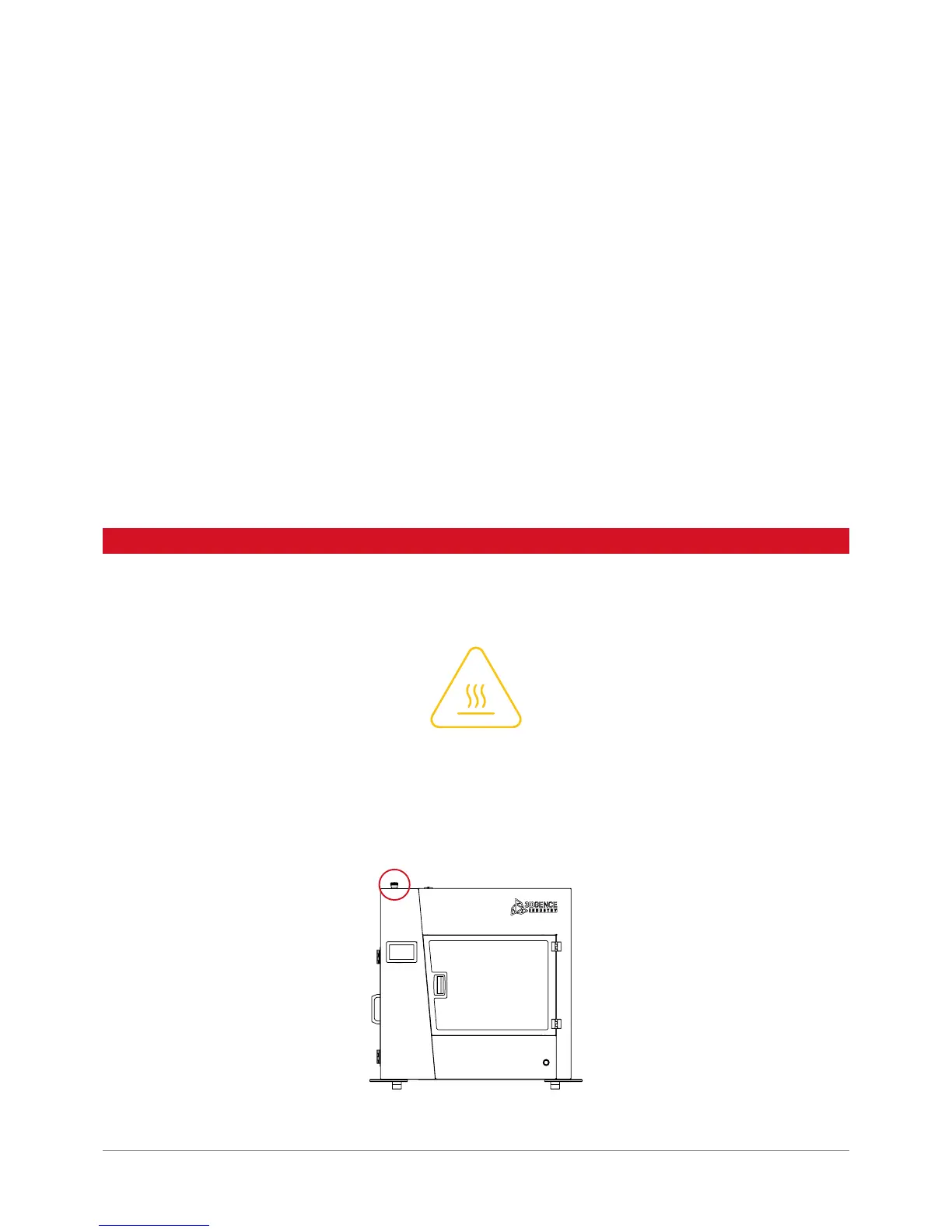
The 3DGence INDUSTRY F340 printer has a number of hazard warning signs. The following sign informs about high tem-
perature utilized in a specic location:
Caution should be exercised when working in zones marked with this sign and it is necessary to wear protective gloves.
Failure to observe the safety rules can result in serious burns.
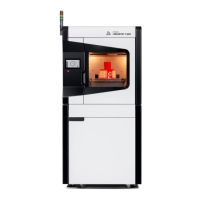
The INDUSTRY printer is tted with an emergency stop button used to immediately stop its operation. It is red and located
on the top of device housing (g. 2):
Fig. 2. Emergency button location as seen from the front.


 To Next Page