58 | 3DGence INDUSTRY F340
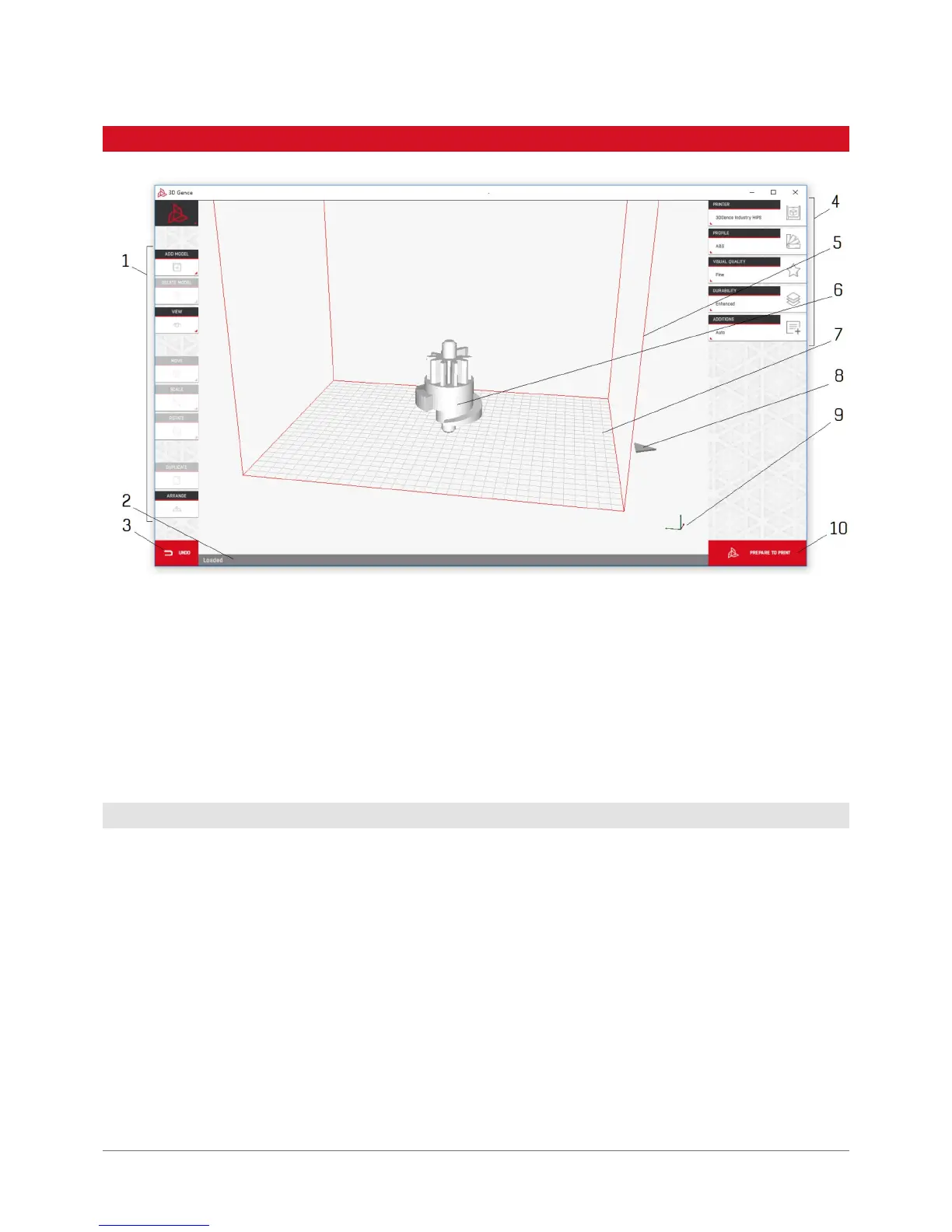
1. Model control buttons.
2. Status bar.
3. Undo last action function.
4. Print prole selection buttons.
5. Virtual workspace of the machine.
6. Loaded model.
7. Virtual buildplate of the machine.
8. Arrow indicating the physical front of the machine.
9. Printer axis preview.
10. Print preparation/le saving button.
The buttons that are not active at a given time (e.g. as you have not selected any model) are greyed out.
Add Model: enables to locate and import a le in .stl format to the software. You can select several les to be imported
simultaneously. You can also use the function of dragging .stl les onto the main software window. The models can be
removed from the workspace by left-clicking them and using „Delete Model” button or pressing Delete or Backspace on
the keyboard.
Delete Model: deletes a currently selected model.
View: camera settings can be changed.
4.1 Model control buttons
4. MAIN SOFTWARE INTERFACE


 To Next Page