Text elds marked X, Y and X enable the user to rotate the model 45 degrees (using the buttons) in set axis or any value
when you enter the desired value in the text elds.
The „Reset” button restores the initial rotation values used when loading .stl le.
Duplicate: Clones the selected model and places it beside the original. To multiply the model, click the button a desired
number of times. After you have copied your models, it is recommended to rearrange them automatically with the Arrange
button.
Arrange: Arranges the loaded les in the printer buildplate automatically to prevent them from intersecting. Arranges
object bases on the buildplate. The models will be placed at the buildplates corner by default.
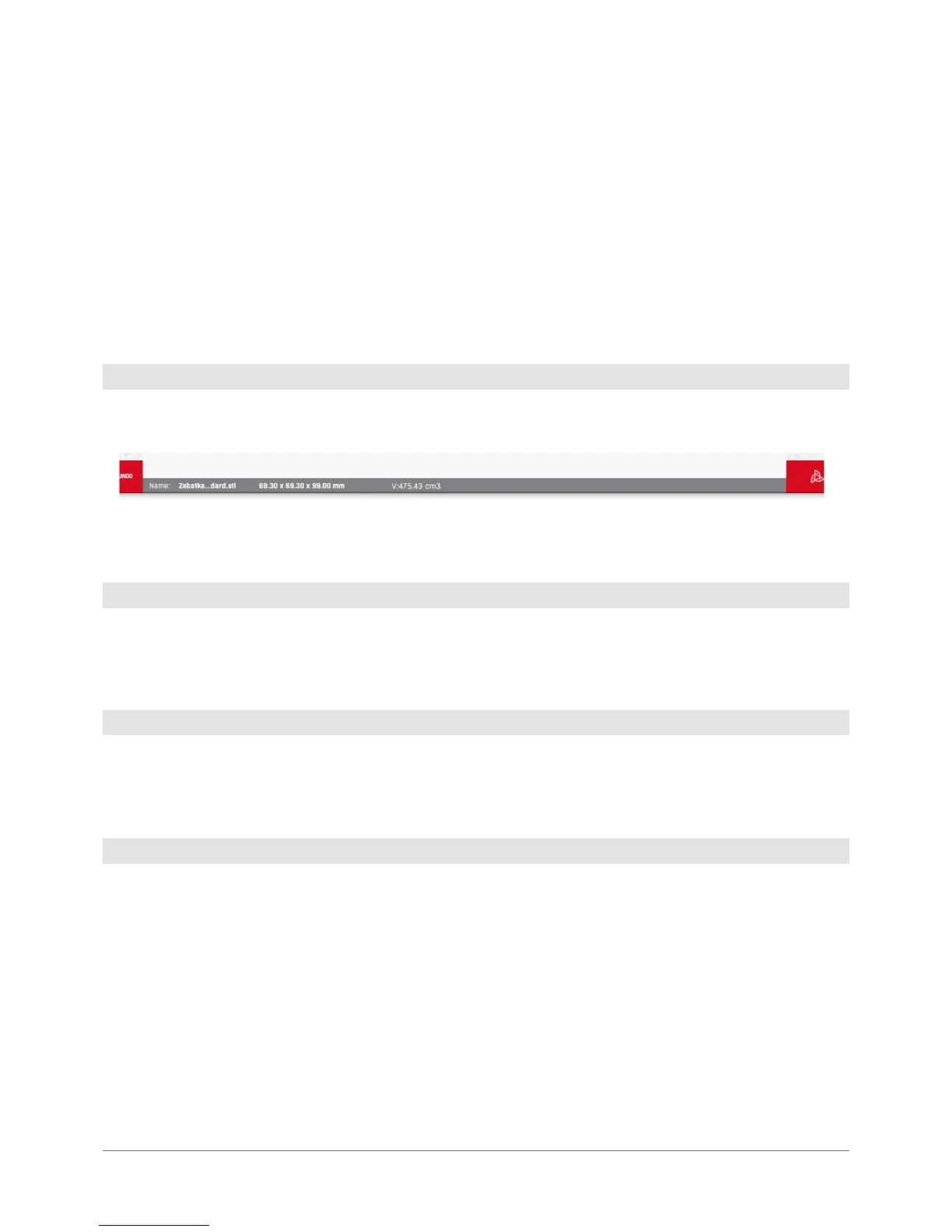
Here the model details (name, quantity, volume) and software status are displayed.
In the .gcode preview mode, the status bar changes the information displayed as described later in a relevant chapter.
Pressing this button undoes most recent operations related to the models. If no operations on the solids were carried out
after the model was loaded, pressing the button will remove the .stl model loaded most recently. In the .gcode preview
mode, the button enables to return to the main software interface.
This is a graphic representation of the machine workspace. Printing outside the workspace is not possible, the software
will not allow to print the models which extend beyond that space even partially. The models not situated in the work-
space are highlighted red. The area changes dynamically in accordance to the printer you have selected.
The buttons enables selection of the machine and print its appropriate settings.
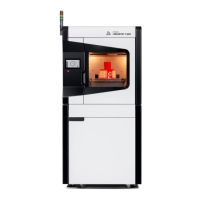
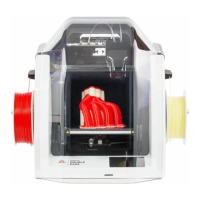
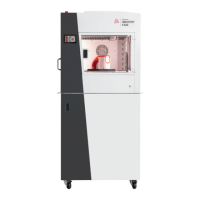
Printer: here you can select the printer that you would like to print the model on.
4.2 Status bar
4.3 Undo button
4.4 Virtual workspace of the machine
4.5 Print prole selection buttons


 To Next Page