Pannoramic SCAN II 2.2.0 User’s Guide 5.1.2 Microscope Control Panel
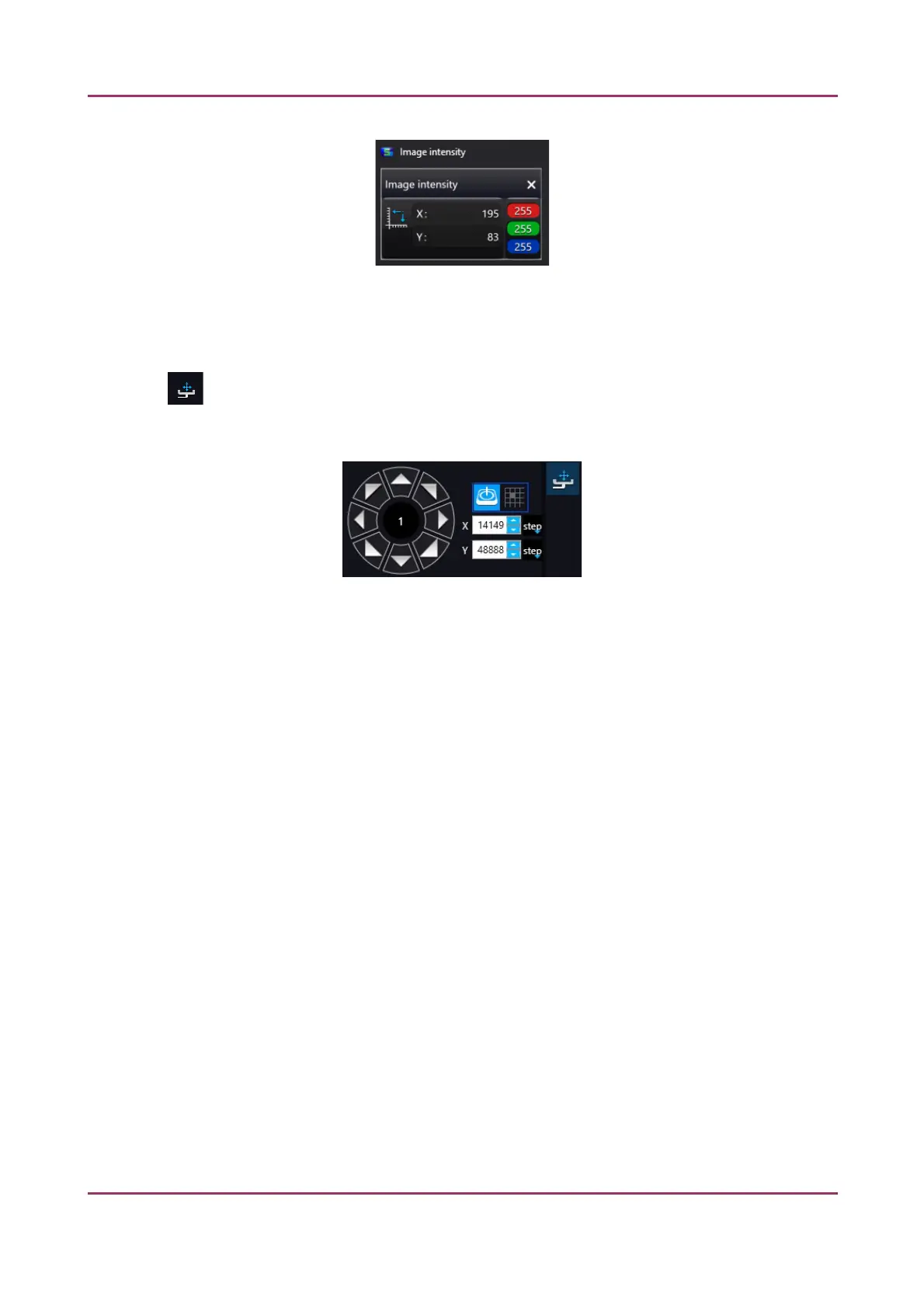
Figure 35 – Window of Image Intensity
5.1.2.5 Stage positioning
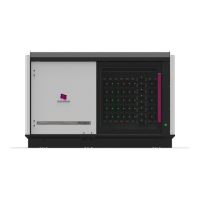
Click to activate Stage Positioning Tool to navigate on the slide, so to perform microscope
movements on the Live image with this control function. The number at the center of the controller
defines the step size by which the stage is moved. Value can be entered by hand or with the slider.
Figure 36 – Stage positioning tool
This tool offers easy and punctual slide navigation in distinctive steps. Set step size (FoV) – 1, ½, or ¼
to determine the size of movement in proportion of one FOV. Click an arrow to move to the required
direction with the set step size.
5.1.3 Quick preview functions
Use Ctrl+mouse wheel to zoom in or out to the preview area or the Live image.
A quick preview function toolset pops up by right-clicking to the preview area. It allows a quick access
to main preview-related functions:
• Drag
• Draw
• Erase
• Retake preview
• Settings
◦ Toggle deletion always on top
◦ Reset zoom
◦ Window auto-size
◦ Clean scanmap
January 24, 2020 - Rev. 2 3DHISTECH Ltd. 72(156)



 To Next Page